 English
  Español
  Français
  Deutsch
  Português
  Italiano
  Русский
  中文(简体)
  日本語
日本語  한국어
한국어  العربية
  हिन्दी
  Nederlands
  Türkçe
  Polski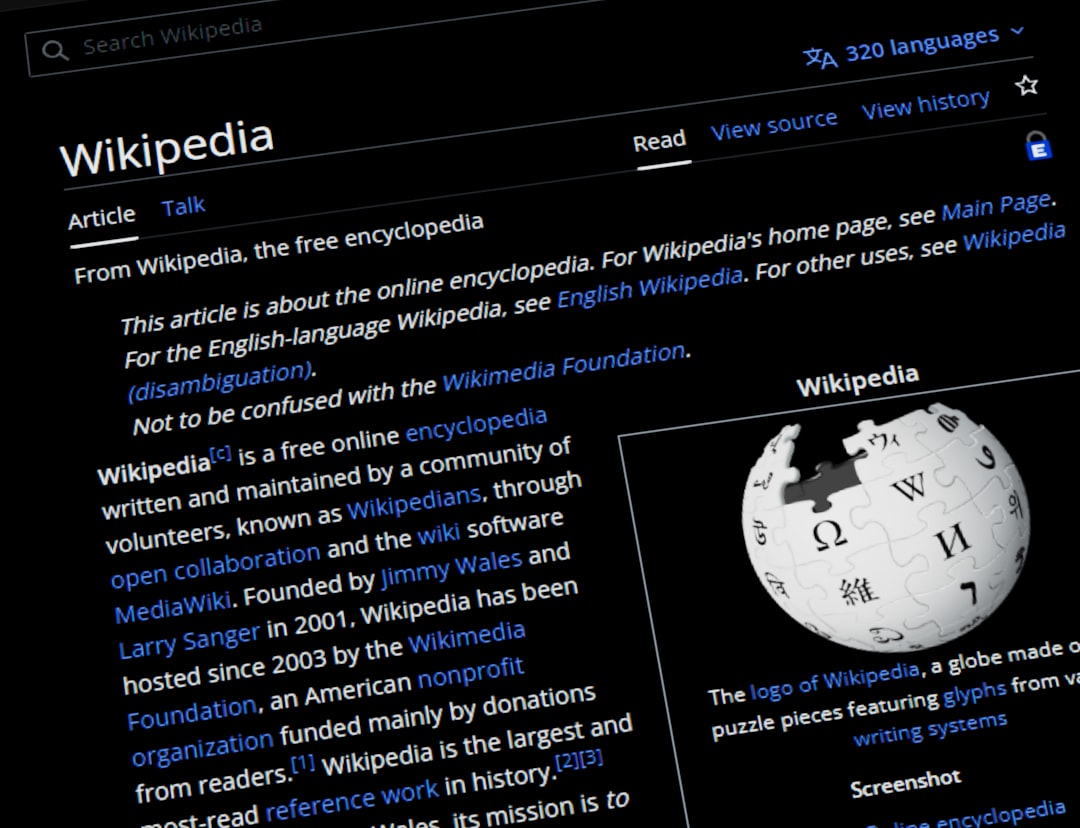
In our interconnected digital world, the language barrier is often just a click away. You might be researching for an academic paper, shopping on an international store, reading global news, or simply trying to understand a recipe. Suddenly, you’re faced with a webpage in a language you don’t understand. The frustration is real, but the solution is at your fingertips—especially if you’re using Google Chrome, the world’s most popular browser.
Translating a website directly within your browser isn’t just a convenience; it’s a gateway to a vast amount of information, services, and perspectives that would otherwise be inaccessible. This comprehensive guide will walk you through every method available to translate websites in Chrome, from the simple built-in feature to more advanced, AI-powered solutions that offer nuance and context. Whether you’re a casual user or a professional requiring accurate translations, you’ll find the right tool for the job.
The Built-in Power: Google Chrome’s Native Translator
The quickest and most straightforward way to translate a page in Chrome is to use its integrated Google Translate feature. This tool has been a core part of Chrome for years and works automatically in the background.
When you navigate to a page in a language different from your browser’s default settings, Chrome will typically detect it and show a translation prompt in the address bar. A small icon appears, and a banner may pop up asking, “Translate this page?” You can click “Translate” to instantly see the page in your preferred language. If the prompt doesn’t appear, you can manually trigger it by right-clicking anywhere on the page and selecting “Translate to [Your Language]” from the context menu, or by clicking the translate icon in the address bar.
This native feature is fantastic for on-the-fly, gist-level understanding. It’s seamless, requires no extra downloads, and is completely free. However, it’s important to understand its limitations. The translation is handled by Google’s standard neural machine translation, which, while impressive, can sometimes struggle with complex sentences, cultural idioms, or specialized jargon. The formatting of the translated page can occasionally break, and you have limited control over the process.

Taking Control: Chrome’s Translation Settings & Troubleshooting
What if the translation doesn’t work, or you want to customize the behavior? Chrome offers a settings panel specifically for translation. To access it, click the three dots in the top-right corner, go to Settings > Languages. Here, you can manage your preferred languages and fine-tune the translation feature.
A key setting is “Offer to translate pages that aren’t in a language you read.” Ensure this is toggled on. Below that, you can add or remove languages from the list of those Chrome will automatically offer to translate. This is useful if you are bilingual and don’t want prompts for a specific language.
Common Troubleshooting Steps:
- The prompt isn’t appearing: First, check the settings mentioned above. Clear your browser cache and cookies, as corrupted data can sometimes interfere. Disable any other translation extensions temporarily, as they can conflict.
- Translating to/from a rare language: Chrome’s support is extensive but not universal. If a language pair isn’t supported, the option may not appear.
- The translation seems broken: Refresh the page. If the layout is distorted, it’s often a result of how the translated text interacts with the site’s CSS. There’s little to be done here except to use a different translation method.
For most everyday purposes, the built-in tool is sufficient. But when you need more reliability, consistency, or nuanced understanding, it’s time to look beyond the basics.
Beyond the Basics: Specialized Chrome Translation Extensions
This is where the Chrome Web Store shines. Extensions can supercharge your translation capabilities, offering features that the native tool lacks. When choosing an extension, consider what you need: speed, accuracy, specific language pairs, or integration with other tools.
Some popular types of translation extensions include:
- Hover-Translators: These allow you to translate just the word or phrase you hover your mouse over. This is perfect for learning a language or when you only need to understand a few key terms on an otherwise comprehensible page.
- Dual-Language Translators: These display the original text and the translation side-by-side, which is invaluable for comparative reading and language learning.
- AI-Powered Translators: A newer generation of tools, like Linguin, leverage advanced large language models (LLMs) to go beyond literal translation. For a full walkthrough of what the Linguin browser extension can do, see our Linguin Chrome extension guide. They aim to understand context, preserve tone (formal, casual, humorous), and handle idiomatic expressions more naturally. This results in translations that often sound more human and are better adapted to the specific content—be it a technical manual, a literary blog, or a social media thread.
Extensions also often provide persistent UI elements, allowing you to easily switch languages, translate selected text with a click, or even translate entire PDFs and embedded documents that Chrome’s native tool might miss.
Why AI-Powered Translation is a Game Changer
Machine translation has evolved from simple word-for-word substitution to statistical models, then to neural networks, and now to AI-driven models. The difference is profound. Traditional tools analyze sentence structure and vocabulary, but AI-powered translation seeks to understand meaning and intent.
Imagine translating a Japanese website that uses subtle levels of politeness, or a French culinary blog full of playful puns. A standard translator might give you a technically correct but tone-deaf result. An AI model, trained on vast datasets of nuanced language, is better equipped to recognize that a phrase is an idiom, that a sentence is sarcastic, or that a word has a specific technical meaning in a given context.
For professionals, researchers, or anyone for whom accurate tone and context are critical, this leap in quality is non-negotiable. It reduces the risk of embarrassing misunderstandings in professional communications and provides a reading experience that feels less like “translated text” and more like original content. This is the core philosophy behind tools like Linguin, which integrate this advanced AI capability directly into your browser workflow, aiming to make the web feel truly borderless without losing the soul of the original writing.
Step-by-Step: Translating Complex Web Elements
Websites aren’t just blocks of text. You might need to translate:
- Dynamic Content: Text that loads as you scroll (infinite scroll) or appears via pop-ups. Chrome’s native tool sometimes misses this. A good extension will re-scan the page or translate new content as it appears.
- Text in Images: This is a major hurdle. Neither Chrome nor most standard extensions can translate text embedded in an image (like a screenshot or a meme). You would need to use a separate OCR (Optical Character Recognition) tool, take a screenshot, and then translate the extracted text. Some cutting-edge AI tools are beginning to integrate this functionality.
- Video Subtitles/Closed Captions: For pre-recorded videos, if the subtitles are burned into the video (hardcoded), they cannot be translated by browser tools. If they are a separate text track (like on YouTube), the platform’s own subtitle translation feature must be used.
- Interactive Forms & Menus: Translating a navigation menu or a sign-up form is handy. Ensure your translation method works on hover-activated elements and form placeholder text.
For the most complex tasks, a multi-tool approach is best. Use the browser’s right-click translate for quick checks, a hover extension for word lookup, and a full-page AI translator for deep, accurate reading of primary content.
Best Practices for a Seamless Multilingual Browsing Experience
To make website translation a effortless part of your workflow, adopt these habits:
- Set Your Defaults: Configure Chrome’s language settings correctly from the start. Set your primary language and add any secondary languages you read proficiently to avoid unnecessary translation prompts.
- Layer Your Tools: Don’t rely on just one method. Keep Chrome’s native translator active for quick prompts, and install a robust extension like Linguin for when you need higher fidelity, context-aware translations for important content.
- Be Critical of Output: No machine translation is perfect. For critical information—legal documents, medical advice, important communications—always seek verification from a human professional. Use machine translation as a powerful aid to understanding, not an absolute authority.
- Mind Your Privacy: Understand what data translation services process. When you use Chrome’s native tool or most cloud-based extensions, the text is sent to a server for processing. Check the privacy policy of any extension you install. If you’re handling sensitive information, look for tools that emphasize on-device processing or robust data encryption.
- Contribute to Improvement: Many tools offer a “suggest a better translation” option. If you spot an error and know the correct translation, providing feedback helps improve the system for everyone.
The ability to instantly translate any website has transformed the Chrome browser from a simple window to the web into a true universal translator. By mastering the built-in tools and exploring the enhanced capabilities of AI-powered extensions, you can tear down language barriers with confidence. The entire internet, in all its diverse linguistic glory, becomes your resource, your marketplace, and your library. Happy (and understood) browsing