 English
  Español
  Français
  Deutsch
  Português
  Italiano
  Русский
  中文(简体)
  日本語
日本語  한국어
한국어  العربية
  हिन्दी
  Nederlands
  Türkçe
  Polski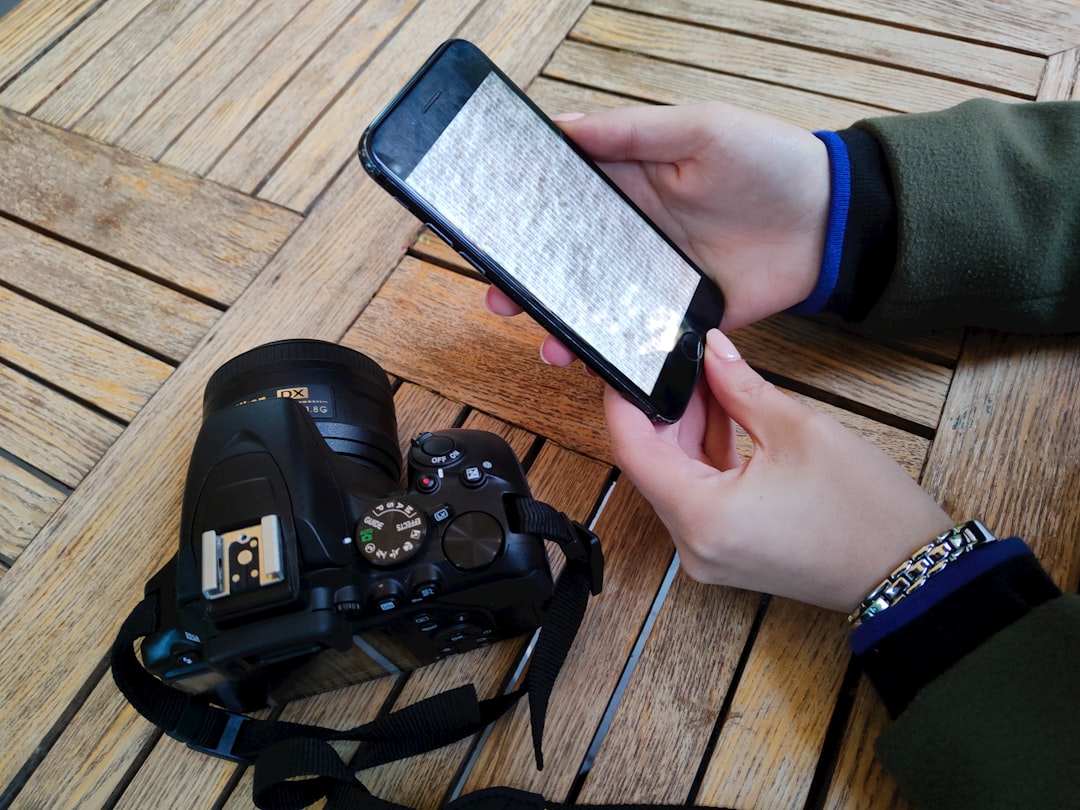
In our visually-driven digital world, text isn’t confined to documents and websites. It’s captured in screenshots of error messages, embedded in social media memes, hidden within product photos from foreign websites, and preserved in snapshots of historical plaques or restaurant menus while traveling. The ability to instantly understand text within an image is no longer a niche skill—it’s an essential part of modern digital literacy.
Whether you’re a researcher gathering data from foreign publications, a shopper on an international site, a student studying materials in another language, or simply a curious mind, translating image text unlocks a world of information. This guide will walk you through the most effective, seamless methods to extract and translate text from any image directly on your Apple devices and browser.
The Magic of OCR: How Image Translation Works
Before diving into the “how,” it’s helpful to understand the “what.” Translating text from an image is a two-step technological dance:
- Optical Character Recognition (OCR): This is the critical first step. OCR software analyzes the pixels in an image, identifies patterns that correspond to letters and numbers, and converts those visual patterns into actual machine-encoded text. Modern OCR, powered by machine learning, is remarkably adept at handling various fonts, backgrounds, and even some handwriting.
- Machine Translation (MT): Once the text is extracted as a string of characters, it’s fed into a translation engine (like Google Translate, DeepL, or others) which interprets the meaning in the source language and reconstructs it in your target language.
The magic of modern apps lies in combining these two processes into one fluid action. You point at text, and comprehension appears. This eliminates the tedious old workflow of saving an image, uploading it to a website, downloading the text, and then pasting it into a translator.

Native Methods: Built-in Tools on Apple Devices
You might be surprised to learn that powerful image translation tools are already built into the Apple ecosystem you use daily. Here’s how to leverage them.
On macOS (Ventura and later):
- Take a screenshot (
Cmd + Shift + 4) or have any image saved on your Mac. - Open the image in the Preview app.
- Select the text you want to translate with your cursor. Yes, you can often select text directly from an image in Preview. If the text isn’t immediately selectable, right-click on the image and look for a “Copy Text from Image” option.
- Once the text is highlighted, right-click and hover over the “Translate” option. A translation will appear in a small pop-up. You can also use the
Ctrl+Cmd+Tshortcut.
On iPhone and iPad (iOS/iPadOS 15 and later): This feature is even more seamless thanks to Live Text.
- Open your Camera app and point it at text, or open any image in your Photos app that contains text.
- Tap the Live Text icon (small lines of text in a box) that appears in the corner of the viewfinder or image.
- Drag the selection handles to cover the text you want to translate.
- Tap “Translate.” A full-screen translation will appear, and you can even listen to the pronunciation.
These native tools are fantastic for quick, one-off translations, especially when you’re dealing with clear, printed text. They’re deeply integrated and respect your privacy by processing much of the information on-device.
The Power of a Dedicated Translation App
While native tools are convenient, they can be limited. You might need to translate text from a specific region of your screen without taking a screenshot, translate text within a video, or maintain a history of your translations. This is where a dedicated, AI-powered translation app like Linguin shines.
Linguin is designed to make visual text translation a core, frictionless part of your workflow across all your devices. If you’re looking for broader strategies for translating any website content—not just images—our guide on how to translate websites instantly is a natural companion. Here’s what sets a specialized tool apart:
- Instant Screen Capture Translation: With Linguin for macOS, you can invoke a translation overlay with a global keyboard shortcut (like
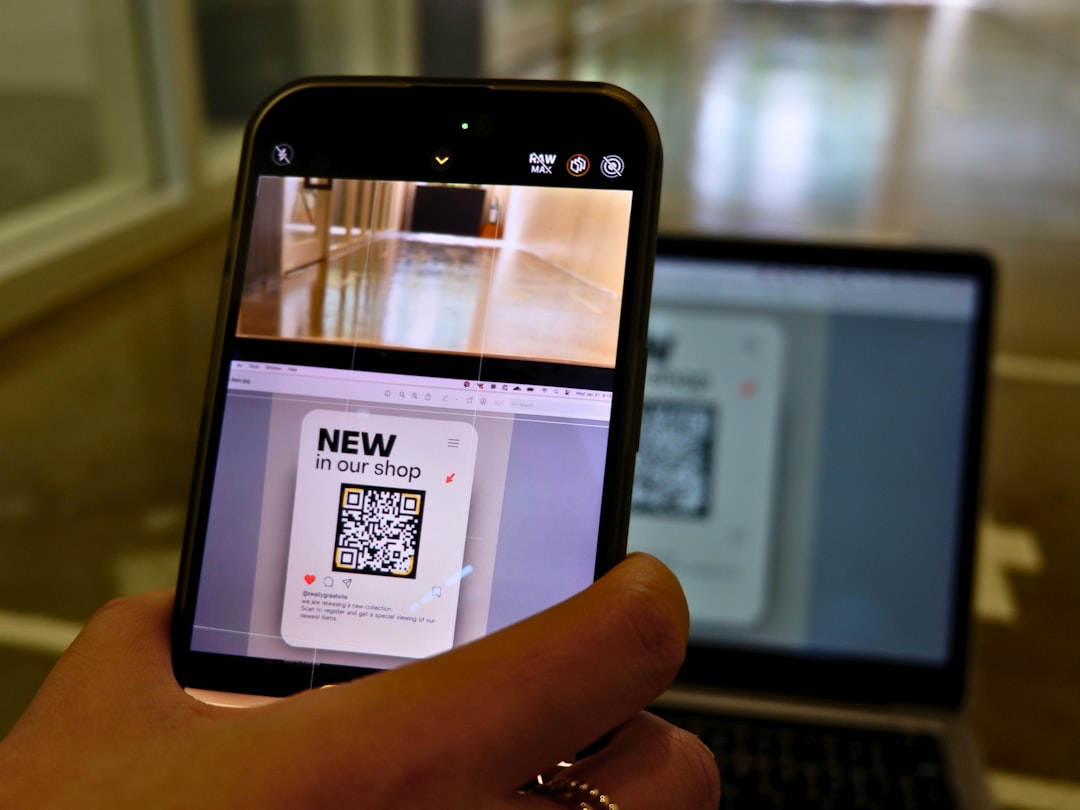
Option + T). Simply drag a selection box over any text on your screen—be it in a PDF, a video player, a design tool, or a game—and get an instant translation without ever leaving your current app. This is invaluable for real-time understanding. - Browser Extension Brilliance: The Linguin Chrome and Safari extensions take image translation to the next level on the web. Hover over an image containing text, and with a click, you can extract and translate its contents. This is perfect for translating product descriptions on international shopping sites, infographics, or embedded social media images without any right-click, save, or upload steps.
- Contextual Accuracy: Dedicated apps often go beyond word-for-word translation. They can use context to provide more accurate translations for idioms, technical terms, or ambiguous phrases.
- Workflow Integration: You can easily copy translated text, paste it into documents, or save translations for later reference, creating a smooth research and learning pipeline.
Using a tool built specifically for this purpose turns translation from a disruptive task into a natural extension of your browsing and computing experience.
Step-by-Step Guide: Translating Image Text with Linguin
Let’s walk through a practical scenario: you’re browsing a Japanese online store and want to understand the specifications in a product photo.
On your Mac:
- Ensure Linguin is running in your menu bar.
- Navigate to the webpage with the product image.
- Press your configured shortcut (e.g.,
Option + T). A translucent overlay will appear. - Click and drag your mouse to draw a rectangle around the text in the image.
- Release the mouse button. Within a second, Linguin will display the extracted original text and its translation in your chosen target language.
- Click the copy icon to use the translated text elsewhere.
Using the Linguin Browser Extension (Chrome/Safari):
- Install the Linguin Chrome extension from the Chrome Web Store or Safari Extensions gallery.
- When you encounter an image with text, simply hover your mouse over the image.
- A small Linguin icon will appear. Click it.
- The extension will automatically perform OCR and translation on the image text, presenting the results in a clean popover right on the page.
- You can toggle between the original and translated text, or copy the result with one click.
This process eliminates nearly all friction, letting you understand visual content as quickly as you read plain text.
Best Practices for Accurate Image Translation
To get the best results from any image translation tool, follow these tips:
- Image Quality is Key: Ensure the text in the image is as clear and high-contrast as possible. Blurry, pixelated, or poorly lit images will challenge even the best OCR engines.
- Mind the Font and Background: Highly stylized fonts or text placed over busy, patterned backgrounds can reduce accuracy. When possible, try to capture or screenshot text against a plain background.
- For Handwriting: While advanced, most tools are still optimized for printed text. Neat, block-style handwriting has the best chance of being accurately recognized.
- Provide Context: If you’re using a tool that allows it, sometimes providing a hint about the context (e.g., “technical manual,” “restaurant menu”) can help the translation engine choose the most appropriate terminology.
- Verify Critical Information: For important documents, legal text, or medical information, use image translation as a helpful first pass for understanding, but always verify with a human translator for absolute accuracy.
Beyond Translation: The Bigger Picture of Text Accessibility
The technology behind translating image text does more than just break language barriers. It’s a cornerstone of digital accessibility. For users with visual impairments, OCR combined with text-to-speech allows screen readers to interpret text within graphics. It also empowers everyone to interact with text that is “locked” inside non-selectable formats, turning static information into interactive, editable, and usable data.
The ability to instantly pull text from the visual world and understand it in your language is a superpower. It democratizes information, accelerates learning, and simplifies tasks across work, education, and travel. By mastering the native tools on your Apple devices and augmenting them with powerful, purpose-built apps like Linguin, you equip yourself to navigate our multilingual visual world with confidence and ease. Start by trying the built-in Live Text feature on your next photo, and explore how a dedicated translator can streamline your daily digital life.