English
  Español
  Français
  Deutsch
  Português
  Italiano
  Русский
  中文(简体)
  日本語
日本語  한국어
한국어  العربية
  हिन्दी
  Nederlands
  Türkçe
  Polski
Navigating New Horizons: Why a Travel Translation App is Your Ultimate Companion
The allure of travel lies in its ability to broaden our perspectives, immerse us in new cultures, and create unforgettable memories. Yet, for many, the prospect of venturing into a country where a different language is spoken can be a significant deterrent. The fear of miscommunication, the frustration of not being able to order food, or the simple inability to ask for directions can quickly turn a dream vacation into a stressful ordeal. This is where the magic of a travel translation app comes into play, acting as your personal interpreter, cultural guide, and confidence booster, all in the palm of your hand.
Imagine stepping off a plane in a bustling foreign city. The air is alive with unfamiliar sounds, the signs are in an alphabet you don’t recognize, and the conversations around you are a melodic, yet indecipherable, hum. Without a reliable way to bridge the language gap, you might feel isolated, hesitant to explore beyond the tourist-heavy zones. But with a good travel translation app, this scenario transforms. You can instantly decipher street signs, understand announcements, and, most importantly, engage with the local people. This isn’t just about convenience; it’s about unlocking authentic experiences. It’s about the joy of successfully ordering that local delicacy, the warmth of a genuine smile in response to your attempt at their language, and the freedom to wander off the beaten path, knowing you have a reliable communication lifeline.
Linguin, our AI-powered translation app available on macOS, iOS, and as a Chrome and Safari extension, is designed to be that lifeline. We understand the nuances of travel, the need for speed, accuracy, and ease of use when you’re on the go. Our goal is to empower you to travel with less anxiety and more exhilaration, allowing you to focus on what truly matters: experiencing the world. Whether you’re a seasoned globetrotter or planning your first international adventure, a robust translation app is no longer a luxury; it’s an essential tool for modern travel.
Beyond Basic Phrases: Features That Elevate Your Travel Experience
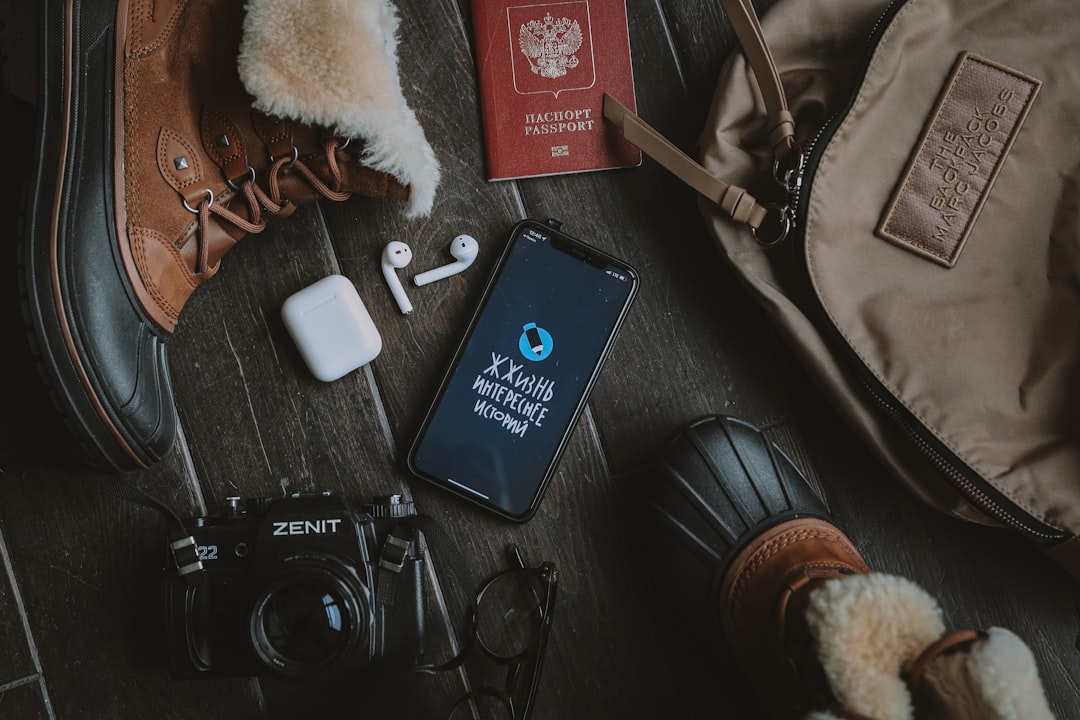
The landscape of translation apps has evolved significantly. Gone are the days of clunky interfaces and limited vocabulary. Today’s advanced translation apps, like Linguin, offer a suite of features designed to cater to the diverse needs of travelers. It’s not just about translating a single word or phrase; it’s about facilitating meaningful interactions.
One of the most crucial features is real-time voice translation. This is indispensable for conversations. You can speak into your device, and the app will instantly translate your words into the target language, and vice-versa. This allows for natural back-and-forth dialogue, whether you’re haggling at a market, asking for recommendations from a local shopkeeper, or simply trying to understand directions. Linguin’s advanced AI ensures that the translations are not only accurate but also capture the nuances and tone of your speech, leading to more fluid and less awkward interactions.
Offline translation is another non-negotiable feature for any serious traveler. Relying solely on an internet connection can be problematic in many parts of the world, where Wi-Fi might be scarce or expensive. With Linguin’s offline capabilities, you can download language packs beforehand, ensuring that you can translate text and phrases even without a data connection. This is a lifesaver when you’re exploring remote areas, on a long train journey, or simply want to conserve your mobile data.
Text translation remains a cornerstone, of course. This is vital for reading menus, signs, brochures, and any written material. Our app allows you to type or paste text for instant translation. For an even more seamless experience, especially when faced with unfamiliar scripts, camera translation is a game-changer. Simply point your camera at the text, and Linguin will overlay the translation directly onto your screen, transforming foreign menus and signs into readable content in real-time. This feature is incredibly useful for deciphering complex product labels or understanding important notices.
Furthermore, many travelers find themselves in situations where they need to translate documents, such as hotel reservations or important travel advisories. While a full document translation might require more advanced tools, basic phrasebook functionality is essential. Linguin offers a curated selection of common travel phrases, categorized for easy access, allowing you to quickly find and use essential expressions for greetings, directions, emergencies, and more. This isn’t just about translation; it’s about providing you with the tools to navigate the practicalities of travel with confidence.
Mastering Your Travel Translation App: Tips for Seamless Communication
Having a powerful travel translation app is only half the battle. The real magic happens when you know how to use it effectively. Think of it as learning a few key phrases in a new language; understanding the basics makes all the difference.
Firstly, download your essential language packs in advance. As mentioned, offline translation is crucial. Before you even leave your home country, identify the languages you’ll need and download them within Linguin. This ensures you’re prepared from the moment you land. Familiarize yourself with how to switch between languages within the app, as this will be a frequent action.
Secondly, speak clearly and concisely. When using voice translation, avoid slang, idioms, or overly complex sentence structures. Speak at a moderate pace and enunciate your words clearly. This significantly improves the accuracy of the AI’s interpretation. If the translation doesn’t come out quite right, don’t get discouraged. Simply try rephrasing your sentence.
Thirdly, use the text and camera features strategically. For menus or signs, the camera translation is often the quickest and most effective. For more complex written information, you might prefer to type or copy-paste the text into the app. Don’t underestimate the power of the phrasebook for common greetings and polite expressions. A simple “hello,” “please,” and “thank you” in the local language, even if delivered via the app, can go a long way in fostering goodwill.
Fourth, be patient and understanding. While translation apps are incredibly advanced, they are not infallible. There will be times when a translation might be slightly off or misunderstood. Approach these moments with a smile and a willingness to clarify. Often, showing a physical translation on your screen to the person you’re communicating with can help bridge any gaps. Remember, the intent behind your communication is just as important as the words themselves.
Finally, integrate the app into your workflow. Don’t just pull out your phone when you’re in a bind. Use Linguin proactively. Before you go shopping, try translating the names of common items you might want to buy. Before you head to a restaurant, familiarize yourself with basic food-related phrases. This proactive approach builds confidence and makes your interactions much smoother. For more in-depth travel tips, check out our article on packing essentials for your next trip.
Beyond the Language: Enhancing Cultural Immersion with Your App
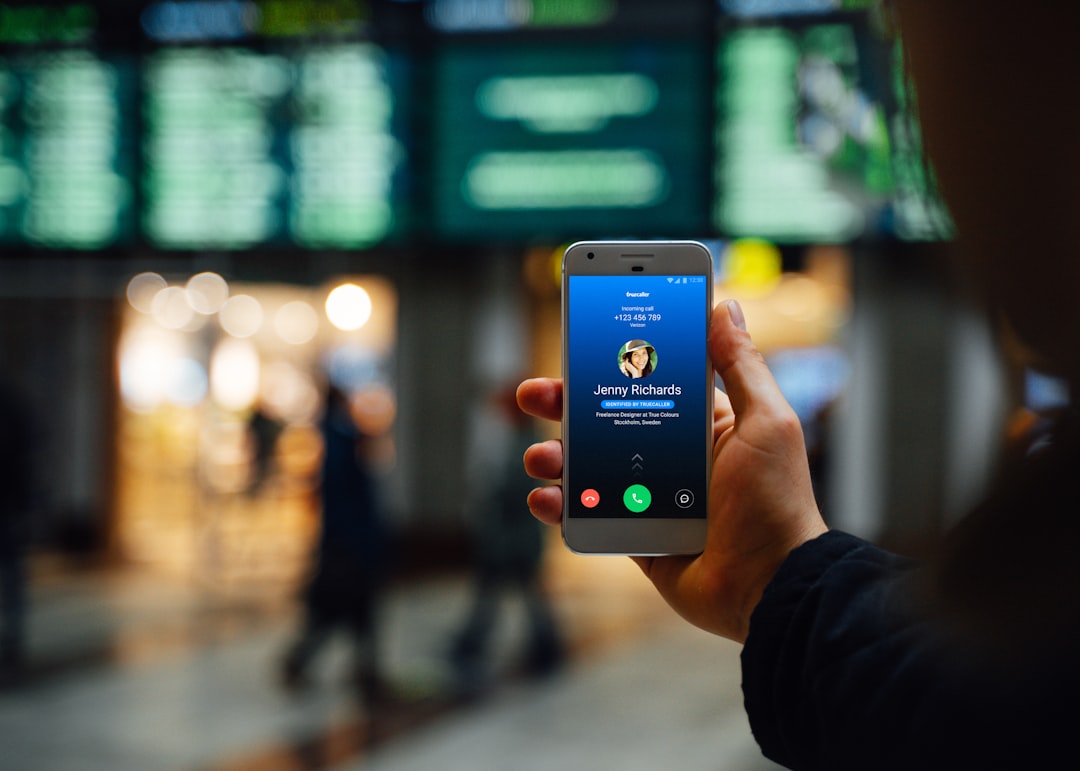
A travel translation app is more than just a tool for basic communication; it can be a gateway to deeper cultural immersion. When you can understand and be understood, you open yourself up to more authentic interactions and richer experiences.
Consider the ability to read local news or understand public announcements. This might seem minor, but it provides a fascinating glimpse into the daily lives and concerns of the people you’re visiting. It allows you to stay informed about local events, understand cultural norms better, and avoid potential misunderstandings or faux pas. For instance, knowing the meaning behind a local festival announcement or understanding the etiquette for using public transport can significantly enhance your experience.
Engaging in conversations with locals is perhaps the most rewarding aspect. When you can ask questions beyond the superficial – about their traditions, their favorite spots, their perspectives – you move beyond being a passive observer to an active participant. This can lead to unexpected friendships, insider tips on hidden gems, and a far more profound understanding of the place you’re visiting. Imagine asking a shopkeeper about the history of their craft or a cafe owner about the origin of their signature dish. These are the moments that transform a trip into a truly memorable journey.
Furthermore, using a translation app demonstrates respect for the local culture and language. Even a simple attempt to communicate in their language, facilitated by your app, is often met with appreciation and warmth. It signals that you’re making an effort, which can break down barriers and foster a more positive interaction.
Our extensions for Chrome and Safari are also invaluable for pre-trip research and on-the-go browsing. If you’re planning your itinerary online, the Chrome extension can instantly translate foreign websites, helping you discover local blogs, restaurant reviews, and travel guides that might not be available in English. Similarly, the Safari extension ensures that any website you visit while browsing on your Mac or iOS device can be translated seamlessly, aiding in your research and planning.
In conclusion, a travel translation app like Linguin is an indispensable tool for the modern traveler. It empowers you to break free from the limitations of language, embrace new cultures with confidence, and unlock a world of authentic experiences. By mastering its features and using it thoughtfully, you can transform your next adventure into an enriching and unforgettable journey. So, download Linguin, pack your bags, and get ready to explore the world like never before!