 English
  Español
  Français
  Deutsch
  Português
  Italiano
  Русский
  中文(简体)
  日本語
日本語  한국어
한국어  العربية
  हिन्दी
  Nederlands
  Türkçe
  Polski
Navigating the Global Web: Your Guide to Website Translation in Chrome
In today’s interconnected world, the internet is a vast ocean of information, news, and entertainment. However, this ocean can feel a little daunting when you encounter a brilliant article, a crucial piece of documentation, or a fascinating forum post, only to realize it’s not in your native language. For years, the solution has been to awkwardly copy and paste text into translation tools, or to rely on clunky, often inaccurate, browser-based translation features. But what if there was a smoother, more integrated way?
Introducing the Linguin Chrome extension – your passport to a truly global web experience. Designed to seamlessly integrate with your Chrome browser, Linguin empowers you to translate entire websites with a single click, opening up a universe of content that was previously inaccessible. Whether you’re a student researching international topics, a business professional keeping up with global markets, a traveler planning your next adventure, or simply a curious individual exploring the vastness of the internet, this extension is about to become your indispensable digital companion. Forget wrestling with confusing interfaces or subpar translations; Linguin is built for clarity, speed, and accuracy, ensuring your browsing experience is as smooth as possible, no matter the language.
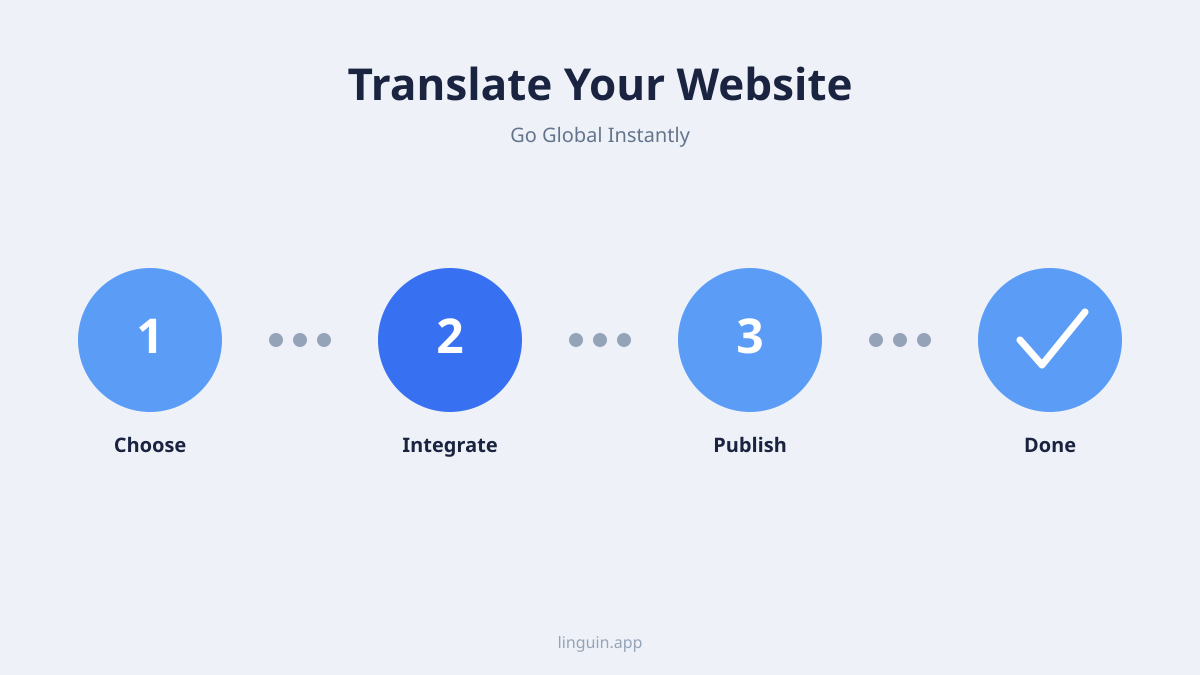
Why Translate Websites? The Importance of Breaking Down Language Barriers
The ability to understand content in different languages is no longer a niche skill; it’s a fundamental necessity for thriving in the modern digital landscape. Think about it: the most cutting-edge research might be published first in Japanese or German. Crucial business insights could be hidden within a French industry report. Your favorite online communities might be predominantly in Spanish or Mandarin. Without effective website translation, you’re effectively shutting yourself off from a significant portion of this valuable information.
Beyond information access, website translation fosters understanding and connection. It allows you to engage with diverse perspectives, learn about different cultures directly from their sources, and connect with people from all corners of the globe on a deeper level. For businesses, it’s essential for reaching international customers, understanding competitor strategies, and adapting marketing materials for new markets. For travelers, it means being able to confidently book accommodation, navigate local transportation, and immerse yourself in the culture of your destination. In essence, translating websites democratizes information and bridges cultural divides, making the internet a more inclusive and accessible space for everyone. Linguin’s Chrome extension is designed to make this vital process effortless, ensuring that language is never a barrier to knowledge or connection.
Installing and Using the Linguin Chrome Extension: A Step-by-Step Guide
Getting started with Linguin on Chrome is remarkably simple, designed to have you translating in no time. We believe powerful technology should be accessible, and our installation process reflects that.
Step 1: Find Linguin on the Chrome Web Store.
Open your Google Chrome browser and navigate to the Chrome Web Store. You can do this by typing chrome://extensions/ into your address bar and clicking “Chrome Web Store” at the bottom left, or by searching “Chrome Web Store” on Google. Once there, use the search bar within the store and type “Linguin Translator.”
Step 2: Install the Extension. You’ll see the Linguin Translator app listed. Click on it. You’ll be presented with an overview of the extension, including its features and reviews. Click the prominent “Add to Chrome” button. A small pop-up will appear, asking for your permission to add the extension. Review the permissions and click “Add extension” to confirm.
Step 3: Pinning Linguin for Easy Access. Once installed, you’ll typically see the Linguin icon appear in your Chrome toolbar, usually on the right side, near the address bar. If you don’t see it immediately, click on the puzzle piece icon (Extensions) and then click the pin icon next to Linguin. This will keep the icon permanently visible, so you can access its features with a single click.
Step 4: Translating a Website. Now for the magic! Navigate to any website you wish to translate. Once the page has loaded, simply click the Linguin icon in your toolbar. A small menu will appear. You will see an option to “Translate Page” or a similar prompt. Click this option. Linguin will then analyze the page’s content and present you with the translated version.
Step 5: Customizing Your Translation Experience. Linguin offers flexibility. After clicking the translate button, you might see options to select your desired target language if it’s not automatically detected correctly. You can often choose to always translate pages from a specific website, or to revert back to the original language if needed. Explore the Linguin menu when you click its icon to discover these settings. We’re constantly refining these options to make your experience even more intuitive, just like the core functionality of our macOS and iOS apps.
Beyond Full-Page Translation: Smart Text Translation with Linguin
While translating an entire webpage is incredibly useful, sometimes you only need to understand a specific sentence or paragraph. Perhaps you’re having a conversation on a multilingual forum, or you’ve found a single phrase that’s particularly intriguing. This is where Linguin’s smart text translation capabilities shine, offering a targeted approach to breaking down language barriers without disrupting your flow.
The beauty of our approach is that it complements the full-page translation feature seamlessly. You don’t need to switch to a separate tool or app. When you encounter a piece of text you want translated, simply highlight it directly on the webpage. After highlighting, you’ll often see a context-aware option appear, perhaps a small pop-up from Linguin asking if you’d like to translate the selected text. Click this prompt. Instantly, a small, non-intrusive window will appear, displaying the translated version of your selected text.
This feature is a game-changer for several reasons. Firstly, it’s incredibly fast. No more copying and pasting into a separate tab. The translation appears right there, in context, allowing you to quickly grasp the meaning without losing your train of thought. Secondly, it’s discreet. It doesn’t force you to re-render the entire page, which can sometimes alter formatting or disrupt interactive elements. This targeted translation ensures you get the information you need precisely when you need it, without any unnecessary interruptions. It’s a testament to our philosophy at Linguin: making powerful AI translation accessible and intuitive, whether on your Mac, your iPhone, or right here in your Chrome browser.
Frequently Asked Questions About Website Translation with Linguin
We understand that adopting new tools can bring about questions. Here are some common queries we receive about using the Linguin Chrome extension for website translation:
Q: How accurate are the translations? A: Linguin leverages advanced AI and machine learning models to provide highly accurate translations. While no machine translation is perfect and nuances can sometimes be lost, our technology is designed to be among the best available, delivering translations that are generally very reliable for understanding the core meaning of the text. We continuously update our models to improve accuracy.
Q: What languages does Linguin support? A: Linguin supports a vast array of languages, covering the most widely spoken languages globally and many less common ones. You can check the full list of supported languages within the extension’s settings or on our website. Our goal is to make as much of the web accessible as possible.
Q: Can I translate a website that is password-protected or behind a login? A: Yes, provided that you are logged into the website yourself, Linguin can translate the content displayed on those pages. The extension operates on the rendered content of the page you are viewing in your browser.
Q: Does Linguin translate images or videos? A: The current version of the Linguin Chrome extension primarily focuses on translating text content found on webpages. It does not translate text embedded directly within images or the audio of videos. However, if there is accompanying text for images (like alt text) or captions for videos, those will be translated.
Q: Is my browsing data safe when using Linguin? A: At Linguin, user privacy is paramount. The extension processes text locally on your browser or sends it to our secure servers for translation using anonymized data. We do not store your personal browsing history or translate pages without your explicit action. Please refer to our privacy policy for detailed information.
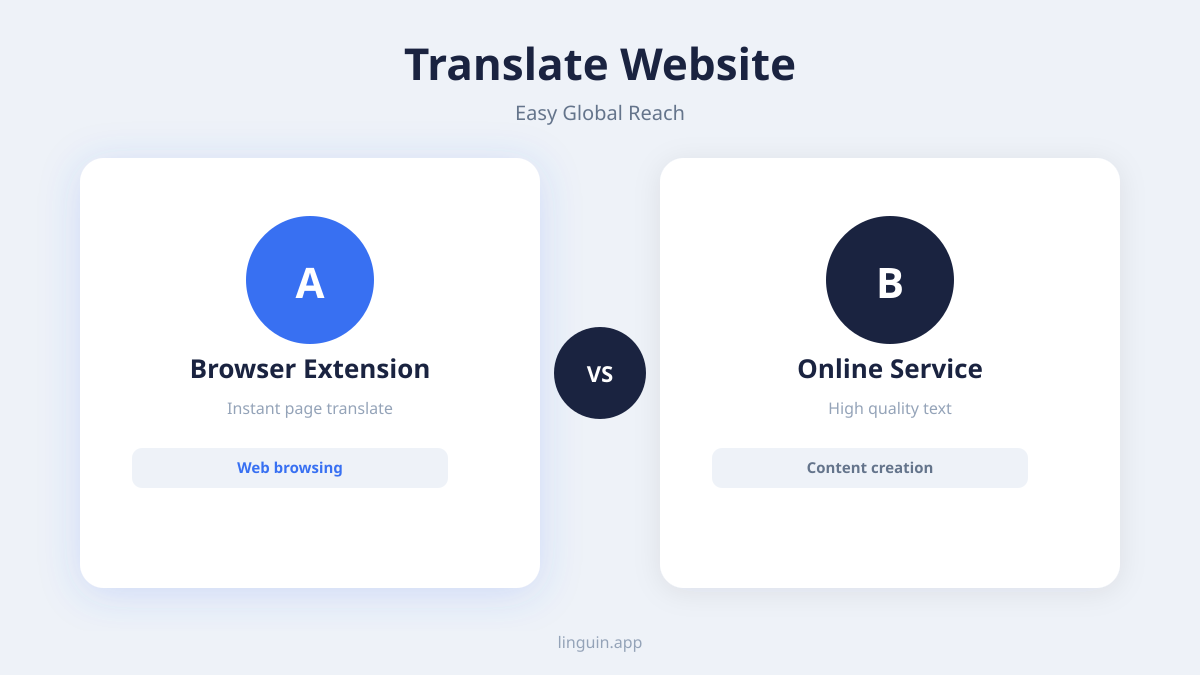
Q: What’s the difference between the Chrome extension and the macOS/iOS apps? A: While all Linguin products share the same powerful translation engine, they are optimized for their respective platforms. The Chrome extension is designed for seamless integration within your web browser, translating web pages directly. Our macOS and iOS apps offer broader system-wide translation capabilities, allowing you to translate text within any application on your device, not just websites. This means you can translate documents, messages, and much more, providing a comprehensive translation solution across all your digital interactions.
Q: How do I report a translation error or provide feedback? A: We welcome your feedback! You can typically find a “Send Feedback” or “Report Error” option within the Linguin extension’s menu. Alternatively, you can visit our website and navigate to our support or contact page. Your input is invaluable in helping us improve the accuracy and usability of our translation services.
Future-Proofing Your Browsing: Embrace the Multilingual Web with Linguin
The internet is a dynamic and ever-evolving space. As more content is created and shared across borders, the need for effective translation tools only grows. The Linguin Chrome extension is more than just a convenience; it’s an essential tool for anyone who wants to fully engage with the global digital landscape. By breaking down language barriers, it opens up new avenues for learning, discovery, and connection.
We’re committed to making translation as intuitive and accessible as possible. Whether you’re using our powerful macOS desktop application, our handy iOS app for on-the-go translations, or the streamlined Linguin Chrome extension to translate websites in real-time, you’re choosing a tool built on cutting-edge AI and a user-centric philosophy.
Don’t let language be a roadblock to your online experience. Install the Linguin Chrome extension today and start exploring the world’s content without limitations. Happy translating!