English
  Español
  Français
  Deutsch
  Português
  Italiano
  Русский
  中文(简体)
  日本語
日本語  한국어
한국어  العربية
  हिन्दी
  Nederlands
  Türkçe
  Polski
Linguin is an AI-powered translation application designed to integrate seamlessly into your digital workflow. This guide is for anyone who communicates across languages, whether for work, travel, or personal connection, and seeks more accurate and natural translations than basic tools provide. You will get a complete overview of how Linguin works, its core features across different platforms, and practical strategies for using it effectively in everyday scenarios.
Key takeaways
- Linguin provides native applications for macOS and iOS, a web app, plus a Chrome extension and, on Mac, a Safari extension, to translate text wherever you work or browse.
- Paid styles route through a hosted AI model that goes beyond word-for-word substitution, producing translations that read more naturally; the free Standard style uses Google Translate.
- You paste or type text in and read the translation back, on a Mac you’re a single Option+Space shortcut away from the app window, and the browser extensions can translate a whole page or a selection without leaving it.
What is Linguin?
Linguin is a translation tool that uses artificial intelligence to convert text between over one hundred languages. Its four paid styles (formal, casual, creative, technical) route through a hosted AI model rather than a flat, generic engine, so they pay attention to formality, intent, and common idioms, aiming for output that reads as if it were originally written in the target language. The free Standard style uses Google Translate for a quick, reliable baseline.
The software is built for accessibility and speed. It is not just a website you visit, it’s a set of apps for your devices: dedicated applications for macOS and iOS, a web app, and extensions for Chrome and, on Mac, Safari. This multi-platform approach means your translation capability moves with you, from your desktop computer to your phone to your web browser, though each platform has its own way of getting text in: paste it into the app on Mac and iOS, or right-click a selection or a whole page in the browser.
At its core, Linguin aims to make translation quick enough to fit into the middle of whatever you’re doing, an email, a document you’re reading, a chat conversation, without a lot of ceremony. You can learn more about the underlying technology in our guide to AI language translation tools.
Core features and how they work
Linguin’s functionality is divided into several key features, each addressing a common translation need. Understanding these features shows how the app adapts to different situations.
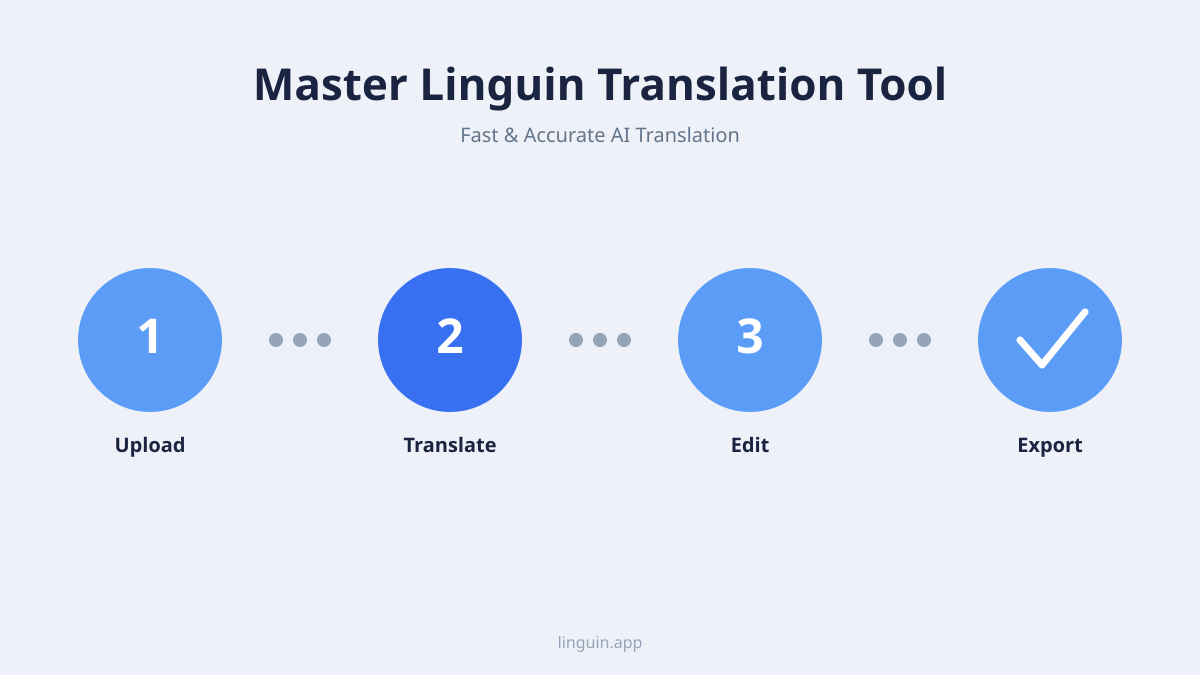
Text translation is the foundational feature. Type or paste text into the Linguin app, or on Mac press Option+Space from anywhere to bring up the app window first. This is useful for translating phrases you hear, text from a book, or a draft message. Paid users can also choose a translation style (formal, casual, creative, technical) so the output matches the tone they need, not just the literal meaning.
Voice input and output cover the times you’d rather speak than type, or listen than read. Dictate text instead of typing it, and have a translation read aloud in a natural-sounding voice. This is available in the macOS and iOS apps.
A custom dictionary and translation history, both Premium features, help with repeat use. Save your own word and term replacements so a name or industry term always translates the same way, and revisit a past translation from your history instead of redoing it.
Browser extension translation brings translation directly to your web browsing. After installing the Linguin extension for Chrome or, on Mac, Safari, you can right-click to translate an entire web page in place, translate just a selected passage, or open a small sidebar translator to paste text into. This transforms reading foreign news sites, shopping on international retailers, or participating in global forums from a chore into a simple activity. We compare this approach with other tools in our analysis of the best translation Chrome extension.
Linguin doesn’t do document or file translation (no PDF or Word uploads), doesn’t have a live conversation mode, and doesn’t read text out of images or your camera. For any of that, you’d copy the text out first, macOS’s own Live Text can pull text from an image, and paste it into Linguin as usual.
Practical scenarios for using these features
Consider a freelance researcher who needs to analyze academic papers in German and Spanish. They can copy a dense paragraph out of the PDF, paste it into Linguin, and get a reliable translation for a second opinion on a tricky sentence, working through the paper section by section rather than uploading the whole file.
Say you’re messaging a colleague in Japan about a project deadline. You write your message in English, copy it, press Option+Space to open Linguin, paste it in, and choose the Formal style to get a polite, context-appropriate Japanese version to copy and send. When they reply, you can just as quickly paste their message back in and translate it to English, keeping the conversation moving without a separate translation website open in a tab.
Setting up Linguin across your devices
Getting started with Linguin involves downloading the right tools for your ecosystem. The process is straightforward and designed to have you translating in minutes.
For macOS, visit the Mac App Store or the Linguin website to download the application, then sign in. Linguin lives in your menu bar from then on, and Option+Space, a single, fixed shortcut, opens or closes the app window from anywhere on your Mac. There’s no shortcut to reassign, which makes it one less thing to configure.
For iOS, download “Linguin” from the App Store, sign in, and you’re ready to go. Open the app, paste or type the text you want translated, and pick your target language. There’s no widget, no Siri Shortcut integration, and no share-sheet entry yet, opening the app and pasting in text is the whole workflow.
Installing the browser extensions is similar to any other extension. For Chrome, visit the Chrome Web Store, find the Linguin extension, and click “Add to Chrome.” For Safari on Mac, the extension ships with the app, you enable it once in Safari’s Extensions settings. Once enabled, right-clicking selected text or a page gives you options to translate that selection, translate the whole page, or open a small sidebar translator. The extension works quietly in the background, activating only when you need it.
Achieving accurate and natural translations
The promise of any translation tool is accuracy, but with language, accuracy has two components: literal correctness and natural flow. Linguin’s paid styles target both by routing through a hosted AI model rather than a flat, generic engine, and that model has, of course, been trained by its own maker on large amounts of real-world text, which is what teaches it how people actually use language in different contexts, from casual chats to formal business correspondence.
A major factor in quality is context awareness. A single word can have multiple meanings. The word “bank” could refer to a financial institution, the side of a river, or a turn in aviation. A basic translator might pick the most common meaning, leading to confusion. A context-aware model analyzes the surrounding words and sentences to infer the correct meaning. For instance, if the text discusses “deposits” and “loans,” it will correctly translate “bank” as the financial entity. This is what separates modern AI translation from older, phrase-based systems.
Tone and formality are also critical. Translating a polite Japanese business email word-for-word into English might result in a grammatically correct but strangely stiff message. Linguin’s paid styles are built for exactly this: pick Formal for a business email and Casual for a message to a friend, and the output leans toward the expected tone in the target language. This is especially important for languages that have built-in levels of formality, like Korean or German. You can read more about this principle in our article on context-aware translation.
To get the best results from Linguin, you can also help by providing slightly more context when possible. Translating a full paragraph rather than an isolated sentence often yields a better result, since an ambiguous word or phrase is easier for the model to interpret correctly with surrounding context. There’s no manual way to hint at a specific domain like medical or legal terminology beyond picking the Technical style and giving it a fuller sentence to work with, but the custom dictionary (Premium) is a good way to lock in specific terms you use often.
Linguin in your professional and personal life
The utility of a powerful, always-available translator extends into nearly every aspect of modern life. Professionally, it breaks down barriers in global teams. Employees can read internal updates from overseas offices, collaborate on shared documents, and communicate with international clients without waiting for a human translator. It empowers customer support teams to handle inquiries in multiple languages, improving response times and customer satisfaction. For marketers and content creators, it provides a first draft for localizing website copy or social media posts, which can then be polished by a native speaker.
In personal use, Linguin becomes a handy pocket translator for text-based situations: typing in a menu item or a phrase you want to say, or pasting in a message from a local host or a foreign-language sign you looked up and retyped. It doesn’t read text from a camera, so it’s less useful for on-the-spot sign reading than a dedicated travel translator with camera support, but it opens up the wider world of the internet in a different way. You can read news perspectives from other countries, follow accounts that don’t post in your language, and participate in global online communities. This fosters a more connected and informed worldview.
For students and lifelong learners, it’s a powerful aid. It allows for the study of source materials in foreign languages, helping with language acquisition by providing instant, contextual translations. Instead of looking up every unknown word in a dictionary, a learner can get the gist of a sentence or paragraph, speeding up comprehension and making the learning process less tedious. It complements dedicated language learning apps by providing practical, real-world translation practice. Explore how translation tools compare to dedicated learning platforms in our piece on the best language learning app methodologies.
Frequently asked questions
How does Linguin compare to free online translators like Google Translate?
Linguin’s free Standard style actually uses Google Translate under the hood, so for a quick translation the two are similar. The difference is in the four paid styles, which route through a hosted AI model that pays more attention to tone and context, and in being built into a fast, always-available app rather than a website you have to navigate to each time.
Is my data private when using Linguin?
Text you translate is sent to a translation provider over an encrypted connection to produce the translation. There’s no offline or on-device processing, so avoid pasting highly sensitive information into Linguin or any online translation tool. Review the app’s privacy policy in settings for the specifics.
Can I use Linguin completely offline?
No. Every translation requires an active internet connection, since the translation itself happens on a server, not on your device. There’s no downloadable language pack or offline mode.
What languages does Linguin support?
Linguin supports translation between over one hundred languages, including all major world languages like Spanish, Mandarin Chinese, Arabic, French, and German, as well as numerous regional and less-common languages. The specific list can be found within the app’s language selection menu.
How do I choose a translation style?
Linguin offers five translation styles: Standard (free, via Google Translate) and Casual, Formal, Creative, and Technical (Premium, via a hosted AI model). Pick the one that matches the tone you need and switch between them with one tap in the style selector.
Getting started with Linguin
Linguin’s strength is in being fast and always within reach: a paste-in, read-out translation tool built into the apps and browsers you already use, with paid styles that go beyond flat, literal translation to match the tone you actually need.
The most important step is to integrate it into your workflow. Start by downloading the app for your primary device and learning the single Option+Space shortcut on Mac, or just getting used to opening the app on iOS. Try translating a few sentences from a website you read or an email you receive. As you become accustomed to having that capability close at hand, you will naturally discover more uses for it, from planning a trip to collaborating with a global colleague. Linguin is built to be there when you need it, making the world’s languages a little more accessible every day.