 English
 Español
 Français
 Deutsch
 Português
 Italiano
 Русский
 中文(简体)
 日本語
 한국어
 العربية
 हिन्दी
 Nederlands
 Türkçe
 Polski
You can PDF translate English to Hindi by uploading a document to an AI translation service, selecting English as the source language and Hindi as the target language, then reviewing the output for wording, layout, and terminology. For many people, the need is practical: a business agreement in English has to be read by a Hindi speaking team, a university document must be understood by parents, or a customer manual needs a Hindi version without sending the file to a human translator first.
This guide explains how to choose a tool, what happens to formatting, how scanned PDFs differ from text PDFs, and how to check a translated file for accuracy. It also covers common traps, such as losing tables, mangling headings, or producing Hindi that sounds stiff. By the end, you should know how to get a usable Hindi PDF from an English source, whether the file is a contract, a report, a certificate, or a presentation export.
Key takeaways
- Choose a tool based on whether your PDF is text-based or scanned, because OCR changes the workflow.
- Hindi output needs review for formality, script, and terminology, especially in legal, medical, or technical documents.
- Layout preservation is a separate problem from translation accuracy, and some services offer different modes for each.
- Free tiers can be useful for short documents, but page limits and credit systems can affect longer PDFs.
- For conversations, images, or quick checks, a dedicated translation app can help before you commit to a full PDF workflow.
How to PDF translate English to Hindi step by step
Start with the file itself. An English PDF may contain selectable text, or it may be a scan where every page is an image. The difference matters because selectable text can usually go straight into translation, while a scanned file needs optical character recognition, or OCR, before the words can be processed.
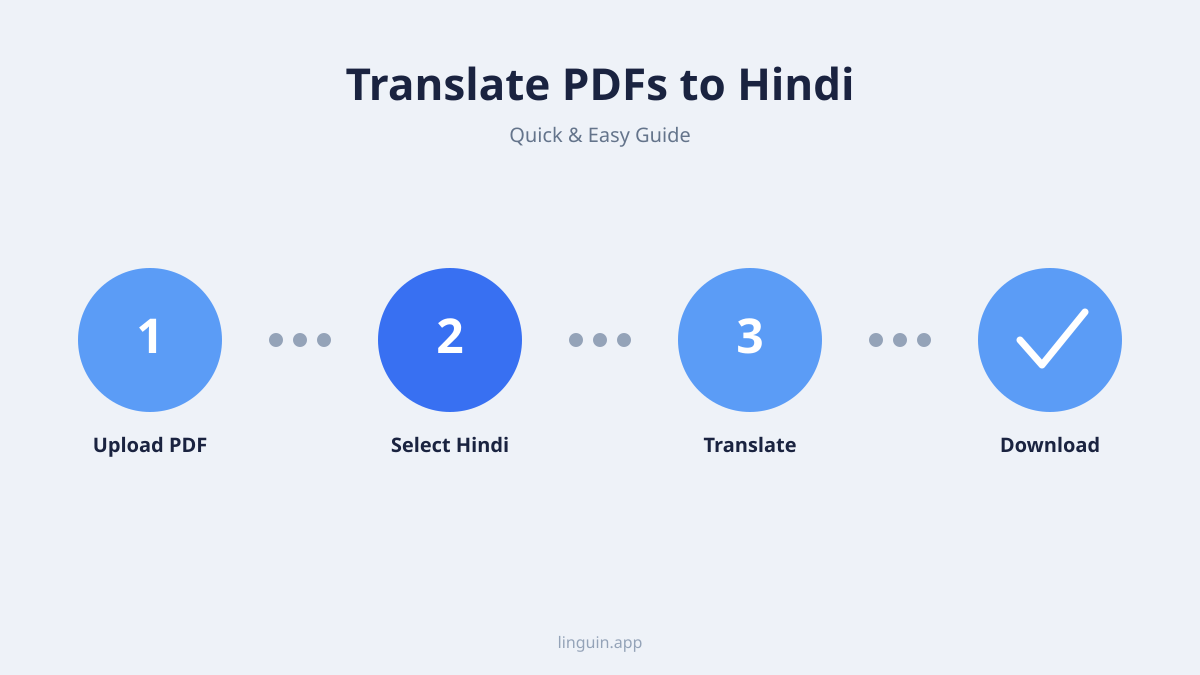
A simple workflow
- Upload the PDF to a translation service or desktop workflow.
- Choose English as the source language and Hindi as the target language.
- Select the output mode if the tool offers it, such as layout preservation or plain text.
- Review the Hindi result page by page.
- Export the file in the format you need, often PDF, Word, or text.
A practical example
Say you are preparing a customer onboarding guide for a Hindi speaking team. The English PDF has headings, numbered steps, and screenshots. If the tool only returns text, the steps may lose their order. If it preserves layout, the headings and images may remain in place, but the Hindi strings can still overflow buttons or captions. A quick test on the first page tells you whether the full document will need manual formatting after translation.
For many users, the main question is not whether the words can be translated, but whether the result will be usable. That is why it helps to check the original guide for how to translate a document before you upload a long file. A short sample, a glossary, and a clear output format reduce the number of surprises. Use page numbers as checkpoints for faster review. If the document has appendices, translate an appendix page first, because dense reference material often exposes formatting and terminology issues earlier than body text.
Keep the source file unchanged while you test. Save a copy of the original PDF, name the output clearly, and avoid overwriting the file you may need to compare later. If the translation fails, you can try another mode or another tool without losing the baseline.
Text PDFs, scanned PDFs, and OCR
A text PDF is the easier case. The characters exist as text in the file, so a translator can read words, sentences, and line breaks directly. This is common for PDFs exported from Word, Google Docs, or design tools that keep the text layer intact.
A scanned PDF is different. The page is an image, even if it looks like a document. OCR must identify characters, infer reading order, and rebuild words before translation can happen. If the scan is crooked, low contrast, or has small print, OCR can turn “1” into “l”, “O” into “0”, or merge several columns into one sentence.
Why scan quality matters
Scanned PDFs also create Hindi-specific problems. Devanagari characters have marks above and below the base letter, and poor OCR can lose those marks. A missing matra or conjunct can change a word, so proofreading cannot be limited to spelling alone. The same issue can appear in English before translation: if OCR misreads the source, the Hindi output may be fluent but wrong.
Check punctuation and spacing after OCR, because broken sentences can cause translation errors. A comma in the wrong place can change a list, a legal obligation, or a technical instruction. If the document contains footnotes, sidebars, or boxed warnings, verify that the reading order follows the intended structure.
When to clean the text first
Say you have a scanned lease agreement with several columns. The English OCR may read the left column, then the next column, but if the layout is complex, it may jump between them. The Hindi translation can then look grammatically correct while the clause order is wrong. This is why a page-by-page comparison matters.
If your source is an image, not a PDF, you may need a workflow that can translate image text first. For that step, see how to translate image text and make sure the extracted text is clean before sending it into a PDF translation tool. For long reports, it can be faster to OCR a section, clean the text, translate that section, and then repeat. This keeps errors local and makes the file easier to rebuild.
Formatting, layout, and file types
Translation and formatting are related, but they are not the same task. A tool can produce correct Hindi words while destroying the structure that made the PDF readable. That is why layout options matter.
Keep layout or only text
According to PDFSpeeder, its AI PDF Translate offers Keep layout and Only text modes, with Keep layout rebuilding headings, alignment, bullets and images in a PDF while Only text returns A4 text without pictures. Keep layout is useful when the document must resemble the original. Only text is useful when you want a clean Hindi draft that can be placed into a new template.
Choose the mode based on the audience. If the file is a printed manual, layout matters. If the file is content for a knowledge base, plain text may be easier to import. If the document includes charts, check whether labels inside images are translated or left in English.
PDF, Word, and print output
Output format is the next decision. Some tools return a PDF, while others return a Word file. According to 2oneness.ai, users can translate an English PDF to Hindi by selecting English as source and Hindi as target, uploading a PDF up to 50 MB, and downloading a Word .docx file with formatting preserved. A Word file can be easier to edit, but it may change fonts, spacing, and page breaks. If the final file must be a PDF, you may need to export or flatten it after editing.
Tables are a common failure point. English table cells are often short, while Hindi translations can be longer. A column that fits “Amount” may not fit “राशि” plus a number, depending on font size and line wrapping. Check that table borders, footers, and page numbers still align after translation. If the source uses columns, verify that the translated text does not overlap adjacent cells.
For documents that need signing, consider whether the Hindi file must remain a PDF with fixed layout. A Word file may be better for collaboration, while a PDF may be better for distribution. If the file will be printed, test a page in black and white, because color backgrounds and light gray text can become hard to read after translation and export.
Accuracy, tone, and Hindi terminology
Hindi is not a single uniform register. A customer support email, a legal notice, and a technical manual can all use different vocabulary, sentence length, and formality. AI translation can produce understandable output, but you still need to decide how the document should sound.
Start with audience. If the reader is a general user, prefer simple Hindi and familiar terms. If the reader is a professional, keep domain terms accurate. For medical, legal, or financial documents, names, numbers, dates, and units need careful review. A translated clause can look fluent while changing a deadline, a percentage, or a party name.
Formal and neutral wording
Business documents often need a neutral tone. A phrase that sounds polite in English may become too casual or too stiff in Hindi. This is common with support messages, invoices, and internal memos. Check greetings, closing lines, and instructions. If the source uses “please”, the Hindi output may use a polite verb form, but not every sentence needs the same level of deference.
Use a glossary for repeated terms. For example, if the English source uses “account”, “invoice”, and “refund” often, decide whether the Hindi should use “खाता”, “बिल”, and “रफ्त”, or another consistent choice. Consistency is easier to edit than a document where the same term changes page by page.
Numbers, dates, and proper nouns
Hindi documents may use Latin numerals, Devanagari numerals, or a mix depending on context. Decide before translation. Dates can also need formatting: a month name may be translated, while a numeric date may be kept as is. Brand names, product names, and legal entity names should be reviewed carefully. Some should remain in English, some may need a transliteration, and some may need both.
Say you are translating a service agreement. The English phrase “notice period” may be rendered as “सूचना अवधि” or “नोटिस अवधि” depending on context. Neither is wrong in isolation, but the document should pick one and use it everywhere. A short review pass can catch these choices before the file is sent.
If you are checking wording before a full PDF run, a tool like Linguin can help you compare English and Hindi phrasing in context. For a broader reference, see English to Hindi translator when you need to review short passages, not whole files. This saves time when many pages repeat the same phrases. This keeps tone consistent across sections.
Choosing a free or paid PDF translation tool
The right tool depends on volume, file type, and how much editing you expect. Hindi is supported as a target language for PDF translation by multiple AI-powered document translation services, including iLovePDF, PDFSpeeder, filedone.ai and 2oneness.ai. That gives you options, but it does not mean every service will handle your document in the same way.
Volume and limits
Start with the document. A short report may be fine with a browser tool. A long manual may hit page limits. According to PDFSpeeder, it gives 2 translation tasks per day without an account and 3 per day with a free account, resets at 00:00 UTC, and processes only the first 200 pages of a file. If your workflow includes many files, these limits can change the tool choice.
Pricing can also be page based. According to filedone.ai, it charges 3 credits per page for text-based PDF translation and 5 credits per page for scanned PDFs, while new free accounts receive 20 credits. Scanned files cost more because OCR adds work, so the file type matters as much as the language pair.
Coverage and privacy
Some services have narrower coverage. According to Smallpdf, Smallpdf currently supports full document translation to Hindi only, rather than broad multi-language coverage. If you also need French, Spanish, or Japanese, check the language list before you commit.
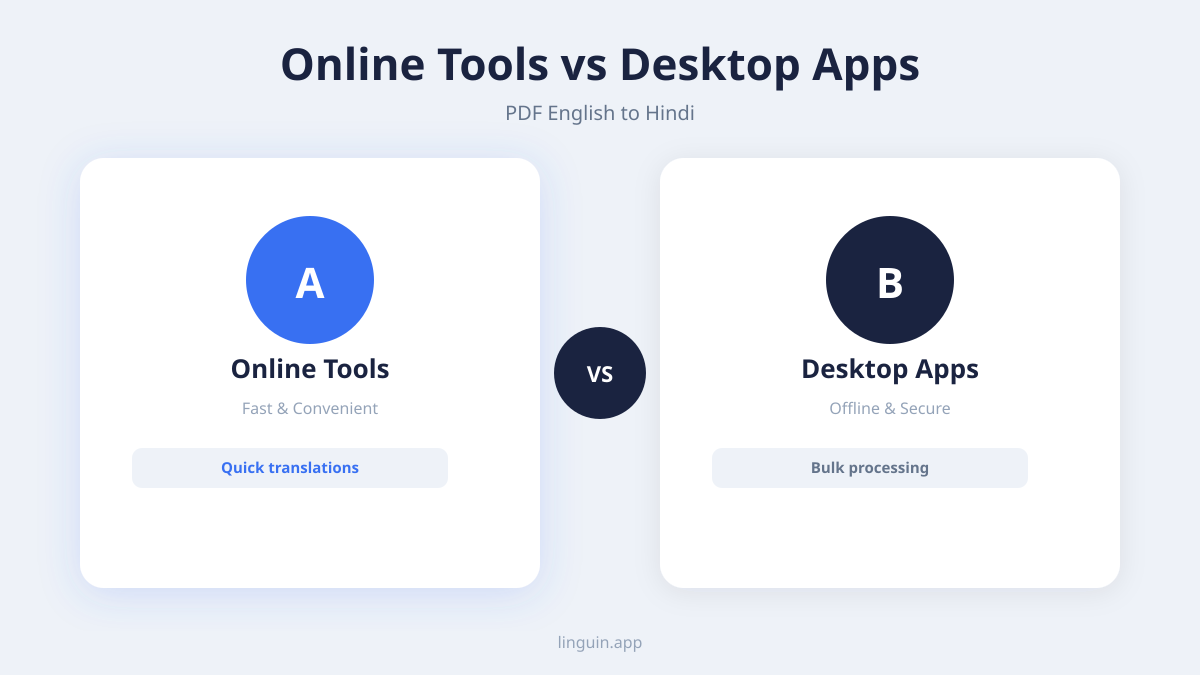
Confidentiality is another factor. If the PDF contains personal data, financial records, or legal terms, read the retention policy for the service before uploading. For sensitive documents, a desktop workflow or a private account may be better than a public upload. This does not mean every online tool is unsafe, but it means you should know where the file goes and how long it stays.
For a comparison of tools, see best PDF translator. If you work on macOS and want a desktop workflow, how to translate PDF on Mac is a useful next step. Always test a page before uploading the full document.
Common problems and fixes
Most PDF translation failures are visible, but they are easy to miss when you are working quickly. The goal is to catch them before the file is sent to a client, a team, or a customer.
What to check first
- Broken line breaks: Hindi may wrap differently than English. Check headings, captions, and buttons.
- Missing diacritical marks: In Devanagari, marks above or below letters can change meaning. Compare uncertain words with the source.
- Number errors: Dates, amounts, phone numbers, and percentages should be checked twice.
- Table collapse: Long Hindi terms can push cells out of alignment. Reduce font size or reformat columns.
- Image text left untranslated: If a screenshot contains English labels, the PDF may not translate them unless OCR and image handling are used.
- Mixed scripts: Some tools leave brand names, file names, or technical terms in English. That can be correct, but it should be consistent.
A review sample
Say you are translating a product manual. The English label “Start” appears on a button image. The PDF text layer may not include that label, so the Hindi output still shows “Start”. If the manual is for users who only read Hindi, you may need to edit the image or create a translated version of the graphic.
A review pass should include the first page, a dense page, a table page, and the last page. That sample is enough to reveal most layout problems without reading every line before you are ready. If a page looks acceptable, still check any footer, header, or watermark that was part of the original layout.
Also check searchability. A translated PDF may look right but behave wrong if the text layer is broken. Select a Hindi sentence, copy it into a text editor, and see whether the characters remain intact. If copy and paste produces boxes or missing marks, the font or text layer may need repair before distribution.
When a live translation workflow helps
PDF translation is often a batch job, but the language need can be immediate. You may receive a question in a chat, read a slide during a meeting, or need to explain a document to someone who speaks Hindi. In those cases, a full PDF workflow can be slower than a quick conversation translation.
Document workflow and live language
Say you are on a call with a supplier. The English contract is already a PDF, but the supplier wants to discuss a clause in Hindi. Translating the whole file may not help the conversation. Translating the clause, then checking the tone, gives you a usable sentence in seconds. You can still use the PDF tool later for the formal file.
This is where a translation app or browser extension can support the document workflow. Linguin can help with text and conversation translation across languages, so you can test phrasing, clarify a term, or follow a discussion without waiting for a full file export. For spoken exchanges, a voice workflow can also be useful, but for a PDF you still need page-level review.
A practical process is to use live translation for questions and short phrases, then use PDF translation for the artifact. The first stage helps you understand. The second stage creates the file that can be shared, printed, or filed. This keeps the quick conversation from becoming a bottleneck, while still producing a document that can be reviewed later.
It also lets you check terminology in real time before the file is locked for distribution. If a term appears repeatedly, you can decide whether to keep it in English, transliterate it, or use a standard Hindi equivalent. That decision becomes part of the document style, not a last-minute fix.
Frequently asked questions
Can I translate an English PDF to Hindi for free?
Some services allow limited free use. According to PDFSpeeder, it gives 2 translation tasks per day without an account and 3 per day with a free account, resets at 00:00 UTC, and processes only the first 200 pages of a file. Free tiers can work for short files, but page limits and credit systems may affect longer documents.
Does PDF translation preserve Hindi fonts and layout?
Not always. Translation accuracy and layout preservation are separate issues. According to PDFSpeeder, Keep layout rebuilds headings, alignment, bullets and images in a PDF, while Only text returns A4 text without pictures. If you need a print-ready file, check fonts, spacing, and table columns after translation.
Can scanned English PDFs be translated to Hindi?
Yes, if the tool can run OCR on the scanned pages. OCR extracts the English text, then the translation step produces Hindi. Low quality scans can cause missing characters, wrong numbers, or broken reading order, so review the extracted text before trusting the final file.
Is AI Hindi translation accurate enough for legal or medical documents?
AI translation can help you understand a document quickly, but legal and medical files often need human review. Check names, numbers, dates, units, and obligations carefully. For official submissions, verify whether a certified translation is required before relying on machine output.
Getting started with Linguin
Translating a PDF from English to Hindi works best when you match the tool to the file type. A text PDF may need layout review, while a scanned PDF needs OCR before translation. Hindi output should be checked for formality, terminology, and line breaks, especially in contracts, reports, and certificates. Start by translating a small section, compare it with the source, then process the full document once the wording feels natural.
If your work includes quick checks, spoken conversations, or short passages before a full PDF run, Linguin can help you review English and Hindi phrasing in context. It supports translation across many languages, so you can test wording, copy the result into your document workflow, and keep the final file consistent. Linguin for Mac is a good place to begin if you handle PDFs and documents on a desktop. You can start with a short sample, then move to the full PDF after checking headings, numbers, and dates.