English
  Español
  Français
  Deutsch
  Português
  Italiano
  Русский
  中文(简体)
  日本語
日本語  한국어
한국어  العربية
  हिन्दी
  Nederlands
  Türkçe
  Polski
The Growing Need for PDF Translation
In today’s interconnected world, the ability to understand and communicate across languages is no longer a luxury – it’s a necessity. From global business dealings and academic research to personal travel and accessing vital information, PDF documents are a ubiquitous format. However, these documents often arrive in a language we don’t understand, creating a significant barrier. This is where the need for a reliable and effective PDF translator becomes paramount.
Imagine receiving a crucial business contract from an international partner, a research paper published in a foreign language that could advance your studies, or even simple instructions for a new gadget. Without the ability to translate these PDFs, you’re effectively cut off from valuable information and potential opportunities. This is why the “best PDF translator” isn’t just about convenience; it’s about empowering individuals and businesses to engage globally without limitations. The demand for tools that can accurately and efficiently handle PDF translation has never been higher, driving innovation in AI-powered language solutions.
What Makes a PDF Translator “The Best”?
Defining the “best” PDF translator involves a multifaceted evaluation of several key features. It’s not simply about finding a tool that can convert text; it’s about finding a solution that offers accuracy, preserves formatting, is user-friendly, and provides practical integration into your workflow.
Accuracy is King: The most critical factor is the quality of the translation itself. A good PDF translator utilizes advanced AI and machine learning models to understand context, nuances, and industry-specific terminology. Poor translations can lead to misunderstandings, costly errors, and a loss of credibility. The best translators strive for human-like fluency, minimizing grammatical errors and awkward phrasing.
Preserving Formatting: PDFs are notorious for their complex layouts, which include text, images, tables, and various formatting elements. A truly effective PDF translator should do more than just extract text; it needs to maintain the original document’s structure and appearance as much as possible. This means ensuring that text flows correctly, tables remain intact, and even images with text are handled appropriately. Losing formatting can render a translated document difficult to read and unprofessional.
Ease of Use and Accessibility: The ideal PDF translator should be intuitive and require minimal technical expertise. Whether it’s a web-based tool, a desktop application, or a browser extension, the process of uploading a PDF, selecting languages, and receiving the translated version should be straightforward. Furthermore, accessibility across different devices and platforms is crucial. Having a translator available on your macOS desktop, your iOS device for on-the-go needs, or directly within your browser can significantly enhance productivity.
Speed and Efficiency: Time is a valuable commodity. The best PDF translators offer swift translation speeds, allowing you to get through large documents or multiple files without lengthy delays. This is particularly important for professionals who need to process information quickly.
Security and Privacy: When dealing with sensitive documents, especially in business contexts, the security of your files is paramount. The best PDF translators will have robust security protocols in place to protect your data during the translation process.
Cost-Effectiveness: While free options exist, they often come with limitations in accuracy, features, or file size. The “best” translator for you will strike a balance between cost and the quality and features it offers, providing good value for your investment.
Evaluating Popular PDF Translation Methods
When you need to translate a PDF, several approaches come to mind. Each has its strengths and weaknesses, and understanding these can help you choose the method that best suits your specific needs.
Online PDF Translators
Web-based PDF translators are often the first port of call due to their accessibility. You simply upload your PDF file to a website, select your source and target languages, and download the translated version.
Pros:
- Accessibility: Works from any device with an internet connection.
- No Installation: No software needs to be downloaded or installed.
- Often Free for Basic Use: Many offer free tiers with limitations.
Cons:
- Formatting Issues: Can struggle significantly with complex PDF layouts, leading to jumbled text and broken tables.
- Accuracy Limitations: Free online translators may rely on less sophisticated AI, resulting in less accurate translations.
- Security Concerns: Uploading sensitive documents to unknown websites can pose privacy risks.
- File Size/Usage Limits: Free versions often restrict the size of files or the number of translations you can perform.
Desktop Software
Dedicated translation software installed on your computer offers more control and potentially better features. These applications can sometimes integrate more deeply with your operating system and file management.
Pros:
- Potentially Higher Accuracy: Some desktop applications leverage more advanced translation engines.
- Offline Capabilities (Sometimes): Certain software can perform translations without an internet connection.
- More Features: May offer batch translation, glossary support, and advanced formatting options.
Cons:
- Requires Installation: Takes up storage space and needs to be updated.
- Can be Expensive: Professional-grade desktop software can be a significant investment.
- Platform Specific: Might be limited to a single operating system (e.g., Windows-only or macOS-only).
Browser Extensions
For seamless integration into your browsing workflow, PDF translator extensions for browsers like Chrome and Safari are invaluable. They allow you to translate PDFs directly within your browser, often without needing to download the file or visit a separate website.
Pros:
- Convenience: Translate PDFs as you encounter them online.
- Integrated Experience: No need to switch between applications.
- Often Free or Freemium: Many offer a good balance of features for free users.
Cons:
- Browser Dependency: Only works when you’re using the browser with the extension installed.
- Performance Variations: Translation speed and accuracy can vary depending on the extension’s underlying technology.
- Formatting Preservation Can Still Be a Challenge: While better than some online tools, complex PDFs can still pose difficulties.
Where Linguin Fits: The Text-Translation Step, Not the File Handling
It’s worth being direct about this: Linguin is not a PDF translator in the sense of uploading a file and getting a translated document back. It doesn’t have a file picker or drag-and-drop import, and it doesn’t parse or reconstruct PDF layouts. What it is, is a fast, accurate AI translator for text, available on macOS, iOS, and as Chrome and Safari (macOS only) browser extensions, and that makes it genuinely useful for the actual translation step once you’ve gotten the text out of your PDF.
Linguin’s translations run through a large language model rather than a rigid word-for-word engine, so it understands context, syntax, and semantics well enough to produce natural-sounding results, not literal, awkward translations. That’s the same technology behind the quality you’d get from any modern AI translator. What it doesn’t do is interpret a PDF’s layout: no automatic detection of headers, tables, or columns, and no reconstruction of the original document afterward. Translated text comes back as plain text, which you paste into a new document and format yourself if layout matters.
Here’s how Linguin actually fits into a PDF translation workflow across its platforms:
- On your Mac: Select and copy the text from your PDF viewer (Preview, a browser, Acrobat), press Option+Space to bring Linguin to the front, paste, and translate. Fast for a section or a short document; still requires you to copy the text out yourself.
- On your iPhone or iPad: The same copy-paste loop works in the Linguin iOS app: copy text from wherever you’re viewing the PDF, paste it into Linguin, and read the translation.
- Within your browser: If you’re reading a PDF that’s rendered as a webpage (or any other web content), the Chrome and Safari extensions let you select text and translate it via the right-click menu without leaving the tab. This works well for standard web pages; PDFs opened in a browser’s built-in PDF viewer may or may not offer selectable text depending on the browser.
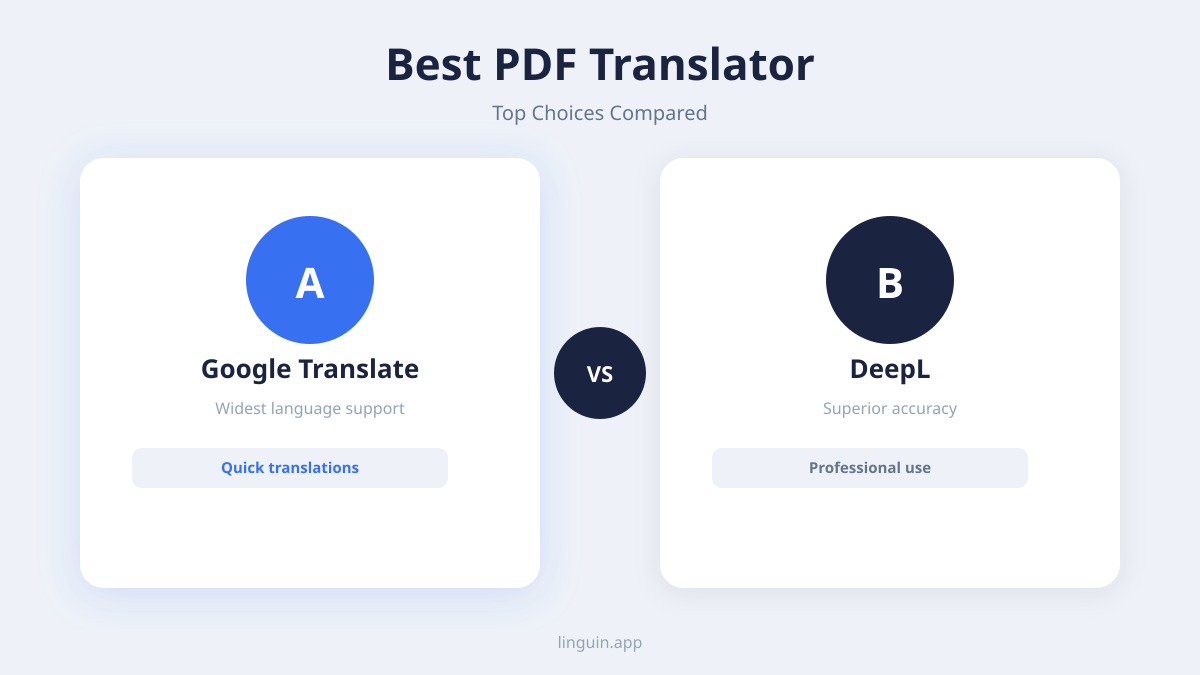
For preserving formatting and structure, you’ll want one of the dedicated document-translation services in the sections above (Google Translate, DeepL, or Adobe Acrobat’s built-in translation) that accept PDF uploads directly. Linguin is the tool for translating the words quickly and accurately once they’re out of the file, not for handling the file itself.
Tips for Maximizing Your PDF Translation Experience
Whether you’re using a dedicated document translator or copying text into an app like Linguin, there are several best practices to follow to ensure you get the best possible results when translating PDFs.
1. Prepare Your PDF: Before you start, check whether your PDF is text-based or an image scan. If it’s a scan, there’s no text to select or copy until you run it through Optical Character Recognition (OCR) software, either a dedicated OCR tool or a document-translation service that includes OCR in its upload pipeline. Also, try to use PDFs with clear, standard fonts and simple layouts for best results.
2. Understand Language Nuances: No machine translation is perfect. While AI is rapidly advancing, idiomatic expressions, cultural references, and highly technical jargon can still be challenging. Always review translated documents, especially for critical content. If possible, have a native speaker or someone proficient in the target language review key sections.
3. Leverage Context: If your translation tool allows, providing context can improve accuracy. For instance, translating a full paragraph at once rather than isolated fragments gives an AI translator more context to work with, and generally produces better word choices than translating single sentences in isolation.
4. Be Mindful of Formatting: Even with the best document-translation tools, extremely complex layouts might require minor adjustments after translation. If you’re copying text into a general translator like Linguin instead, expect to format the result yourself, it returns translated text, not a translated document.
5. Choose the Right Tool for the Job: If you need the original document layout preserved, use one of the dedicated PDF-upload services covered above. If you mainly need accurate translation of the words themselves and are fine reformatting afterward, or you’re translating a short section, a fast general translator like Linguin’s copy-paste workflow is often quicker than uploading a whole file.
6. Test and Compare: If you’re evaluating different tools, try translating a small, representative section of a document with each one. Compare the accuracy, fluency, and, where relevant, how well the formatting is maintained. This hands-on approach will quickly reveal which tool best meets your standards.
The Future of PDF Translation
The landscape of language technology is evolving at a fast pace. AI continues to become more sophisticated, leading to increasingly accurate and context-aware translations. We can anticipate future PDF translators to offer even more nuanced understanding of human language and handle even more complex document layouts effortlessly.
As document-translation services and general AI translators both keep improving, the practical split described in this guide, dedicated services for layout, general translators for speed and text quality, is likely to remain a sensible way to think about choosing a tool.
If cost is your main concern, our roundup of free ways to translate PDFs focuses specifically on options that won’t cost you a cent.
In conclusion, finding the best PDF translator involves understanding your needs and evaluating the available options based on accuracy, formatting preservation, usability, and security. If layout matters, reach for a dedicated document-translation service. If you mainly need fast, accurate text translation, a general translator like Linguin, available across macOS, iOS, Chrome, and Safari, is a solid choice for that part of the job.
-vs-translator.png)