 English
  Español
  Français
  Deutsch
  Português
  Italiano
  Русский
  中文(简体)
  日本語
日本語  한국어
한국어  العربية
  हिन्दी
  Nederlands
  Türkçe
  Polski
In our increasingly interconnected world, the ability to communicate across languages is no longer a luxury, but a necessity. Whether you’re a student tackling international research, a professional collaborating with global teams, a traveler exploring new horizons, or simply someone who enjoys consuming content in different tongues, a reliable translator app for your Mac can be an invaluable companion. But with so many options available, how do you choose the best one? This guide will help you navigate the digital Babel and find the perfect tool for your needs.
Understanding Your Translation Needs
Before diving into specific recommendations, it’s crucial to consider what you’ll be using your translator app for. Are you looking for quick, on-the-fly translations of short phrases or sentences? Do you need to translate entire documents with a high degree of accuracy? Is offline functionality a must-have for when you’re without an internet connection? Do you need to translate web pages, emails, or even spoken conversations? Your answers will significantly influence which app is the best fit.
Some users might prioritize speed and simplicity, while others demand advanced features like glossary support, document formatting preservation, or even real-time voice translation. For instance, a business professional might need to translate contracts with precision, whereas a student might just need to understand a foreign-language article for a research paper. Knowing your primary use cases will help you evaluate the features and capabilities of different translator apps more effectively.
Key Features to Look For in a Mac Translator App
When evaluating translator apps for your macOS device, a few key features stand out as essential for a truly effective experience.
- Accuracy and Quality: This is paramount. The best apps leverage sophisticated AI and machine learning models to provide translations that are not only grammatically correct but also contextually appropriate. Look for apps that are transparent about their translation engines or are known for their advanced natural language processing (NLP) capabilities.
- Language Support: The more languages an app supports, the more versatile it is. Consider not only the languages you need now but also those you might encounter in the future.
- Ease of Use and Integration: A good translator app should be intuitive and seamlessly integrated into your macOS workflow. This could mean a standalone app, a menu bar utility, or extensions for your browser.
- Offline Translation: For travelers or those in areas with unreliable internet, offline capabilities are a game-changer. Being able to download language packs and translate without a connection significantly expands the utility of an app.
- Translation Modes: Look for apps that offer various translation modes, such as text-to-text, text-to-speech, and potentially even speech-to-text or image translation.
- Document Translation: If you frequently work with documents, the ability to translate entire files (Word, PDF, etc.) while preserving formatting is a huge advantage.
- Customization and Learning: Some advanced apps allow you to build custom glossaries or offer features that learn your preferences over time, leading to more personalized and accurate translations.
Top Translator Apps for Mac in 2026
Let’s explore some of the leading contenders for the title of “Best Translator App for Mac,” keeping in mind the features we’ve discussed.
Linguin: The Intelligent All-Rounder
For users seeking a powerful, intelligent, and elegantly integrated translation experience across all their Apple devices, Linguin stands out. Designed from the ground up to be intuitive yet remarkably capable, Linguin offers a comprehensive suite of translation tools that work seamlessly on your Mac, iPhone, and iPad, and through its handy Chrome and Safari extensions.
Linguin’s strength lies in giving you a real choice of translation quality. The free Standard style routes through Google Translate for quick, everyday lookups. Four paid styles, Casual, Formal, Technical, and Creative, route through a separately hosted AI model built for contextual understanding, minimizing awkward phrasing and matching the register of what you’re translating. Its macOS app is beautifully designed, featuring a clean interface that makes it easy to switch between languages, access your translation history, and enjoy text-to-speech functionality for pronunciation practice.
What sets Linguin apart is its commitment to being available wherever you’re working. The macOS app opens instantly from anywhere with a single global shortcut (Option + Space), the iOS app covers your iPhone, and the Chrome extension and Safari extension (bundled with the Mac app) mean you can translate web content directly within your browser without leaving the page. Worth being upfront about a limit: Linguin needs an internet connection, it routes through Google Translate or a hosted AI model rather than working offline. While many apps focus on individual platforms, Linguin’s strength is its consistency across your Apple devices and browser, making it a solid pick for anyone who regularly works with multiple languages.
Google Translate (Web and Third-Party Apps)
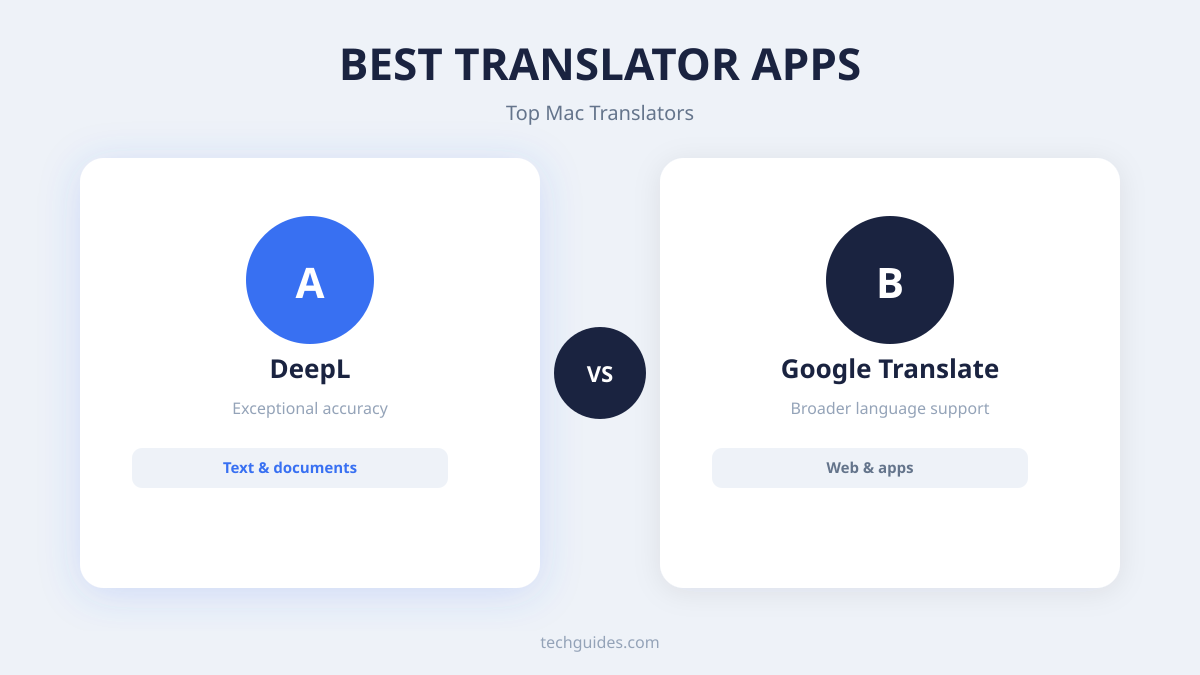
While Google Translate doesn’t offer a dedicated, feature-rich standalone app for macOS in the same vein as some other dedicated desktop applications, its web version remains incredibly powerful and accessible. You can easily access it through any web browser on your Mac, and its capabilities are extensive. Google Translate boasts an enormous language library and is continually updated with improved AI models for better accuracy.
For many users, the web interface is more than sufficient for quick translations, text-to-speech, and even basic document translation. The real power for Mac users often comes from its browser extensions, which allow for seamless website translation. However, if you’re looking for a more integrated desktop experience with advanced features like offline translation or specialized document handling, you might need to look at third-party Mac apps that leverage Google’s translation engine or explore alternative dedicated applications. Some third-party apps on the Mac App Store do integrate with Google Translate’s API, offering a more desktop-centric interface for its powerful engine.
DeepL Translator
DeepL has rapidly gained a reputation for providing some of the most nuanced and accurate translations available, particularly for European languages. Its AI-powered neural network is designed to understand the subtleties of language, resulting in translations that often feel more natural and less like direct word-for-word conversions.
While DeepL doesn’t have a native macOS app in the traditional sense, it offers a highly functional web translator that works perfectly within your browser. For those who need more integration, DeepL provides an API that many third-party developers utilize to build desktop applications for Mac. These third-party apps often aim to replicate the DeepL experience with added desktop convenience, such as hotkey support and windowed translation panes. If language accuracy, especially for professional or literary texts, is your absolute top priority, DeepL should be high on your list.
Microsoft Translator
Microsoft Translator is another strong contender, offering a robust set of features across various platforms. While there isn’t a standalone, deeply integrated macOS app directly from Microsoft like there is for Windows, users can leverage its web interface or explore third-party applications that utilize its translation services.
The strength of Microsoft Translator lies in its comprehensive language support and its continuous advancements in AI. It’s particularly known for its conversational translation features, which can be incredibly useful for real-time communication. Similar to Google Translate, you’ll often find its power on macOS through its browser extensions or through third-party apps that provide a more native desktop feel. For businesses and individuals already invested in the Microsoft ecosystem, it’s a familiar and reliable option.
Advanced Features for Power Users
Beyond basic text translation, several advanced features can elevate your translation experience on a Mac.
Offline Translation Capabilities
As mentioned, offline translation is a lifesaver when you’re on the go without reliable internet access. Apps that allow you to download extensive language packs to your Mac ensure you can translate critical information even in remote locations. This is particularly useful for travelers, field researchers, or anyone who frequently works in areas with poor connectivity. Worth noting: Linguin doesn’t offer this, it requires an internet connection since it routes through Google Translate or a hosted AI model. Apple’s own Translate app, built into macOS, is the more reliable option if genuine offline translation is a requirement for you.
Document Translation with Formatting Preservation
For professionals, translating entire documents is often a core requirement. The best apps go beyond simply translating text; they aim to preserve the original document’s formatting, including paragraphs, headings, tables, and images. This saves a significant amount of time and effort compared to copying and pasting text section by section. Look for apps that support popular file formats like .docx, .pdf, and .txt. Some advanced tools can even handle translation within spreadsheets or presentations.
Browser Extensions for Seamless Web Browsing
If your work or study heavily involves online research or consuming foreign-language content, browser extensions are indispensable. These extensions allow you to translate entire web pages with a single click, or translate selected text directly from web content without leaving the page. Having extensions for both Chrome and Safari means you’re covered no matter your preferred browser. Linguin’s extensions are designed for this exact purpose, offering quick and easy web translation.
Text-to-Speech and Speech-to-Text
The ability to hear translations spoken aloud is crucial for pronunciation practice, understanding spoken language, and even for accessibility. Conversely, speech-to-text functionality allows you to dictate your text for translation, which can be faster and more convenient than typing. Apps that offer high-quality, natural-sounding text-to-speech voices are particularly valuable for language learners.
Choosing the Right Translator for Your Workflow
Ultimately, the “best” translator app for your Mac is the one that best fits your individual needs and workflow.
For a well-integrated, AI-powered experience that spans your Apple devices and browser, Linguin is a compelling choice, as long as you’re connected to the internet when you use it. Its design philosophy prioritizes user experience and consistent cross-platform functionality, making it a solid pick for those who live within the Apple ecosystem.
If your primary need is raw translation accuracy for a wide range of languages and you’re comfortable using web interfaces or third-party apps, Google Translate and DeepL (often via their web versions or API-driven Mac apps) remain incredibly strong options. Google’s breadth of language support is unparalleled, while DeepL often leads in nuanced translation quality.
Consider your budget as well. Many apps offer free tiers with limited functionality, while premium versions unlock advanced features, higher translation volumes, and offline capabilities.
Tips for Maximizing Your Translator App Usage
- Don’t Rely Solely on Machine Translation: While AI has come a long way, it’s not perfect. Always review important translations, especially for critical documents or sensitive communications.
- Use Contextual Clues: If a translation seems odd, try rephrasing your original text to provide more context.
- Leverage Glossaries: For specialized industries or recurring terms, use custom glossaries if your app supports them. This ensures consistency and accuracy.
- Practice Pronunciation: Use the text-to-speech feature to improve your pronunciation of foreign words and phrases.
- Keep Your App Updated: Translation engines and app features are constantly being improved. Ensure you have the latest versions for optimal performance.
For screenshots and other image-based text specifically, our guide to translating a screenshot on Mac walks through the built-in macOS tools plus how Linguin fits into that flow.
In conclusion, navigating the world of translation apps for Mac doesn’t have to be daunting. By understanding your needs and evaluating the features of leading applications like Linguin, Google Translate, and DeepL, you can find a powerful tool to break down language barriers and connect with the world more effectively. Happy translating!