English
  Español
  Français
  Deutsch
  Português
  Italiano
  Русский
  中文(简体)
  日本語
日本語  한국어
한국어  العربية
  हिन्दी
  Nederlands
  Türkçe
  Polski
Why Translate Screenshots on Your Mac?
In our increasingly globalized digital world, encountering text in a foreign language is commonplace. Whether you’re browsing a website with unfamiliar characters, deciphering an image-based document, or even trying to understand a meme shared by an international friend, the barrier of language can quickly become an obstacle. For Mac users, the need to translate text from images is often met with a desire for quick, efficient, and accurate solutions. This is where the concept of “translate screenshot Mac” becomes incredibly valuable.
Imagine stumbling upon a crucial piece of information embedded within a screenshot – perhaps a product description in another language, instructions for a complex device, or even a signpost in a travel photo. Manually retyping this text into a translation tool is tedious, prone to errors, and frankly, inefficient. Fortunately, modern operating systems and innovative apps like Linguin offer sophisticated ways to overcome this challenge, turning your Mac into a powerful visual translation engine.
This guide will delve into the practicalities of translating screenshots on your Mac. We’ll explore the native capabilities that macOS offers, and more importantly, how a dedicated translation app like Linguin can significantly enhance your experience, providing a fluid and integrated solution for all your visual translation needs.
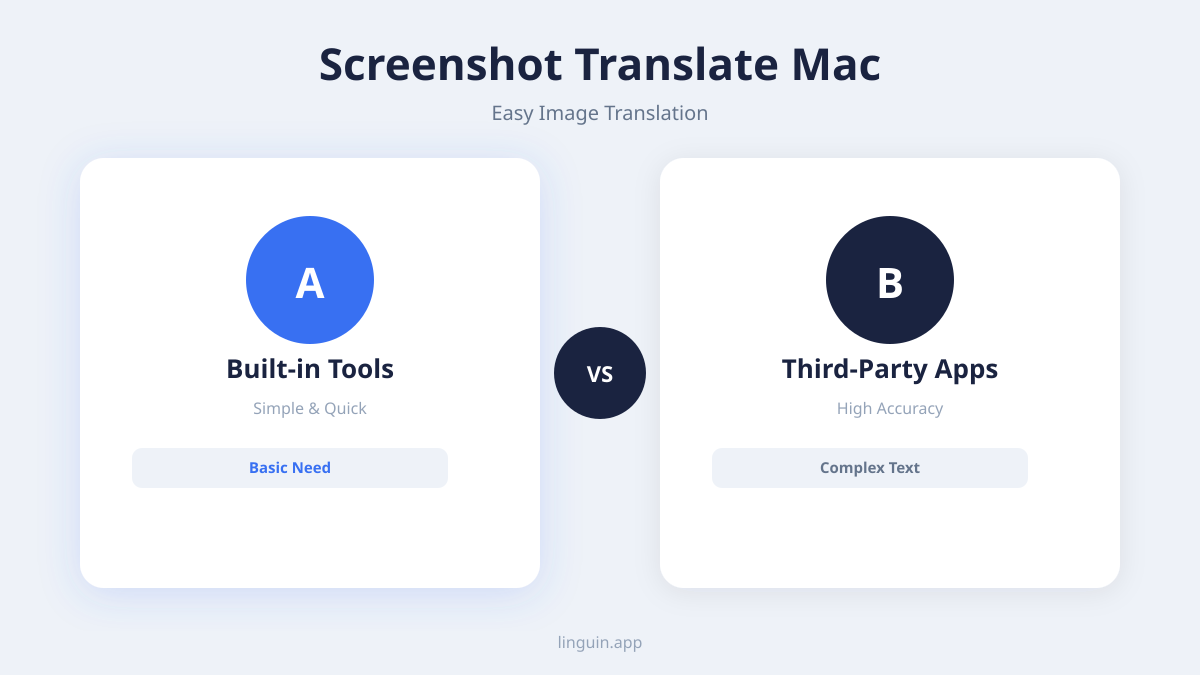
macOS Built-in Tools: Live Text and Beyond
Apple has been steadily integrating powerful AI features into macOS, and one of the most relevant for visual translation is Live Text. Introduced in macOS Monterey, Live Text allows your Mac to recognize and interact with text within images. This is a significant leap forward, enabling you to treat text in photos and screenshots much like you would text in a document.
How Live Text Works
Live Text leverages on-device machine learning to identify text in images. When you open an image in Preview, Safari, or even the Photos app, if Live Text detects recognizable text, you’ll see a small icon appear in the corner of the text block, or the text itself might become selectable.
To use Live Text for translation on your Mac:
- Open an image or screenshot: This could be an image file saved on your Mac or a screenshot you’ve just taken.
- Enable Live Text: In applications like Preview or Safari, if Live Text is active, you’ll see options to select, copy, or look up text.
- Select the text: Hover your mouse cursor over the text within the image. It should highlight, indicating it’s recognized. Click and drag to select the specific text you want to translate.
- Access Translation Options: Once the text is selected, right-click on it. You should see a “Look Up & Translate” option. Clicking this will bring up a contextual menu.
- Translate: Within the “Look Up & Translate” menu, you’ll see a list of languages. Select the language you want to translate the text into. The translated text will appear in a small pop-up window.
Limitations of Live Text for direct translation:
While Live Text is revolutionary, its direct translation capabilities are somewhat limited. It primarily focuses on identifying and allowing you to copy/paste text, and then provides a “Look Up” function that might link to translation services or dictionaries. For seamless, one-click translation of entire screenshots or specific sections directly into another language within the app, you might find the built-in tools a bit clunky. You often have to copy text and paste it elsewhere for a full translation.
Leveraging Linguin for Superior Screenshot Translation
This is where a dedicated translation app like Linguin fits in. To be clear upfront: Linguin doesn’t scan your screen or perform OCR on screenshots itself, and there’s no drag-a-rectangle capture mode. What it does very well is take the text that Live Text or Preview has already extracted for you and translate it faster and more accurately than a quick system lookup. While Live Text excels at recognizing text, Linguin excels at translating what you paste into it.
How Linguin Elevates Screenshot Translation
Because Linguin’s global shortcut (Option + Space) opens and closes its window instantly from anywhere on macOS, the copy-paste step barely slows you down.
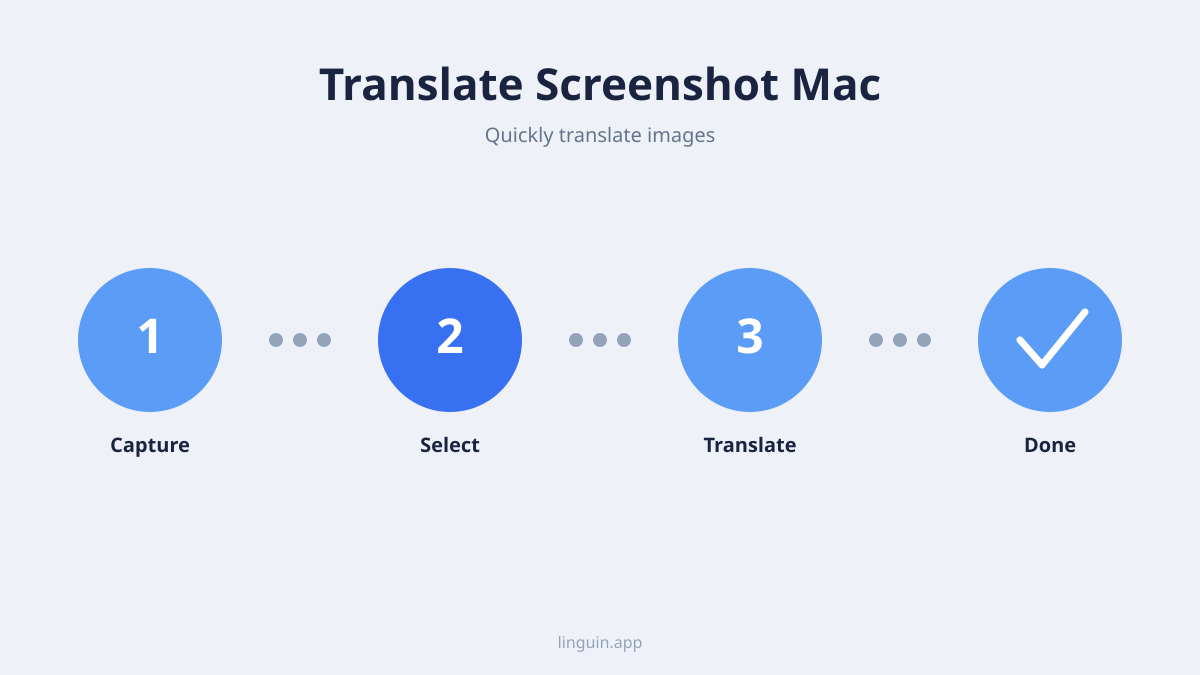
Here’s how you translate a screenshot with Linguin on your Mac:
- Take or open the screenshot: Use
Cmd + Shift + 4to capture the area you need, or open an existing screenshot in Preview. - Select and copy the text with Live Text: Hover over the text in the screenshot until it highlights, select it, and copy it (
Cmd + C). - Open Linguin: Press
Option + Space. The Linguin window opens instantly, no matter what app you were just in. - Paste and translate: Paste the copied text (
Cmd + V), pick your target language and a translation style, and Linguin returns the translation right away. - Copy the result: Click the copy icon to grab the translated text for use elsewhere.
The Linguin Advantage: Accuracy and Control
- One fixed shortcut, always ready:
Option + Spaceis the only global shortcut, and it isn’t customizable, but it’s fast enough that you rarely need an alternative. - Style-aware translation: Choose Standard, Casual, Formal, Technical, or Creative depending on what kind of text you screenshotted, from a friendly chat message to a technical manual.
- A custom dictionary: Product names, brand terms, or abbreviations you add to your dictionary get applied consistently every time they show up in a screenshot’s text.
- Translation history: Every translation is saved, so if you screenshot the same kind of content repeatedly you can look back at past results instead of retranslating.
- Language support: Linguin supports a wide range of languages for both source and target text.
Practical Use Cases for Translating Screenshots on Mac
The ability to translate screenshots on your Mac opens up a world of possibilities for both personal and professional use. Here are a few scenarios where this feature proves invaluable:
Navigating Foreign Websites and Apps
Many websites and applications, particularly those designed for specific regions, may present interfaces or content in languages you don’t understand. Instead of struggling with limited browser translation features that might not always capture everything, you can screenshot the section, pull the text out with Live Text, and paste it into Linguin for a translation with the tone you need. This is especially useful for e-commerce sites where product details are crucial, or for understanding user interfaces in unfamiliar software.
Deciphering Image-Based Documents
Not all documents are created equal. Some scanned documents or images shared via messaging apps contain text that isn’t selectable at first glance. Live Text on macOS can usually still recognize and let you copy that text from a screenshot; from there, pasting it into Linguin gives you a more controllable translation than a quick system lookup.
Learning and Education
Students and lifelong learners often encounter educational materials in different languages. Whether it’s a diagram with foreign labels, a presentation slide, or a research paper snippet, taking a screenshot, copying the text with Live Text, and translating it with Linguin can make complex subjects more accessible. It aids in understanding terminology, following instructions, and grasping concepts presented in unfamiliar linguistic contexts.
Travel and International Communication
When traveling, you might encounter signs, menus, or brochures in a local language. While mobile apps are great for on-the-go translations, on your Mac, you might be researching destinations or planning itineraries. Saving images of relevant information, copying the text out with Live Text, and translating it with Linguin can help you understand your surroundings, make informed decisions, and prepare for your trip more effectively.
Understanding Social Media and Digital Content
From memes to news articles shared as images, the internet is full of visual content in various languages. Copying the text out with Live Text and translating it in Linguin lets you quickly understand jokes, news headlines, or discussions happening in languages other than your own.
Tips for Maximizing Your Screenshot Translation Experience
To get the most out of translating screenshots on your Mac, consider these tips:
- Ensure Clear Images: The quality of your screenshot directly impacts the accuracy of Live Text’s recognition. Aim for clear, well-lit images with legible fonts. Blurry or low-resolution screenshots can lead to recognition errors before translation even starts.
- Isolate Text: If possible, try to select only the text you need rather than the whole screenshot when copying with Live Text. This reduces the chance of stray characters ending up in your translation.
- Learn the One Shortcut That Matters:
Option + Spaceopens and closes Linguin from anywhere on macOS, so keep it in muscle memory for the paste-and-translate step. - Pick the Right Style: Linguin’s Standard, Casual, Formal, Technical, and Creative styles change how a translation reads. Match the style to the source material for a more natural result.
- Use the Right Tool for the Job: Live Text is great for recognizing and copying text; Linguin is where you translate it. Using them together is more reliable than expecting either one to do both jobs alone.
- Verify Critical Translations: For highly important or technical information, it’s always a good practice to cross-reference translations or seek a second opinion if accuracy is paramount. AI translation is powerful but not infallible.
The Future of Visual Translation on Mac
As AI technology continues to advance, we can expect even more sophisticated and integrated translation features on macOS. Features like Live Text are just the beginning. Translation apps like Linguin can build on top of that native recognition layer to keep improving the quality of the translation step. By combining the native capabilities of your Mac with the specialized power of translation apps, you can break down language barriers effortlessly and engage with the world’s information in ways that were once unimaginable.
Translating screenshots on your Mac is no longer a complex or time-consuming task. With tools like Linguin, it’s a simple, intuitive process that empowers you to understand and interact with any visual content, regardless of the language it’s presented in. Unlock the full potential of your Mac and explore the world of information without linguistic limitations.


-vs-translator.png)