
 English
  Español
  Français
  Deutsch
  Português
  Italiano
  Русский
  中文(简体)
  日本語
日本語  한국어
한국어  العربية
  हिन्दी
  Nederlands
  Türkçe
  Polski
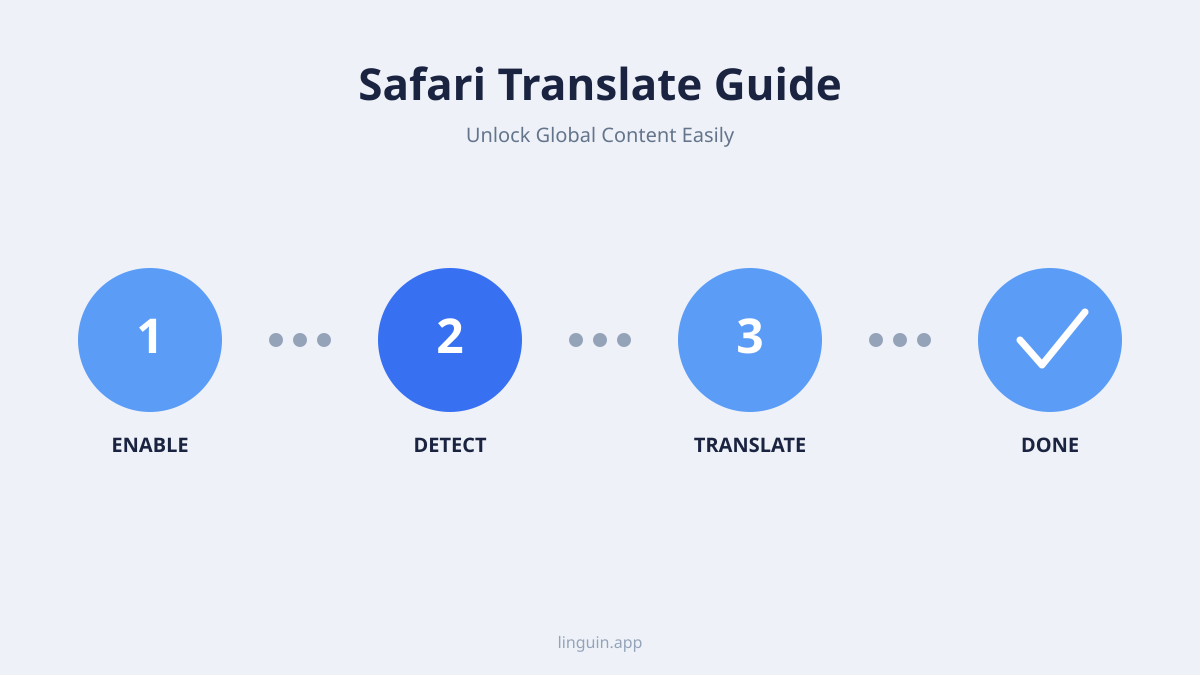
Safari has translation built in, so you don’t need an extension for a whole page. On a Mac, open the foreign-language page, click the Translate button that appears in the address bar, and choose your language. On an iPhone or iPad, tap the aA button on the left of the address bar, then tap “Translate to [your language]”. To switch back, open the same menu and choose “View Original”.
If you don’t see the button, the page language is either not supported or not detected, or your preferred language is missing from Language & Region settings. The fixes are below, along with what Apple says actually happens to the page text when you translate it.
Understanding Safari’s Built-in Translation
Safari’s translation feature is designed to be simple and accessible, allowing you to quickly translate entire web pages with just a few clicks or taps. It leverages Apple’s own translation engine to process and display foreign language content in your preferred language.
How Safari Translation Works
When you visit a website that Safari detects is not in your default language, a small translation icon will appear in the address bar. Tapping or clicking this icon will present you with an option to translate the page. Safari then analyzes the page’s content and replaces the original text with its translated equivalent.
The accuracy of machine translation has improved dramatically over the years, and Safari’s built-in tool is quite capable for general understanding. It’s particularly useful for quickly grasping the gist of an article, navigating a foreign website, or getting a basic understanding of product descriptions.
Supported Languages
Safari’s translation feature supports a wide array of languages, making it a versatile tool for global web browsing. Apple continually updates and expands this list, so it’s always a good idea to check the latest documentation if you need confirmation for a specific language. Generally, you’ll find support for major world languages, including Spanish, French, German, Chinese, Japanese, Korean, Italian, Portuguese, Russian, Arabic, and many more.
Activating and Using Safari Translation
Using Safari’s translation feature is straightforward. Here’s how to do it on your macOS and iOS devices.
On macOS
- Navigate to a Foreign Language Website: Open Safari and visit a web page that is not in your preferred language.
- Look for the Translate Button: When a page can be translated, Safari shows a Translate button in the Smart Search field (the address bar). If there’s no button, Safari either didn’t detect the page language or doesn’t support it.
- Click the Translate Icon: A menu will appear with the option to translate the page.
- Select “Translate to [Your Preferred Language]”: Choose this option from the menu. Safari will then process the page and display the translated content.
- Revert to Original: If you wish to see the original language again, click the Translate icon again and select “View Original.”
Troubleshooting macOS Translation:
- Icon Not Appearing: Apple’s instructions say that if the language you want isn’t offered, you add it as a preferred language in System Settings > General > Language & Region. Translation availability also varies by region.
- Inaccurate Translation: Machine translation is not perfect. Safari’s Translate menu has a “Report Translation Issue” option, so you can flag a bad result to Apple.
On iOS (iPhone and iPad)
- Visit a Foreign Language Page: Open Safari and go to a website in a language other than your device’s primary language.
- Tap the aA Button: On iPhone and iPad the translate option lives in the page menu behind the aA button on the left side of the address bar. When a page can be translated, a small translate icon can also flash in the address bar for a moment after the page loads.
- Choose “Translate to [Your Language]”: Tap it in the menu. If the option is missing, the page language wasn’t detected, isn’t supported, or matches your device language.
- View Original: To switch back, tap aA again and select “View Original.”
Troubleshooting iOS Translation:
- “Translate to…” Option Missing: This can happen if Safari doesn’t detect a language difference, or if the language isn’t supported. Refreshing the page sometimes helps. If your target language isn’t offered, add it as a preferred language in Settings > General > Language & Region.
- Next Pages in the Same Tab: According to Apple, once you translate a page, Safari can keep translating other pages from the same website as you click through in that tab.
Limitations of Built-in Translation
While Safari’s translation feature is incredibly convenient, it’s important to be aware of its limitations.
Accuracy and Nuance
Machine translation is a remarkable feat of technology, but it still struggles with capturing the full depth of human language. Idioms, slang, humor, and highly technical jargon can sometimes be mistranslated, leading to confusion or a loss of intended meaning. For critical tasks requiring precise understanding, relying solely on automatic translation might not be sufficient.
Formatting and Layout Issues
Sometimes, translating a web page can disrupt its original formatting or layout. Text might overflow its containers, images might shift unexpectedly, or interactive elements might not function as intended after translation. This is more of a display issue than a translation accuracy problem, but it can still hinder the user experience.
Privacy: What Apple Receives
Apple’s own web page translation privacy note is more specific than most guides. Safari detects the page language on your device, but when you translate, the full text of the page is sent to Apple’s servers, which discard it after translating. Outside Private Browsing, the page URL is also sent and kept for up to five years, not linked to your Apple Account. That is fine for a news article, but think twice before translating an internal dashboard or a private document in the browser.
This also means translation needs an internet connection. Offline, the Translate option won’t help you.
When to Consider an Advanced Translation App like Linguin
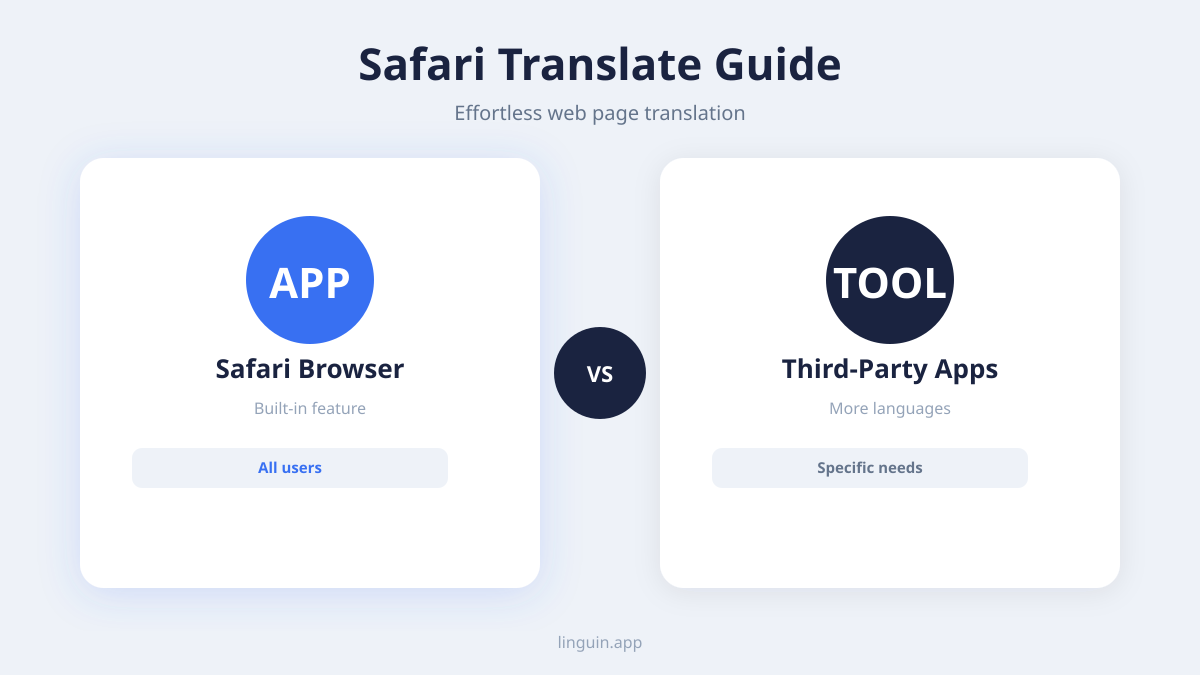
For situations where accuracy, speed, and a richer translation experience are paramount, a dedicated translation app like Linguin is worth a look. Safari’s feature is fine for quick browsing; Linguin is built for people who translate every day.
Enhanced Accuracy and Context
Linguin’s four paid styles (formal, casual, creative, technical) route through a hosted AI model rather than a generic word-for-word engine, so they pay more attention to nuance and tone. The free Standard style uses Google Translate. For academic research, business communications, or any scenario where the exact register matters, being able to pick the right style is a real advantage over a browser translator that only gives you one flat result.
More Language Options and Features
Linguin supports 100+ languages. On the paid plan, it also offers:
- Custom Dictionary: Save your own preferred word and term replacements so names and industry terms translate consistently.
- Voice Output: Hear translated text read aloud with natural-sounding voices.
- Translation History: Revisit past translations instead of redoing them.
- Copy-Paste Translation: Translate snippets of text you paste in from anywhere on your Mac, not just full web pages.
Seamless Integration with Your Workflow
Linguin is designed to fit into your digital life without much friction. It’s available as a macOS app, an iOS app, a web app, a Chrome extension, and, on Mac, a Safari extension. This means you can switch between Safari’s convenient built-in translation for casual browsing and Linguin for more demanding translation needs without missing a beat.
How Linguin Enhances Your Safari Experience
Imagine you’re reading a fascinating article on a French fashion blog, but a particular paragraph uses very specific industry terms. Safari might give you a general translation, but you want to understand the exact nuance. This is where Linguin shines.
Using the Linguin Safari Extension (Mac Only)
Linguin ships with a Safari extension that’s available on Mac (there’s no Safari extension for iPhone or iPad). It’s included with the app, you enable it once in Safari’s Extensions settings, and after that it works on demand:
- Contextual Translation: Select specific text on a webpage, right-click, and choose “Translate” from the Linguin submenu to get an instant translation of just that selection in a small popup.
- Full-Page Translation: The same right-click menu also has a “Translate Page” option, which translates the whole page in place, similar to Safari’s own built-in translation.
- Sidebar Translator: There’s also an “Open Sidebar Translator” option in the menu, which opens a small translator panel alongside the page, handy for pasting in text that isn’t already on the page.
For example, if you’re on a German e-commerce site and want to understand the specific warranty terms, you can highlight the relevant text, right-click, choose Translate with Linguin, and read the translation without leaving the page.
Linguin on Other Platforms
It’s not just about Safari. Linguin’s presence on macOS and iOS means you get a consistent translation experience across your Apple devices, just through the app rather than a browser extension on iOS.
- macOS App: Open Linguin with the Option+Space shortcut and paste in any text you encounter outside of Safari, from emails to documents you’re copying from.
- iOS App: Translate on the go by opening the app and typing or pasting text, whether it’s a message, a caption, or a note you jotted down. This consistency means that no matter which Apple device you’re on, you have a reliable translation tool close at hand.
Best Practices for Web Translation
Regardless of whether you’re using Safari’s built-in feature or an app like Linguin, a few best practices can help you get the most out of web translation.
- Understand the Goal: Are you trying to get a general understanding of the content, or do you need a precise, word-for-word translation? Knowing your objective will help you decide when to use the built-in tool and when to switch to a more advanced solution.
- Check Key Phrases: For important information, such as contact details, prices, or instructions, try to cross-reference or re-translate critical phrases to ensure accuracy.
- Be Aware of Cultural Nuances: Translations can sometimes miss cultural context. Be mindful that what might be polite or direct in one language could be perceived differently in another.
- Combine Tools: Don’t be afraid to use Safari’s translation for quick reads and then switch to Linguin for detailed analysis of specific sections or phrases. This hybrid approach offers the best of both worlds: convenience and accuracy.
- Report Errors (if possible): Some translation tools allow users to report incorrect translations. Providing feedback can help improve future translations for everyone.
Quick answers about Safari translation
Why don’t I see the Translate option in Safari?
Safari only offers translation when it detects the page language and supports it. If the language you want isn’t listed, add it as a preferred language in Language & Region settings: System Settings > General on a Mac, Settings > General on iPhone or iPad. Translation availability also varies by region.
Does Safari keep translating when I open other pages?
Yes, within the same tab. Apple says that once you translate a page, Safari can keep translating other pages of that website as you click through in that tab.
Is Safari translation private, and does it work offline?
Not fully on either count. When you translate, Safari sends the page text to Apple’s servers, which discard it after translating. Outside Private Browsing the page URL is also kept for up to five years, not linked to your Apple Account. Because the translation happens on Apple’s servers, you need an internet connection.
Conclusion
Safari’s built-in translation covers most everyday reading: one click on a Mac, two taps on an iPhone, and no extension to install.
If you need a specific tone, translate text outside the browser, or prefer not to send whole pages to Apple, a dedicated app like Linguin fills those gaps.
If you’re doing most of your browsing on an iPhone or iPad, our guide to iOS Safari translation covers the mobile-specific gestures and settings you’ll actually use.
If you’d rather use a dedicated extension than Safari’s built-in feature, our guide to the Linguin Safari extension covers installing and using it to translate any webpage or selected text.
Using Chrome as well? Here’s how to turn on auto translate in Chrome.
-vs-translator.png)