English
  Español
  Français
  Deutsch
  Português
  Italiano
  Русский
  中文(简体)
  日本語
日本語  한국어
한국어  العربية
  हिन्दी
  Nederlands
  Türkçe
  Polski
Translating a Word document efficiently requires more than just swapping words between languages. It demands an understanding of the tools available and a strategy to preserve both the meaning and the formatting of your original file. Whether you are a professional preparing a report for international colleagues, a student working on a multilingual research paper, or a business expanding its documentation, knowing the right approach saves time and ensures quality. This guide will walk you through the core methods, from Word’s built-in features to advanced AI translation tools, and provide practical steps to translate your documents while maintaining their professional integrity.
Key takeaways
- Microsoft Word has a built-in translation feature, but it handles text in segments and may not preserve complex formatting or context.
- Dedicated AI translation apps can process entire documents with better contextual understanding, often keeping the original layout intact.
- A hybrid approach, combining machine translation for speed with human review for nuance, yields the highest quality for critical documents.
Understanding your Word document translation options
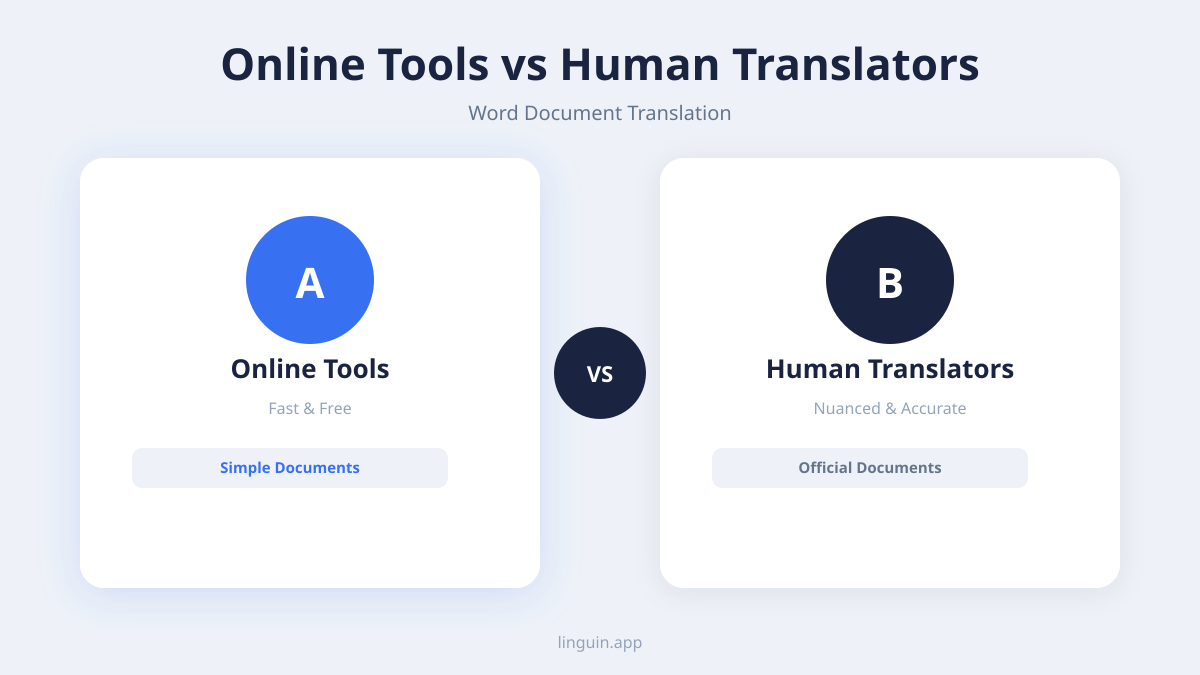
When you need to translate a Word document, you have several paths available, each with distinct advantages and trade-offs. The choice depends on factors like the document’s complexity, required accuracy, time constraints, and your budget. The most common methods include using the software’s native features, employing online machine translation services, or leveraging specialized AI-powered translation applications.
The simplest starting point is the Translate feature built directly into Microsoft Word. Found under the “Review” tab, this tool allows you to translate selected text or the entire document. It sends the content to Microsoft Translator, an online service, and then inserts the translated text back into your file. This method is convenient for quick, informal translations. However, it works by processing text in blocks. This can disrupt complex layouts, tables, headers, footers, and embedded images with text. The translation is also generic, as it may not be optimized for specific fields like law, medicine, or marketing.
Online machine translation portals, like the standalone versions of Google Translate or DeepL, offer another route. Here, you typically copy and paste your document’s text into a web browser. While these engines are powerful, this manual process is time-consuming for long documents and almost guarantees that all original formatting will be lost. You then face the tedious task of copying the translated text back into Word and attempting to reconstruct the layout. This method introduces a high risk of errors and is impractical for anything beyond plain text.
This is where dedicated document translation tools excel. Apps like Linguin are designed to accept the .docx file directly. They process the entire document structure, translating the text while working to preserve the original formatting, styles, and layout. This approach treats the document as a cohesive unit, which allows for more consistent terminology and better handling of context across paragraphs. For professional or lengthy documents, this preservation of structure is a significant advantage.
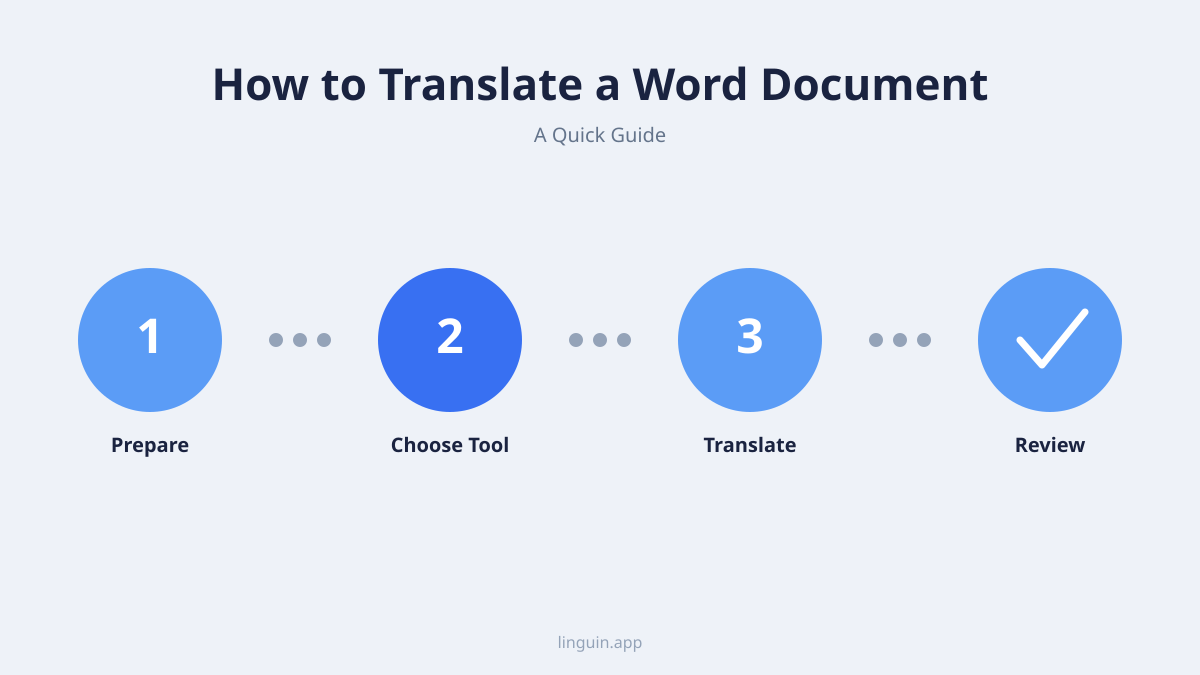
Step-by-step guide: translating within Microsoft Word
For many users, translating directly within Microsoft Word is the most accessible first step. This method leverages tools you already have. Here is a detailed, step-by-step guide to using Word’s native translation features effectively.
First, ensure your document is saved and that you have a stable internet connection, as Word uses cloud-based translation services. Open the document you wish to translate. For translating a specific section, highlight the relevant text. For the entire document, you do not need to select anything. Navigate to the “Review” tab on the ribbon. In the “Language” group, click on “Translate”. You will see options to “Translate Document” or “Translate Selected Text”.
Choosing “Translate Document” opens a sidebar. Here, you select the original language of your document (Word will often detect it automatically) and your target language from a extensive list. After clicking “Translate”, Word creates a new document with the translated text. It is crucial to understand that this new document will contain the translated content in a plain format. Sophisticated formatting from your original, such as custom styles, complex tables, or text boxes, may not transfer perfectly. Always review the new file carefully against the original.
For more control, use the “Translate Selected Text” option. This opens the “Translator” pane on the right side of your screen. The selected text appears in the pane, and the translation is generated instantly below. You can then choose to “Insert” the translation directly into your document, replacing the original text, or copy it manually. This is useful for checking translations of tricky phrases or working on a document paragraph by paragraph. The pane also offers alternative translations, which can help you choose the most accurate wording.
A few important limitations exist. Word’s translation may not handle specialized jargon, idioms, or cultural references well. The feature also processes text in chunks, which can sometimes break the flow of an argument or narrative. For a short, simple document like a basic letter or a list, the results are often satisfactory. For anything involving formal tone, technical terms, or precise layout, this method should be considered a first draft requiring substantial review and reformatting. You can learn more about managing tone in our guide on formal and informal translation for emails.
Leveraging AI-powered tools for document translation
Moving beyond basic built-in features, AI-powered translation tools represent a significant advancement for handling Word documents. These applications use sophisticated neural machine translation models trained on vast datasets. They are designed to understand context, which leads to more natural and accurate output than simple word-for-word substitution.
The primary advantage of using a tool like Linguin for document translation is its holistic approach. Instead of extracting plain text, the app parses the entire .docx file structure. It recognizes headings, bullet points, tables, and footnotes as distinct elements. The AI then translates the textual content within these elements while attempting to maintain their positional relationships and styling. This means your translated document more closely resembles the visual and structural integrity of the source, saving hours of manual reformatting.
Another key benefit is contextual awareness. A word like “file” has different meanings in an office context (a folder) versus a workshop context (a tool). By analyzing entire sentences and even surrounding paragraphs, modern AI models can disambiguate such terms more reliably than older statistical methods. This leads to fewer glaring errors and a more coherent reading experience. For documents with mixed content, such as a report containing both technical specifications and marketing language, this capability is invaluable. Explore how AI handles cultural context in marketing translations for deeper insights.
Consider a practical scenario. A project manager is compiling a quarterly report in English for their team in Berlin. The document contains styled headings, financial tables, and bulleted action items. Using an AI document translator, they upload the file, select German as the target, and receive a new .docx file where the numbers in the tables remain unchanged, the headings are still styled as “Heading 1,” and the bulleted lists are intact. The textual content is fluid and professionally translated, allowing the German team to engage with the material immediately without deciphering awkward phrasing or a broken layout.
These tools also often support batch processing and a wider range of language pairs. While Microsoft Word covers dozens of languages, specialized AI services frequently support over 100, including many less common ones. This is essential for global businesses, academic research, or NGOs working in diverse linguistic regions. For organizations managing multilingual projects, understanding AI translation for project management can streamline workflows.
Preserving formatting and layout during translation
One of the biggest challenges in document translation is preserving the original formatting and layout. A perfectly translated text loses its impact if it is presented in a disorganized, difficult-to-read document. This section covers strategies to maintain the professional appearance of your Word file throughout the translation process.
The foundation of formatting preservation lies in using Word’s own Styles feature effectively before you even begin translating. Instead of manually changing font sizes and bolding text, apply the built-in styles like “Title,” “Heading 1,” “Normal,” and “List Paragraph.” These styles are semantic tags that translation tools can recognize and preserve. When you translate a document where headings are tagged with “Heading 1” rather than just being enlarged text, the translation engine knows to treat that text as a heading and carry the styling over.
Complex elements like tables, images with captions, and footnotes require special attention. Before translation, ensure table text is contained within proper table cells and that image captions are created using Word’s “Insert Caption” feature, not just typed text below a picture. These elements are often parsed as distinct objects by advanced translation tools, increasing the chance they will remain in their correct positions. For footnotes and endnotes, using Word’s dedicated footnote tool is essential, as manually typed superscript numbers will not be understood as linked references.
When using translation methods that involve copying and pasting text, such as online portals, formatting loss is almost certain. To mitigate this, you can employ a two-step process. First, save a copy of your original document as a reference for layout. After pasting the translated text back into a new Word file, use the “Format Painter” tool or reapply the predefined Styles from your original document to reconstruct the look. This is labor-intensive but may be necessary for highly designed documents when using simpler translation methods.
For the best results, choose a translation solution that advertises formatting preservation as a core feature. These tools are engineered to interpret the Open XML structure of a .docx file. They don’t just see text, they see a document object model. This allows them to translate the text within each object while leaving the structural framework untouched. It is still wise to do a final visual check, as some minor spacing issues or font substitutions can occur, especially with non-Latin scripts. For software and app content, this principle is critical, as detailed in our article on multilingual UI and app design translation.
Ensuring translation accuracy and quality review
A translated document is only as good as its accuracy. Even the most advanced AI can make mistakes with nuance, terminology, or cultural appropriateness. Therefore, a quality review phase is non-negotiable for any important document. This process involves checking the translated output for errors and refining it for its intended audience.
The first step in review is a comparative read. Open the original and translated documents side by side. Scan for obvious omissions, additions, or mistranslations of key data like names, dates, and numbers. Pay special attention to technical terms, product names, and any legal or regulatory language. These terms must be translated precisely, or the document’s credibility can be compromised. Creating a glossary of key terms before translation can help ensure consistency, especially if you are working on a series of related documents.
Next, evaluate the translation for fluency and tone. Read the translated document from start to finish as if you were the target reader. Does it flow naturally? Is the tone appropriate for the context, whether formal, informal, or technical? AI models are getting better at this, but they can still produce awkward phrasing or choose a register that feels slightly off. This is where human judgment is essential. For instance, translating a friendly customer newsletter requires a different approach than translating a strict legal contract. Our guide on translation accuracy and AI advancements delves into these evolving capabilities.
Consider a scenario where a researcher must translate an academic paper from Spanish to English for submission to an international journal. The AI translation provides an excellent draft, handling complex syntax well. However, during review, the researcher notices that a culturally specific concept has been translated too literally, losing its nuanced meaning. They also spot that certain field-specific acronyms were not expanded correctly. The researcher revises these sections, ensuring the translated paper meets the journal’s standards for clarity and academic rigor. This highlights the value of AI in multilingual academic research.
Finally, if the document is for public or commercial use, consider a native speaker review. A person whose first language is the target language can catch subtleties that a non-native, or even a proficient machine, might miss. They can verify that idioms sound natural, that humor lands correctly, and that the text adheres to local conventions. For marketing materials, this step is absolutely critical to avoid embarrassing or ineffective messaging. The review process transforms a good machine translation into a polished, professional, and culturally resonant final product.
Special considerations for technical and creative documents
Not all Word documents are created equal. Translating a technical manual, a legal contract, or a creative piece like a brochure presents unique challenges that go beyond standard text. Each document type demands a tailored approach to translation to maintain its purpose and effectiveness.
Technical documents, such as user manuals, engineering reports, or scientific papers, are dense with jargon, acronyms, and precise instructions. Accuracy is paramount, as a mistranslation could lead to safety issues or product misuse. For these documents, using an AI tool trained on technical corpora or one that allows you to build custom terminology databases is advantageous. The translation must be literal and unambiguous. Formatting is also crucial, as numbered steps, warning icons, and diagrams with callouts must remain perfectly aligned. The review should ideally involve a subject-matter expert who is also fluent in the target language. Learn more about handling specialized content in our article on translation for software development.
Legal documents introduce another layer of complexity. Contracts, terms of service, and compliance forms are written in a highly formulaic and jurisdiction-specific language. A single preposition can change the meaning of a clause. While AI can provide a foundational translation, these documents almost always require a final review and certification by a qualified legal translator or attorney. The preservation of formatting is less about aesthetics and more about ensuring that clauses, numbered sections, and signatures are presented in the standard format expected in the target legal system. Our resource on multilingual legal document review covers this in detail.
Creative and marketing documents prioritize impact over literal accuracy. A brochure, blog post, or advertisement uses persuasive language, wordplay, and cultural references. The goal here is localization, which adapts the content to resonate emotionally and culturally with the new audience. This might involve changing metaphors, examples, or even images. A direct translation of a slogan often fails. An AI tool that excels in contextual understanding can suggest creative alternatives, but a human marketer or copywriter from the target culture should lead this process. The visual layout, including fonts and color schemes, might also need adaptation based on cultural perceptions.
For example, translating a video game script involves a blend of technical and creative challenges. UI text must be concise and fit within button constraints, while character dialogue needs to convey personality and humor. This specialized field benefits from tools that understand both multilingual gaming accessibility and the nuances of translating humor and sarcasm. Recognizing the document’s primary function-to instruct, to bind legally, or to persuade-directs you to the right translation methodology and level of post-editing required.
how to translate a word document FAQ
Can I translate a Word document without losing formatting?
Yes, but the method matters. Using Word’s built-in “Translate Document” feature may alter formatting. For best results, use a dedicated document translation tool designed to parse and preserve the .docx file structure. These AI-powered applications translate the text within the document’s framework, keeping styles, tables, and layouts largely intact, though a final visual check is always recommended.
Is it safe to translate confidential documents using online tools?
You must check the privacy policy of the tool you use. When you use the free translator in Word or a public website, your text is typically sent to a cloud server for processing. For sensitive documents, look for translation tools that offer offline processing or explicitly state that your data is encrypted, not stored, and not used for training their AI models. Enterprise-level solutions often provide these security guarantees.
What is the fastest way to translate a long Word document?
The fastest method is to use an AI document translation application that processes the entire file at once. Upload the document, select the target language, and let the tool handle the translation in a single batch operation. This is significantly quicker than copying and pasting sections into a web browser or translating within Word paragraph by paragraph, especially for documents over 10 pages.
How accurate are AI translations for complex Word documents?
Modern AI translations are highly accurate for general and business language, offering fluent and context-aware results. For complex documents with specialized jargon, idioms, or creative language, the accuracy can vary. AI provides an excellent first draft that captures the core meaning, but a human review by a native speaker or subject expert is necessary to achieve publication-level quality, particularly for legal, technical, or marketing content.
Getting started with Linguin for your documents
Translating a Word document effectively hinges on choosing the right tool for your specific needs and following a process that values both speed and accuracy. We have explored methods from the convenient built-in features of Word to the more sophisticated capabilities of AI-powered applications. The key is to match the method to the document’s purpose: quick, informal translations can use simple tools, while professional, formatted, or nuanced documents benefit greatly from dedicated software that preserves layout and understands context.
The most important points to remember are to prepare your document with proper Styles, select a translation tool that prioritizes formatting preservation for complex files, and never skip the quality review phase, especially for critical or public-facing materials. This hybrid approach, leveraging AI for efficiency and human judgment for refinement, produces the best outcomes.
A clear next step is to evaluate your current document. Is it a simple text file or a complex report with tables and styles? Based on that, you can try the method that fits. For those dealing with frequent, multi-format translation needs, exploring a tool like Linguin could streamline your workflow. It is designed to handle the entire document as a cohesive unit, supporting over 100 languages while aiming to maintain the original’s structure and intent, allowing you to focus on the content’s message rather than its formatting.