English
  Español
  Français
  Deutsch
  Português
  Italiano
  Русский
  中文(简体)
  日本語
日本語  한국어
한국어  العربية
  हिन्दी
  Nederlands
  Türkçe
  Polski
YouTube’s auto translate and AI dubbing features automatically translate audio and subtitles, making videos accessible across language barriers. This guide explains how the technology works for both viewers and creators, details its current capabilities and limitations, and shows you how to get the most from it. You will learn the practical steps to enable these features, understand what they can and cannot do, and discover complementary tools for greater translation flexibility.
Key takeaways
- YouTube’s auto dubbing feature now supports 27 languages and became available to all eligible creators by default on February 4, 2026.
- Viewers watch over 10 minutes of auto-dubbed content per day, with the feature serving more than 6 million daily viewers as of December 2025.
- Creators cannot edit auto-generated dubs line by line; they can only unpublish the track or replace it with a manually created one.
What is YouTube auto translate?
YouTube auto translate refers to two primary, AI-powered features that help overcome language barriers on the platform. For viewers, it provides automatic captions that can be translated into over 100 languages in real-time. For creators, the newer auto dubbing feature translates a video’s original spoken audio into a different language using synthetic speech.
The automatic caption translation has been available for years. It works by first generating captions in the video’s original language using speech recognition, then translating that text into the viewer’s selected language. The result is subtitles that appear synchronized with the video playback. This allows a viewer who speaks only Spanish to watch a video originally in Japanese by reading Spanish subtitles.
Auto dubbing is a more advanced application. Instead of just translating text for subtitles, it translates the full spoken audio track. YouTube’s AI creates a new audio file where a synthetic voice speaks the translated dialogue. This can be published as an alternative audio track for the video. A creator uploading an English tutorial can, with a few clicks, generate and publish a German-dubbed version of that same video. This feature now supports 27 languages.
The core technology behind these features involves a combination of automatic speech recognition (ASR) for transcription, machine translation (MT) to convert the text between languages, and, for dubbing, text-to-speech (TTS) synthesis to generate the new audio. The AI models are designed to handle conversational speech, account for some contextual clues from the video, and produce output that aims for natural flow over word-for-word literal translation.
How to use YouTube auto translate as a viewer
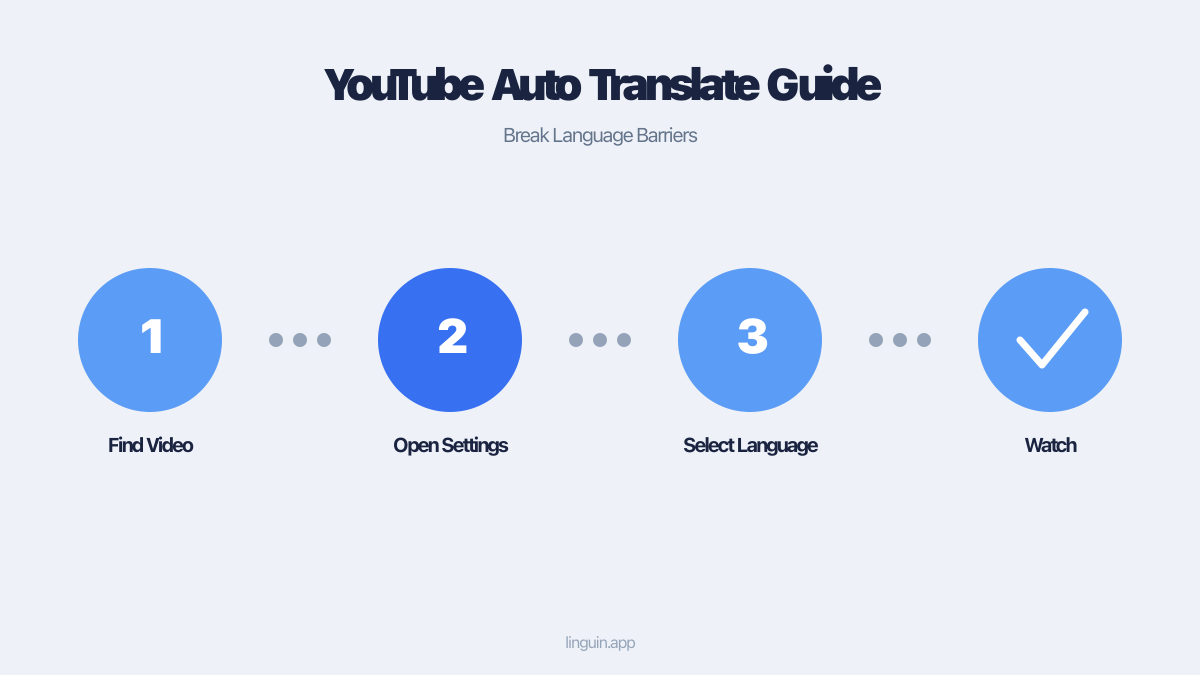
Using YouTube’s translation features as a viewer is straightforward and requires no special setup from the creator’s side. The functionality is built directly into the YouTube player on both desktop and mobile apps. The first step is to ensure captions are turned on. Click or tap the “CC” (closed captions) icon in the video player’s control bar. If the video has manually uploaded subtitles or reliable auto-generated ones, captions will appear.
Once captions are visible, you can translate them. Look for the gear icon (settings) next to the CC button. Clicking it opens a menu. On desktop, you will see an option labeled “Subtitles/CC.” Hover over or click this to expand a second menu. Here, you will find “Auto-translate.” Selecting it opens a list of over 100 languages. Choose your preferred language, and the captions will instantly change.
On the YouTube mobile app, the process is similar. Tap the three vertical dots in the top-right corner of the video player to open the settings menu. Tap “Captions,” then “Auto-translate,” and select your language. The translated subtitles will then appear. It is important to note that translation quality depends heavily on the accuracy of the original automatic captions. Background noise, strong accents, or technical jargon can lead to errors in the initial transcription, which then carry through to the translation.
Say you are watching a technical conference talk in French. You enable auto-translate to English. The AI first transcribes the French speech to French text, then translates that text to English. If the speaker uses niche acronyms the ASR does not know, the French transcription might be wrong, leading to a confusing or incorrect English translation. For videos where the creator has provided their own subtitle file, the translation will start from that more accurate text, yielding better results.
For a more integrated translation experience beyond YouTube, tools like the Linguin Chrome extension can translate entire web pages, including comment sections and video descriptions, that YouTube’s native tool does not cover.
How creators can use YouTube auto dubbing
For creators, YouTube auto dubbing offers a way to reach a global audience without recording new audio themselves. The feature is managed through YouTube Studio. To start, a creator uploads a video as usual. Once the video is processed, they navigate to the “Subtitles” section for that video within YouTube Studio. If the video is eligible for dubbing, an option to “Dub” will appear, often with a lightning bolt icon.
Clicking “Dub” presents a list of target languages. The creator selects the language they want to generate a dub for and confirms. YouTube’s systems then process the video. This involves transcribing the audio, translating the transcript, and generating a new voiceover. The processing time can vary from minutes to hours, depending on video length and server load. Once complete, the new dubbed audio track is saved as an alternative track on the same video.
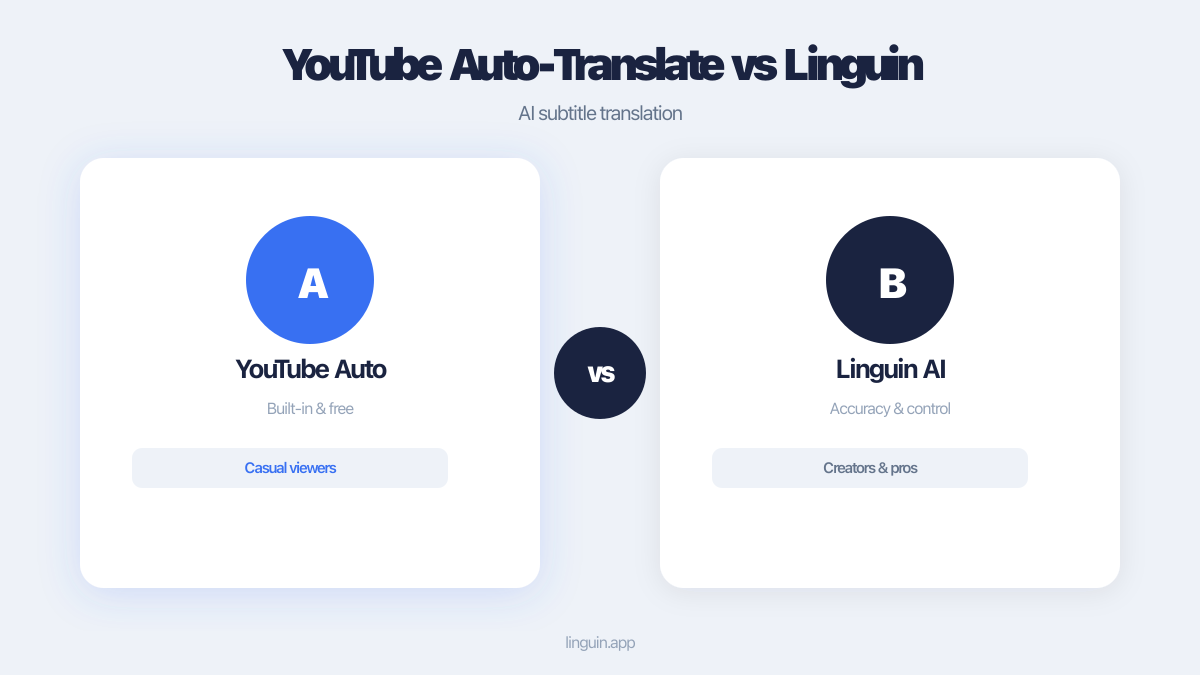
A crucial limitation, according to OpenYourAIs, is that creators cannot edit the auto-generated track line by line. If a particular sentence is translated poorly or the pronunciation is off, the creator cannot fix that single line. The only options are to unpublish the auto-generated track entirely or to replace it with a professional, human-created dub that they upload themselves. This makes the feature best suited for content where perfect, nuanced translation is not critical, or as a first pass to gauge audience interest in a new language market.
YouTube has also introduced an Expressive Speech feature for auto dubbing, available in 8 languages: English, Spanish, Portuguese, French, German, Italian, Hindi, and Indonesian. This aims to make the synthetic voice sound more natural, with better intonation and pacing that mimics human speech patterns more closely than a standard monotone TTS voice.
Creators should review the auto-generated dub before publishing it. Play the video with the new audio track to check for obvious errors, sync issues, or inappropriate tone. Since the feature is now available to all eligible creators by default, it is worth experimenting with on a few videos to see how your audience responds. For translating other creator assets, like video descriptions or community posts, a dedicated translate app can provide more control.
Current capabilities and language support
YouTube’s auto translation ecosystem is extensive but has specific parameters. The most straightforward metric is language count. YouTube auto dubbing now supports 27 languages. This means a creator can generate dubbed audio tracks in any of these 27 languages from a supported source language. The feature serves over 6 million viewers watching more than 10 minutes of dubbed content per day, as of December 2025, indicating significant and growing usage.
The translation directions, however, are not symmetrical. There is conflicting data on the exact number of source languages. The sync. labs blog reports that as of July 2026, YouTube auto dubbing works from 29 source languages into English, but from English into only 20 other languages. A conflicting claim from OpenYourAIs states 34 source languages and English dubbing into 23 languages. This asymmetry is common in machine translation systems, where training data is more abundant for certain language pairs, like translating many languages into English, compared to translating English into less common languages.
For viewers using subtitle auto-translate, the language list is much broader, covering over 100 languages. This is because text translation is computationally less intensive than generating full audio dubs. The quality of these subtitle translations can still vary widely. Languages with large amounts of digital text and audio data available for AI training, such as Spanish, French, or Mandarin, typically see higher accuracy. For lower-resource languages, translations may be more literal and prone to grammatical errors.
YouTube is piloting a lip sync feature that reanimates speaker lip movements to match dubbed audio, but it is limited to select channels. This represents the next frontier in automated dubbing, moving beyond just voice replacement to visually aligning the speaker’s mouth with the new language’s phonetics. Such a feature could greatly enhance the viewing experience by reducing the cognitive dissonance of seeing lips move out of sync with the audio.
For translating written content related to videos, such as scripts or blog posts, creators often use tools that offer more fine-tuning. Comparing an AI translator vs Google Translate can help choose the right tool for preparing supporting materials.
Limitations and challenges of automated translation
While powerful, YouTube’s auto translate and dubbing features come with inherent limitations tied to the current state of AI. The most significant is the lack of editorial control for dubbing. As noted, creators cannot tweak individual lines of an auto-generated dub. If a joke, cultural reference, or technical term is mistranslated, the entire track must be scrapped or tolerated as is. This makes it unsuitable for content where precision is paramount, such as legal explanations, medical advice, or nuanced literary analysis.
Translation accuracy is another challenge. AI translation models operate on patterns found in vast datasets. They can struggle with context, sarcasm, idioms, and words with multiple meanings. A classic example is the word “bank.” Without visual context, an AI might translate “river bank” as “financial institution.” In a video showing a person fishing, this error would be glaring. Similarly, humor and wordplay are often lost, as the AI translates the literal meaning but not the intended comedic effect.
Voice synthesis, even with the Expressive Speech feature, can still sound robotic or emotionally flat compared to a human voice actor. The synthetic voice might not correctly convey urgency, sadness, or excitement, which can disconnect the audience from the content’s emotional core. For narrative-driven content like documentaries or dramatic stories, this is a major drawback.
There are also technical constraints. The system requires a clear, single-speaker audio track for best results. Videos with multiple people talking over each other, heavy background music, or poor audio quality will generate worse transcriptions, leading to cascading translation errors. Furthermore, the feature may not be available for all video types due to copyright claims, content ID matches, or other policy restrictions.
For creators who need accurate, editable translations for other purposes, such as translating documents that accompany their video content, using a dedicated service for specific tasks is often necessary. For instance, learning how to translate a PDF on a Mac can be essential for sharing show notes or transcripts with an international team.
Practical use cases and scenarios
YouTube’s auto translation tools are valuable in specific scenarios where speed and accessibility outweigh the need for perfect, nuanced translation. One clear use case is for educational and tutorial content. A software developer creating a coding tutorial in English can use auto dubbing to quickly generate versions in Spanish, Portuguese, and Hindi. While the technical terminology might not always be perfect, the core instructions remain understandable, allowing them to rapidly expand their tutorial’s reach to non-English speaking learners.
Another scenario is for news and current events channels. When a major event occurs, a news outlet can upload a report in its native language and use auto dubbing to publish versions in several other languages within hours, not days. This speeds up the dissemination of information globally, even if the delivery lacks the polish of a professional news anchor’s dub. The priority here is timely information sharing.
Consider a travel vlogger who films their adventures in Thailand. Their primary audience might be English-speaking, but they have a growing number of comments from Brazilian Portuguese speakers asking for translations. Instead of hiring a translator and re-recording audio, the vlogger can enable auto dubbing for Portuguese. This directly responds to audience demand with minimal effort, fostering community growth. They might use a tool like Linguin to translate emails professionally when responding to partnership inquiries from international brands, creating a full cross-language workflow.
For viewers, the use cases are about access. A student researching a topic might find the perfect explanatory video, but it is in a language they do not understand. Auto-translated subtitles allow them to grasp the key concepts. A fan of a particular musician or filmmaker can explore interviews and behind-the-scenes content from other countries that were previously inaccessible due to language barriers.
Businesses with global teams can use these features for internal training. A company can create a training video once and generate auto-dubbed versions for regional offices. While for official external marketing they would use professional dubbing, for internal communication the cost and speed benefits of AI dubbing are compelling. Preparing the original script with translation in mind, perhaps by first using a service to translate business documents for clarity, can improve the auto-dubbing output.
Questions people ask
How do I turn on auto translate on YouTube?
To turn on auto translate for subtitles, first enable captions by clicking the “CC” icon in the video player. Then, click the gear icon (settings) and navigate to “Subtitles/CC.” Select “Auto-translate” and choose your preferred language from the list. The subtitles will immediately switch to the translated version. This feature relies on the video having existing captions, either creator-provided or auto-generated by YouTube.
Is YouTube auto translate accurate?
The accuracy of YouTube auto translate varies. It depends on the clarity of the original audio, the complexity of the language, and the specific language pair. For common languages and clear speech, it can provide a good gist of the content. However, it often makes mistakes with idioms, technical terms, and context-dependent words. It is useful for understanding general meaning but should not be relied upon for critical, precise information where errors could have consequences.
Can I edit YouTube’s auto-generated dubs?
No, you cannot edit YouTube’s auto-generated dubs line by line. According to OpenYourAIs, creators only have two options: unpublish the AI-generated audio track or replace it entirely with a manually created and uploaded track. This is a key limitation, making the feature a “take it or leave it” proposition rather than a collaborative editing tool.
What languages does YouTube auto dubbing support?
YouTube auto dubbing supports 27 languages for output. The Expressive Speech feature, which aims for more natural synthetic voices, is available in 8 of those languages: English, Spanish, Portuguese, French, German, Italian, Hindi, and Indonesian. The number of source languages you can dub from is larger, though reports conflict on the exact count, with figures of 29 and 34 source languages being cited for translation into English.
Does YouTube auto translate work on mobile?
Yes, YouTube auto translate works on mobile devices through the official YouTube app. The process is similar to the desktop. Tap the three-dot menu in the video player, select “Captions,” then “Auto-translate,” and pick your language. Auto dubbing for creators is managed through the YouTube Studio app or the mobile browser version of YouTube Studio, though the interface is more streamlined on a desktop computer.
Enhancing your translation workflow
YouTube’s auto translate and dubbing are powerful for scaling content accessibility directly on the platform. They excel at providing fast, automated translations for viewers and a low-effort path to multilingual audio for creators. The core points to remember are its support for 27 dubbing languages, its use by millions daily, and its primary constraint: the lack of fine-grained editing for generated dubs.
These native tools are just one part of a modern content creator’s or global consumer’s toolkit. For tasks that require more precision, control, or happen outside the YouTube player, dedicated translation software fills the gap. This includes translating scripts before recording, localizing video descriptions and community posts, or understanding foreign-language comments and research.
A logical next step is to integrate a versatile translation tool into your daily workflow. For instance, you can use a desktop application to translate clipboard text on a Mac instantly while researching video topics in different languages, or employ a Chrome extension to translate entire articles and websites for background material. By combining YouTube’s automated platform features with focused tools for specific translation jobs, you can achieve both broad reach and detailed accuracy in your cross-language communication.
Try Linguin to experience AI-powered translation that gives you control across all your devices and applications.