English
  Español
  Français
  Deutsch
  Português
  Italiano
  Русский
  中文(简体)
  日本語
日本語  한국어
한국어  العربية
  हिन्दी
  Nederlands
  Türkçe
  Polski
Navigating the digital world often means encountering information in languages you don’t understand. From research papers and user manuals to contracts and creative works, PDFs are a ubiquitous format for sharing documents. When these documents aren’t in your native tongue, they can become impenetrable barriers. Fortunately, for Mac users, there are several effective ways to break down these linguistic walls and translate PDF files. This guide will walk you through the most efficient methods, from simple browser-based solutions to leveraging the power of dedicated translation apps like Linguin.
Understanding the Challenge of PDF Translation
PDFs, or Portable Document Format files, are designed to preserve the formatting and layout of a document across different operating systems and software. This means that when you open a PDF, you’re seeing a visual representation of the text and its arrangement, rather than just raw text that’s easy to manipulate. This excellent feature for presentation can, however, pose a challenge for translation. Simply copying and pasting text from a PDF into a traditional online translator might result in broken formatting, garbled characters, or a loss of context, especially if the PDF contains complex layouts, images with embedded text, or specific fonts.
Traditional translation methods often involve converting the PDF to a more editable format like a Word document, translating it, and then converting it back to PDF. This process can be time-consuming and prone to errors, especially when dealing with numerous or lengthy documents. Modern solutions, however, aim to streamline this process, offering more direct and accurate translation capabilities.
Method 1: Leveraging Your Mac’s Built-in Features (and a Little Help from the Web)
Your Mac is a powerful tool, and while it doesn’t have a direct “Translate PDF” button, you can combine its capabilities with web-based services for a surprisingly effective approach, especially for simpler PDFs.
Using Safari’s Built-in Translation
Safari, Apple’s web browser, offers a fantastic feature for translating entire web pages. While it doesn’t directly translate PDF files when opened locally in the browser, you can use it to translate PDFs that are hosted online.
Here’s how:
- Open the PDF in Safari: If the PDF is online, simply navigate to its URL in Safari. If it’s a local file, you can drag and drop it into an open Safari window, or go to
File > Open Recentif you’ve opened it before. Safari will display the PDF. - Look for the Translate Icon: If Safari detects a different language, a translation icon (often a square with two overlapping lines or letters) will appear in the address bar, usually on the right side.
- Click and Select Language: Click this icon. A dropdown menu will appear, offering to translate the page into your default language (usually English, if your Mac is set to English). You can also click on the language dropdown to select other available languages.
- Confirm Translation: Click “Translate,” and Safari will work its magic, attempting to translate the text within the PDF.
Limitations: This method works best for PDFs that are essentially web pages or have simple text. PDFs with complex formatting, scanned images of text, or embedded fonts might not translate accurately or at all. The translation is also applied to the current view; you can’t save a translated version of the PDF directly.
Copy-Pasting into Online Translators
For smaller sections of text or when dealing with PDFs that allow text selection, the traditional copy-paste method into an online translator remains a viable, albeit manual, option.
Here’s how:
- Open the PDF: Use Preview (your Mac’s default PDF viewer) or another PDF reader to open your document.
- Select Text: Use your cursor to highlight the text you want to translate.
- Copy: Press
Command + Cto copy the selected text. - Open a Translator: Navigate to a reputable online translation service like Google Translate, DeepL, or Bing Translator.
- Paste and Translate: Paste the copied text into the input box (press
Command + V). The translator will automatically detect the source language or allow you to select it, and then provide the translation in the target language.
Limitations: This is the most labor-intensive method. It’s impractical for long documents and can lead to formatting issues if the PDF has an intricate layout. Scanned PDFs, where the text is part of an image, cannot be translated this way unless optical character recognition (OCR) is applied first.
Method 2: A Fast AI Translator for the Text Itself
If Safari’s page translation doesn’t apply to your PDF, or you just need a quick, accurate translation of the text without leaving your Mac, pairing your PDF viewer’s copy function with a fast AI text translator is the next step up from a basic online translator.
Using Linguin: An AI-Powered Text Translator
Linguin is a translation app for macOS, iOS, and as browser extensions for Chrome and Safari. To be upfront about what it does: it doesn’t open PDF files, there’s no drag-and-drop import or file picker, and it doesn’t preserve document layout. What it does well is translate text quickly once you’ve copied it out of the PDF. The free Standard style is a straightforward machine translation, similar in quality to Google Translate; four paid styles, Casual, Formal, Creative, and Technical, run the text through a large language model instead of word-for-word substitution, which tends to produce more natural-sounding results. The free plan also caps each translation at 500 characters, so a longer passage needs to go in a few chunks.
How to Translate PDF Text with Linguin on Mac:
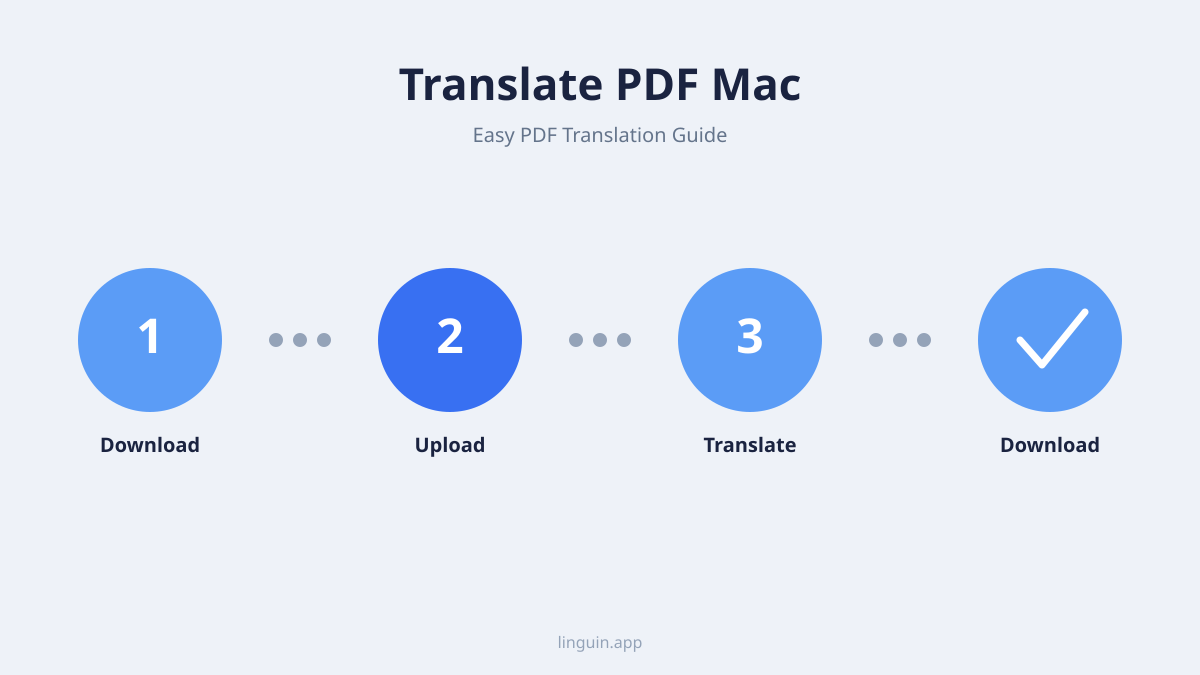
- Download and Install Linguin: If you haven’t already, download the Linguin app for macOS from the App Store or our website. Install it like any other Mac application.
- Open your PDF in Preview (or whichever PDF viewer you normally use) and select the text you want translated.
- Copy it with
Command + C. - Bring Linguin to the front: press Option+Space anywhere on your Mac, this shortcut is built into Linguin and toggles the app window open instantly.
- Paste the text into Linguin’s source field (there’s a Paste button if you’d rather not click into the field first). On the free plan, each translation is capped at 500 characters, so if you copied a full paragraph or more, you may need to paste it in a couple of rounds.
- Linguin auto-detects the source language; pick your target language and read the translation.
What to Expect:
- Natural-sounding translations on the paid AI styles: Casual, Formal, Creative, and Technical run the text through a large language model, so results tend to read more naturally than literal, word-for-word tools. The free Standard style is a plainer machine translation, closer in quality to Google Translate.
- No layout preservation: You get translated text back, not a translated PDF. Paste it into a new document and format it yourself if the original layout matters.
- No OCR: If your PDF is a scanned image with no selectable text, Linguin can’t help until you run it through a separate OCR tool first, it doesn’t include OCR itself.
- Same app everywhere: Since Linguin is available across macOS, iOS, and browser extensions, the same translation workflow is available whether you’re on your Mac, your phone, or reading something in a browser tab.
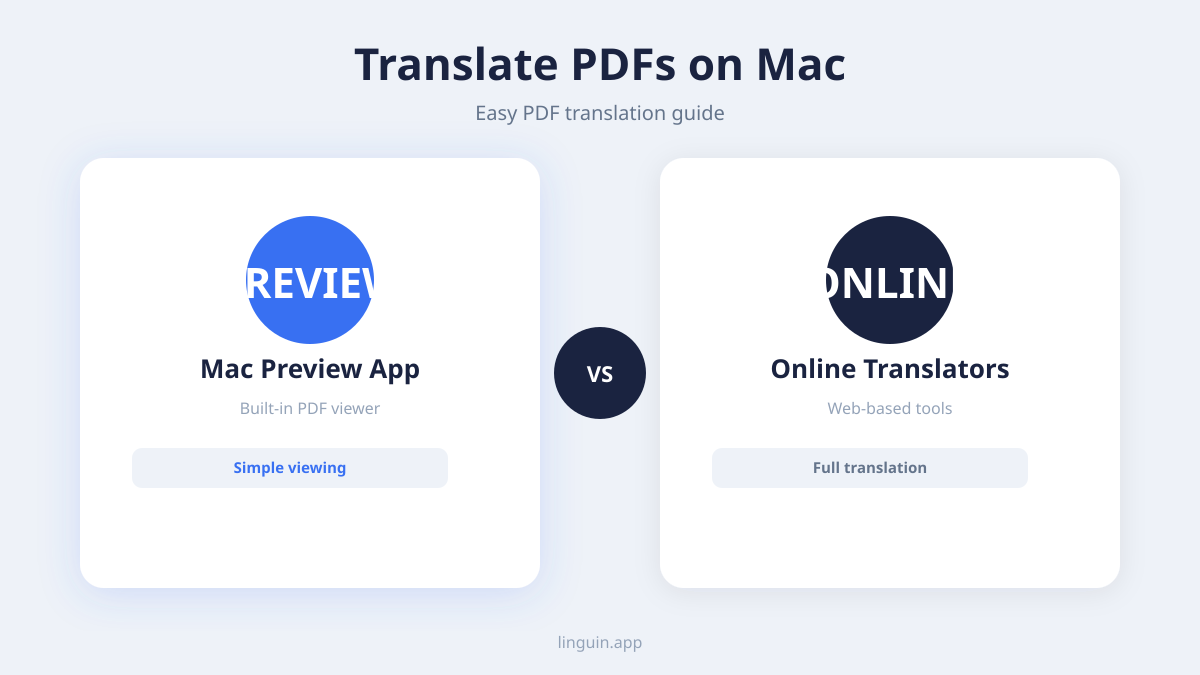
This method is fastest for a page, a section, or a short document. For a long document where preserving tables, columns, and headers matters, Method 3 below (dedicated online PDF translators) is the better tool for the job.
Method 3: Online PDF Translation Tools
Beyond the built-in browser features and dedicated Mac apps, there are numerous online tools specifically designed for translating PDF documents. These tools often provide a quick and accessible way to get a translation without installing any software.
How Online Tools Work
These web-based services typically require you to upload your PDF file to their server. The service then processes the document, extracts the text, translates it using their AI engine, and allows you to download the translated version.
Popular Online PDF Translators:
- Google Translate (Document Upload Feature): While primarily known for text and web page translation, Google Translate also offers a document translation feature. You can upload a PDF, DOCX, PPTX, or XLSX file, and it will attempt to translate it.
- DeepL: Renowned for its high-quality translations, DeepL also supports document uploads, including PDFs.
- DocTranslator: This service specializes in translating documents and offers support for a wide range of file formats, including PDFs.
- Online Doc Translator: Similar to DocTranslator, this platform allows you to upload PDFs for translation with a straightforward interface.
Steps for Using Online PDF Translators:
- Visit the Website: Go to the website of your chosen online PDF translator.
- Upload Your PDF: Look for an “Upload Document,” “Choose File,” or similar button and select your PDF from your Mac.
- Select Languages: Specify the source and target languages.
- Initiate Translation: Click the “Translate” or “Start” button.
- Download the Translated PDF: Once the translation is complete, you’ll be provided with a link to download your translated PDF.
Considerations for Online Tools:
- Privacy and Security: Be mindful of uploading sensitive or confidential documents to third-party websites. Always check the service’s privacy policy.
- File Size Limits: Many free online tools have limits on the size or number of pages you can translate.
- Formatting Preservation: While many online tools strive to preserve formatting, results can vary. Complex PDFs might still lose some of their original layout.
- OCR Quality: If you’re translating a scanned PDF, the quality of the OCR integrated into these online tools can significantly impact the translation accuracy.
Tips for Maximizing Your PDF Translation Results
Regardless of the method you choose, a few best practices can help you achieve the best possible translation outcomes on your Mac.
Prepare Your PDF
- Check for Scans: If your PDF is a scan of a document, the text is essentially an image. Before translation, consider using an OCR tool to convert the image to actual text. Many dedicated apps and some online services have this capability built-in.
- Simplify if Possible: If you have the original source document (e.g., a Word file), translating that and then converting it to PDF can often yield better results than translating a pre-made PDF with complex formatting.
Choose the Right Tool for the Job
- For Quick Snippets: Use Safari’s built-in feature or copy-paste into a translator like Linguin.
- For Frequent Translation Where Natural-Sounding Text Matters More Than Layout: Copy-paste into a dedicated AI text translator like Linguin. It won’t preserve document formatting, but the translation quality is generally better than basic online tools.
- For Preserving the Original Layout of a Long Document: Use a dedicated online PDF translator (Method 3) that uploads and reconstructs the file.
Review and Edit
No machine translation is perfect. Always allocate time to review the translated document. Check for:
- Accuracy: Does the translated text convey the intended meaning of the original?
- Grammar and Spelling: Even advanced AI can make minor errors.
- Contextual Appropriateness: Are the terms and phrases used suitable for the document’s purpose and audience?
- Formatting: Ensure that the layout, headings, and any special characters are rendered correctly in the translated output.
Understand the Limitations
Be realistic about what translation technology can achieve. Highly technical jargon, creative writing with subtle nuances, or culturally specific idioms can still pose challenges for even the most advanced AI.
Conclusion: Bridging Language Gaps on Your Mac with Ease
Translating PDF documents on your Mac no longer needs to be a daunting task. Between Safari’s built-in page translation, a fast copy-paste AI translator like Linguin for accurate, natural-sounding text, and dedicated online PDF translators when layout preservation matters, you have a range of options at your fingertips. None of them is a single one-click solution for every kind of PDF, but knowing which tool fits which job saves real time. By understanding the different methods available and applying these best practices, you can confidently break down language barriers and unlock the information contained within any PDF document, no matter its origin. Happy translating!
-vs-translator.png)