 English
  Español
  Français
  Deutsch
  Português
  Italiano
  Русский
  中文(简体)
  日本語
日本語  한국어
한국어  العربية
  हिन्दी
  Nederlands
  Türkçe
  Polski
Navigating the Multilingual World on Your Mac
In today’s interconnected global landscape, the ability to understand and communicate across different languages is no longer a luxury, but a necessity. Whether you’re a student researching foreign academic papers, a business professional collaborating with international clients, a traveler planning your next adventure, or simply someone who enjoys exploring content from around the world, language barriers can be a significant hurdle. Fortunately, modern technology has made bridging these linguistic divides easier than ever, especially on your trusty Mac.
Your macOS device is a powerful tool, and with the right applications, it can become your personal multilingual assistant. Gone are the days of tedious copy-pasting into clunky online translators or struggling with dictionary apps. With the advancements in AI and sophisticated translation engines, achieving seamless, on-the-fly translation is well within reach. This guide is designed to equip you with the knowledge and tools to master Mac translation, making your digital interactions smoother, more efficient, and far more enjoyable. We’ll explore the native features that macOS offers, and then dive into how powerful third-party solutions can elevate your translation experience to new heights.
Understanding macOS Built-in Translation Capabilities
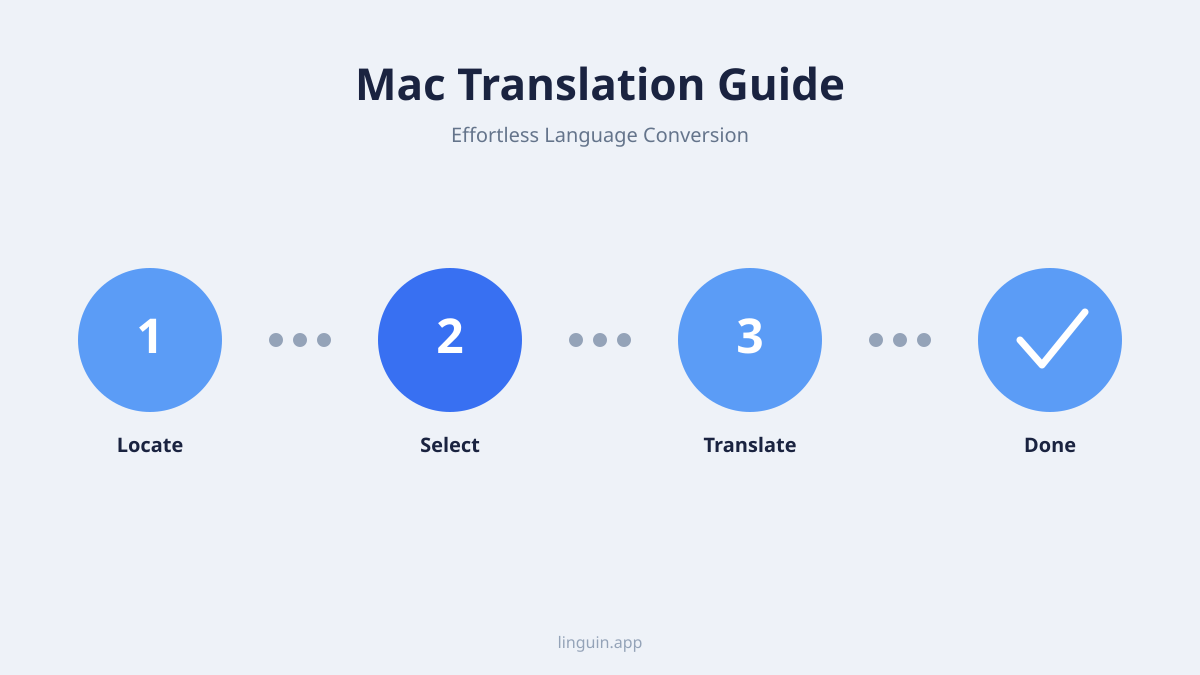
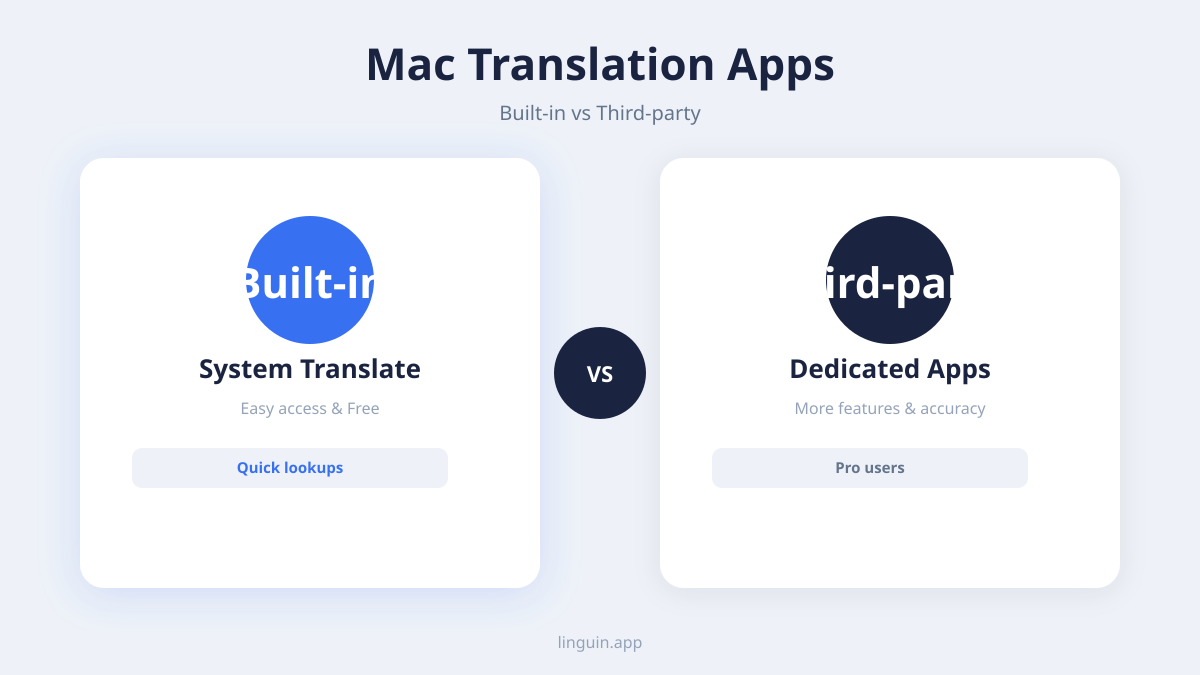
Apple has been steadily integrating translation features into its operating systems, and macOS is no exception. While not as comprehensive as dedicated translation apps, these built-in tools offer a convenient starting point for quick translations directly within your workflow.
One of the most accessible features is found within the Safari browser. When you visit a webpage in a language different from your system’s primary language, Safari will often present a translation prompt. Clicking this prompt allows you to translate the entire page with a single click. This is incredibly useful for browsing foreign news sites, reading international blogs, or researching products from overseas markets. The quality of these translations has improved significantly over the years, thanks to Apple’s investment in machine learning.
Beyond Safari, macOS also offers text translation capabilities in certain applications. For example, when you select text in applications like Mail, Notes, or Pages, you can often right-click (or Control-click) to reveal a context menu. Within this menu, you might find an option like “Translate Selection” or “Look Up.” Selecting this will typically bring up a pop-over window displaying the translation of the selected text. This is perfect for translating a single sentence or a paragraph that you’ve encountered unexpectedly in an email or document.
It’s important to note the limitations of these built-in features. They are often dependent on your internet connection, and the range of supported languages, while growing, might not cover every niche language you need. Furthermore, the translation interface can sometimes feel a bit rudimentary, and for complex or highly nuanced texts, you might find the translations to be a bit literal or lacking in natural flow. This is where the power of specialized translation applications truly shines, offering a more robust and customizable experience.
The Power of Dedicated Mac Translation Apps: Introducing Linguin
While macOS’s native features are a good starting point, for truly seamless and powerful translation across your entire Mac experience, a dedicated translation app is essential. This is where Linguin steps in. Linguin is an AI-powered translation app meticulously designed for macOS, offering a sophisticated yet incredibly user-friendly solution to break down language barriers. Unlike built-in tools that are often confined to specific applications, Linguin integrates deeply into your macOS environment, allowing you to translate text, documents, and even conversations with unparalleled ease.
Linguin’s core strength lies in its advanced AI. It leverages cutting-edge machine learning models to deliver highly accurate and contextually relevant translations. This means that when you translate a phrase, Linguin doesn’t just offer a word-for-word conversion; it understands the nuances of language, idiomatic expressions, and grammatical structures, providing translations that sound natural and human. This is particularly crucial for professional communication, creative writing, or any situation where precision and clarity are paramount.
One of the most convenient aspects of Linguin is its system-wide accessibility. Once installed, Linguin can be accessed via a global keyboard shortcut. This means no more switching between apps or selecting text within specific windows. Simply highlight any text on your Mac, press your custom shortcut, and a sleek pop-up window will instantly display the translation. This efficiency is a game-changer for anyone who frequently works with multiple languages. Imagine reading an article, receiving an email, or jotting down notes – any piece of text can be translated in a matter of seconds without interrupting your workflow.
Furthermore, Linguin supports a vast array of languages, far exceeding the capabilities of most built-in solutions. This ensures that whether you’re dealing with major global languages or more specialized dialects, Linguin has you covered. The app also offers features like offline translation, allowing you to translate even without an internet connection, a vital feature for travelers or those working in areas with unstable connectivity. For those who need to translate entire documents, Linguin provides robust document translation capabilities, preserving formatting and delivering accurate translations of PDFs, Word documents, and more.
Leveraging Linguin for Enhanced Productivity and Global Connections
Linguin isn’t just about translating words; it’s about empowering you to connect, learn, and achieve more. Its integration into your Mac workflow unlocks a world of possibilities, transforming how you interact with information and people globally.
For students and academics, Linguin is an invaluable research companion. Imagine accessing scholarly articles, historical documents, or online lectures from institutions worldwide without being hindered by language. You can quickly translate key passages, research papers, or even entire books, opening up a vast universe of knowledge previously inaccessible. This dramatically speeds up research processes and allows for a deeper understanding of global academic discourse.
Business professionals will find Linguin indispensable for international collaboration. Conducting market research on foreign websites, understanding competitor analysis from global reports, or communicating with international clients via email or chat all become significantly smoother. Linguin’s accurate and nuanced translations help prevent miscommunication, build stronger relationships, and ensure that your business can operate effectively on a global scale. The ability to quickly translate emails or chat messages means you can respond promptly and professionally, regardless of the language barrier.
Travelers can utilize Linguin to navigate foreign countries with greater confidence. Before your trip, you can use it to translate travel guides, booking confirmations, or useful phrases. While abroad, even without an internet connection (if you’ve downloaded offline language packs), you can translate menus, signs, or directions, making your journey less stressful and more immersive. This ability to communicate and understand your surroundings significantly enhances the travel experience.
Beyond these specific use cases, Linguin enhances your general digital literacy and enjoyment. You can explore foreign films with subtitles, read literature from different cultures, or simply engage with online communities from around the globe. It fosters a more inclusive and connected digital life, breaking down the barriers that often limit our exposure to diverse perspectives and experiences. The continuous development of Linguin, powered by AI advancements, means that its translation capabilities are constantly improving, offering you access to the most accurate and up-to-date translation technology available for your Mac.
Tips and Tricks for Mastering Mac Translation
To get the most out of your Mac translation experience, whether using built-in features or a dedicated app like Linguin, consider these tips and tricks.
Firstly, understand the context. Machine translation, even the most advanced AI, can sometimes struggle with highly idiomatic expressions, slang, or sarcasm. If a translation seems a bit off, try rephrasing the original text slightly or providing more context if possible. For instance, translating a single word might be ambiguous, but translating the entire sentence it belongs to will usually yield a much better result.
Secondly, familiarize yourself with your chosen tool’s features. If you’re using Safari’s built-in translator, explore its settings to see if you can set default translation languages or choose to always translate specific sites. If you’re using Linguin, take the time to learn its shortcuts, explore its language selection options, and understand how to activate offline translation. Experimenting with these features will help you tailor the app to your specific needs.
Thirdly, leverage the “define” or “lookup” features. Many translation tools, including some within macOS, offer a quick lookup that provides definitions and synonyms. This can be incredibly helpful when you encounter an unfamiliar word or phrase. It’s not just about translation; it’s about understanding the vocabulary.
Fourthly, for important documents or critical communications, always consider a human review if possible. While AI translation has come an incredibly long way, there are still nuances that a native speaker or professional translator can catch. Use AI as a powerful first pass, but for high-stakes situations, a human touch can ensure perfect accuracy and cultural appropriateness.
Fifthly, keep your software updated. Both macOS itself and translation applications like Linguin receive regular updates that include improvements to translation quality, new language support, and bug fixes. Staying updated ensures you’re benefiting from the latest advancements in AI and translation technology.
Finally, practice makes perfect. The more you use translation tools, the more intuitive they become. Make a habit of translating snippets of text you encounter daily, and you’ll quickly find yourself becoming proficient in navigating the multilingual digital world. By incorporating these practices, you can transform your Mac into a truly powerful multilingual communication hub.