English
  Español
  Français
  Deutsch
  Português
  Italiano
  Русский
  中文(简体)
  日本語
日本語  한국어
한국어  العربية
  हिन्दी
  Nederlands
  Türkçe
  Polski
Navigating the Multilingual World on Your Mac
In today’s interconnected global landscape, the ability to understand and communicate across different languages is no longer a luxury, but a necessity. Whether you’re a student researching foreign academic papers, a business professional collaborating with international clients, a traveler planning your next adventure, or simply someone who enjoys exploring content from around the world, language barriers can be a significant hurdle. Fortunately, modern technology has made bridging these linguistic divides easier than ever, especially on your trusty Mac.
Your macOS device is a powerful tool, and with the right applications, it can become your personal multilingual assistant. Gone are the days of tedious copy-pasting into clunky online translators or struggling with dictionary apps. With the advancements in AI and sophisticated translation engines, achieving seamless, on-the-fly translation is well within reach. This guide is designed to equip you with the knowledge and tools to master Mac translation, making your digital interactions smoother, more efficient, and far more enjoyable. We’ll explore the native features that macOS offers, and then dive into how powerful third-party solutions can elevate your translation experience to new heights.
Understanding macOS Built-in Translation Capabilities
Apple has been steadily integrating translation features into its operating systems, and macOS is no exception. While not as comprehensive as dedicated translation apps, these built-in tools offer a convenient starting point for quick translations directly within your workflow.
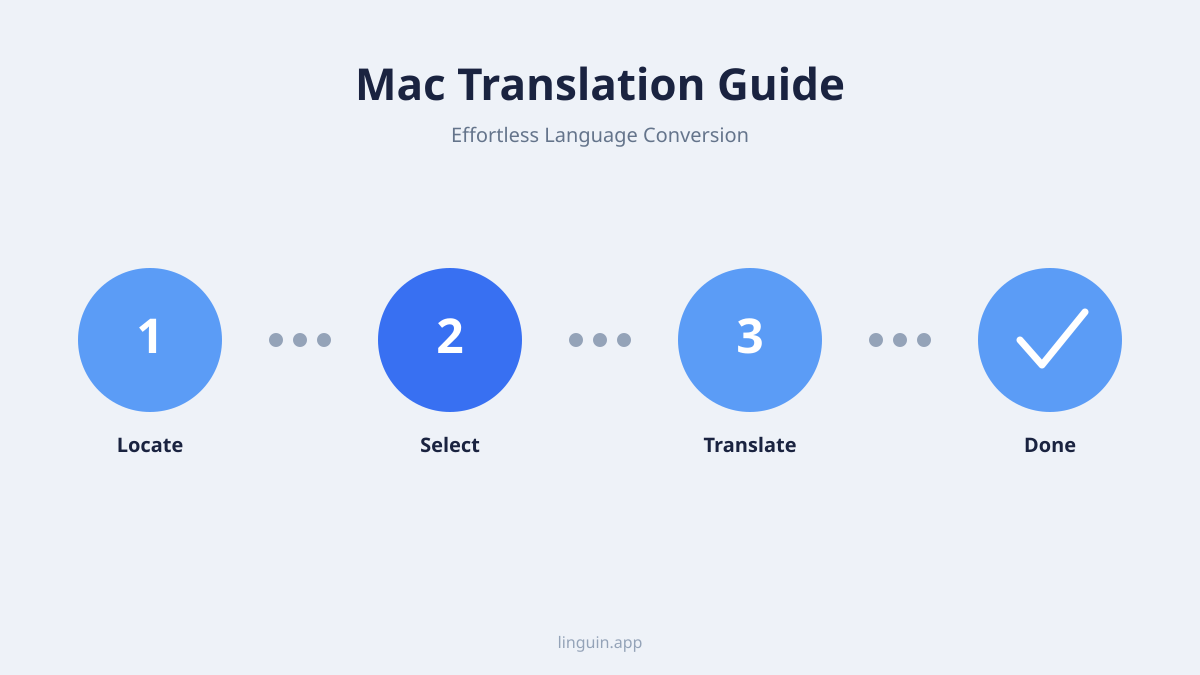
One of the most accessible features is found within the Safari browser. When you visit a webpage in a language different from your system’s primary language, Safari will often present a translation prompt. Clicking this prompt allows you to translate the entire page with a single click. This is incredibly useful for browsing foreign news sites, reading international blogs, or researching products from overseas markets. The quality of these translations has improved significantly over the years, thanks to Apple’s investment in machine learning.
Beyond Safari, macOS also offers text translation capabilities in certain applications. For example, when you select text in applications like Mail, Notes, or Pages, you can often right-click (or Control-click) to reveal a context menu. Within this menu, you might find an option like “Translate Selection” or “Look Up.” Selecting this will typically bring up a pop-over window displaying the translation of the selected text. This is perfect for translating a single sentence or a paragraph that you’ve encountered unexpectedly in an email or document.
It’s important to note the limitations of these built-in features. They are often dependent on your internet connection, and the range of supported languages, while growing, might not cover every niche language you need. Furthermore, the translation interface can sometimes feel a bit rudimentary, and for complex or highly nuanced texts, you might find the translations to be a bit literal or lacking in natural flow. This is where the power of specialized translation applications truly shines, offering a more robust and customizable experience.
The Power of Dedicated Mac Translation Apps: Introducing Linguin
While macOS’s native features are a good starting point, for a more capable and reliable translation experience across your Mac, a dedicated translation app is worth having. This is where Linguin steps in. Linguin is a translation app built for macOS, offering a focused, easy-to-use way to break down language barriers. Unlike built-in tools that are confined to a single app or webpage, Linguin is one app you can open from anywhere on your Mac with a single shortcut, and it also includes voice input (dictation) and voice output (having the translation read aloud), so you’re not limited to typing and reading.
Linguin’s paid styles route through a hosted AI model rather than pure word-for-word substitution, so translations account for nuance, idiomatic expressions, and grammatical structure, producing results that read naturally rather than literally. The free Standard style, meanwhile, uses Google Translate. This is particularly useful for professional communication, creative writing, or any situation where precision and clarity are paramount.
One of the most convenient aspects of Linguin is its system-wide accessibility. Once installed, Linguin lives in your menu bar and opens instantly from anywhere on macOS with Option+Space, a fixed shortcut that toggles the app window open and closed. Copy the text you want translated, press Option+Space, paste it in, and the translation appears within a few seconds. This efficiency is a real time-saver for anyone who frequently works with multiple languages, whether you’re reading an article, replying to an email, or jotting down notes.
Furthermore, Linguin supports 100+ languages, far exceeding the capabilities of most built-in solutions. This ensures that whether you’re dealing with major global languages or less common ones, Linguin has you covered. There is no offline mode, so a working internet connection is required for every translation, and there is no support for uploading PDFs or Word documents. Linguin translates the text you type or paste, so translating a document means copying the relevant passages across rather than uploading a file.
Leveraging Linguin for Enhanced Productivity and Global Connections
Linguin isn’t just about translating words; it’s about empowering you to connect, learn, and achieve more. Its integration into your Mac workflow unlocks a world of possibilities, transforming how you interact with information and people globally.
For students and academics, Linguin is an invaluable research companion. Imagine accessing scholarly articles, historical documents, or online lectures from institutions worldwide without being hindered by language. You can quickly translate key passages, research papers, or even entire books, opening up a vast universe of knowledge previously inaccessible. This dramatically speeds up research processes and allows for a deeper understanding of global academic discourse.
Business professionals will find Linguin indispensable for international collaboration. Conducting market research on foreign websites, understanding competitor analysis from global reports, or communicating with international clients via email or chat all become significantly smoother. Linguin’s accurate and nuanced translations help prevent miscommunication, build stronger relationships, and ensure that your business can operate effectively on a global scale. The ability to quickly translate emails or chat messages means you can respond promptly and professionally, regardless of the language barrier.
Travelers can utilize Linguin to navigate foreign countries with greater confidence. Before your trip, you can use it to translate travel guides, booking confirmations, or useful phrases. Keep in mind that Linguin needs an internet connection for every translation, there’s no offline mode or downloadable language pack, so it’s best used wherever you have Wi-Fi or mobile data, such as at your hotel or a cafe, rather than relied on mid-hike with no signal.
Beyond these specific use cases, Linguin enhances your general digital literacy and enjoyment. You can look up unfamiliar phrases from foreign-language articles, read excerpts from literature in another language, or engage more comfortably with online communities from around the globe. It fosters a more inclusive and connected digital life, breaking down the barriers that often limit our exposure to diverse perspectives and experiences.
Tips and Tricks for Mastering Mac Translation
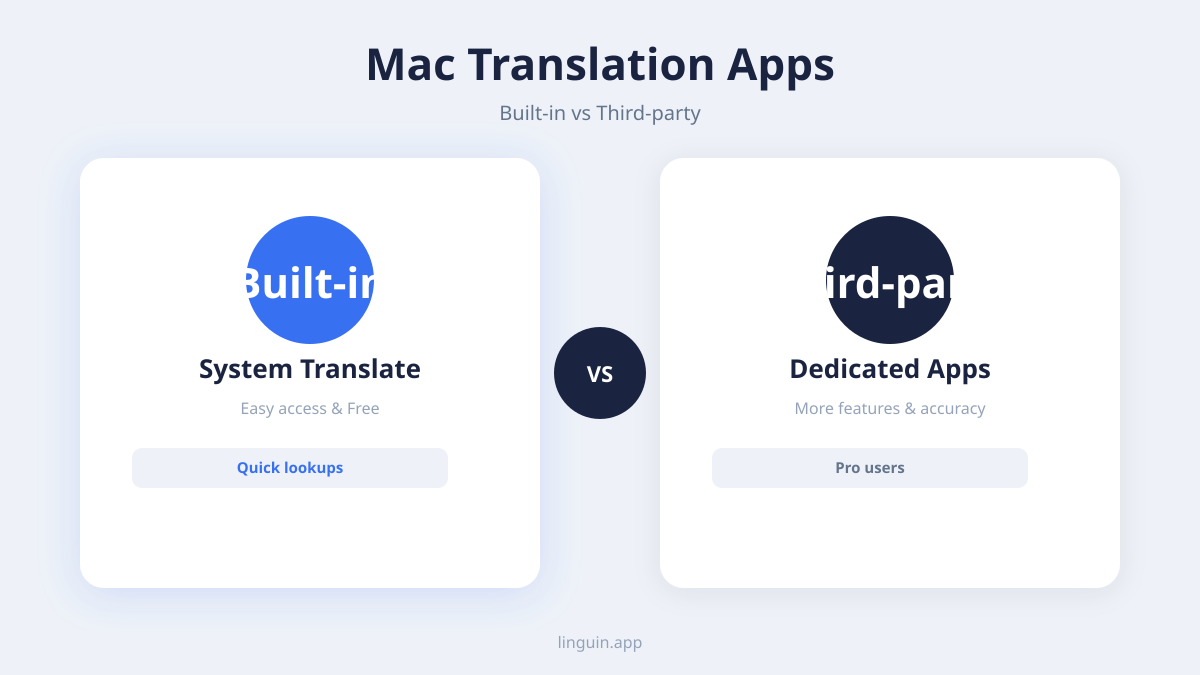
To get the most out of your Mac translation experience, whether using built-in features or a dedicated app like Linguin, consider these tips and tricks.
Firstly, understand the context. Machine translation, even the most advanced AI, can sometimes struggle with highly idiomatic expressions, slang, or sarcasm. If a translation seems a bit off, try rephrasing the original text slightly or providing more context if possible. For instance, translating a single word might be ambiguous, but translating the entire sentence it belongs to will usually yield a much better result.
Secondly, familiarize yourself with your chosen tool’s features. If you’re using Safari’s built-in translator, explore its settings to see if you can set default translation languages or choose to always translate specific sites. If you’re using Linguin, take the time to learn the Option+Space shortcut, explore the language and style selection options, and, on the paid plan, try out the custom dictionary and translation history. Experimenting with these features will help you tailor the app to your specific needs.
Thirdly, leverage the “define” or “lookup” features. Many translation tools, including some within macOS, offer a quick lookup that provides definitions and synonyms. This can be incredibly helpful when you encounter an unfamiliar word or phrase. It’s not just about translation; it’s about understanding the vocabulary.
Fourthly, for important documents or critical communications, always consider a human review if possible. While AI translation has come an incredibly long way, there are still nuances that a native speaker or professional translator can catch. Use AI as a powerful first pass, but for high-stakes situations, a human touch can ensure perfect accuracy and cultural appropriateness.
Fifthly, keep your software updated. Both macOS itself and translation applications like Linguin receive regular updates that include improvements to translation quality, new language support, and bug fixes. Staying updated ensures you’re benefiting from the latest advancements in AI and translation technology.
Finally, practice makes perfect. The more you use translation tools, the more intuitive they become. Make a habit of translating snippets of text you encounter daily, and you’ll quickly find yourself becoming proficient in navigating the multilingual digital world. By incorporating these practices, you can transform your Mac into a truly powerful multilingual communication hub.


-vs-translator.png)