 English
  Español
  Français
  Deutsch
  Português
  Italiano
  Русский
  中文(简体)
  日本語
日本語  한국어
한국어  العربية
  हिन्दी
  Nederlands
  Türkçe
  Polski
The World at Your Fingertips: Why Web Translation Matters
In today’s interconnected world, the internet is our window to information, culture, and commerce. Yet, this vast digital landscape is often fragmented by language. Imagine stumbling upon a fascinating article, an essential business document, or a captivating travel blog, only to be met with a wall of unfamiliar characters. This is where the power of web translation becomes indispensable. While built-in browser translation features exist, they can sometimes be clunky, inaccurate, or lack the nuanced understanding that advanced AI can provide. For macOS and iOS users who cherish the elegant simplicity and robust security of Safari, having a dedicated, powerful translation tool integrated directly into their browsing experience is a game-changer.
This is precisely why we at Linguin developed our Safari extension. We believe that language should never be a barrier to knowledge or connection. Our mission is to make the web truly global and accessible to everyone. With the Linguin Safari extension, you can transform any webpage, from obscure research papers to bustling international news sites, into your preferred language, instantly and accurately. This guide will walk you through everything you need to know to harness the full power of Linguin for your Safari browsing.
Getting Started: Installing the Linguin Safari Extension
The process of adding Linguin to your Safari browser is designed to be as straightforward as possible, ensuring you can start translating in mere moments. We’ve prioritized a seamless integration that respects your browsing flow.
For macOS Users:
- Visit the Mac App Store: Open the Safari browser and navigate to the Mac App Store. You can usually find a link to the App Store in your Dock or by opening Spotlight Search (Command + Space) and typing “App Store.”
- Search for Linguin: In the App Store’s search bar, type “Linguin” and press Enter.
- Download and Install: Locate the Linguin app in the search results. You’ll see our distinctive icon. Click the “Get” button, and then “Install.” You may be prompted to enter your Apple ID password.
- Enable the Extension: Once the app is installed, open Safari. Go to the Safari menu at the top of your screen and select “Preferences” (or “Settings” in newer macOS versions).
- Navigate to the Extensions Tab: In the Preferences window, click on the “Extensions” tab.
- Activate Linguin: You will see “Linguin” listed among your available extensions. Check the box next to it to enable it. You might also see a prompt to allow the extension to run automatically on websites.
For iOS/iPadOS Users:
- Open the App Store: On your iPhone or iPad, open the App Store app.
- Search for Linguin: Use the search bar at the bottom of the screen and type “Linguin.”
- Download and Install: Find the Linguin app and tap the “Get” button, followed by “Install.” You may need to authenticate with your Apple ID.
- Enable the Extension: After installation, open the “Settings” app on your iOS device.
- Find Safari Settings: Scroll down and tap on “Safari.”
- Go to Extensions: Within Safari settings, tap on “Extensions.”
- Enable Linguin: You’ll see a list of extensions. Toggle the switch next to “Linguin” to the “on” position (it will turn green). You can also tap on “All Websites” or specific websites to manage permissions for the extension.
Congratulations! The Linguin Safari extension is now installed and ready to break down language barriers for you.
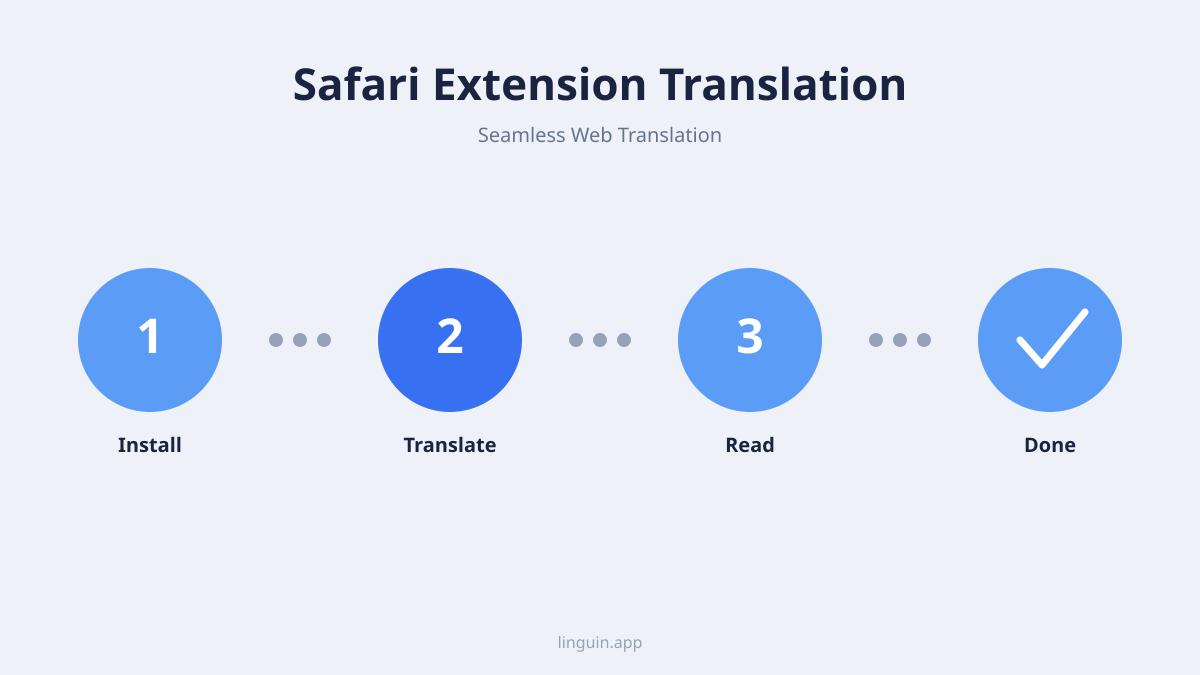
Effortless Translation: How to Use the Linguin Safari Extension
Once installed, the Linguin Safari extension integrates seamlessly into your browsing experience, making translation an almost invisible, yet incredibly powerful, feature. Here’s how to put it to work:
Automatic Translation:
The beauty of Linguin is its intelligent detection. When you navigate to a webpage that is not in your preferred language (which you can set within the Linguin app settings), the extension will often automatically offer to translate it. A subtle prompt may appear, asking if you’d like to translate the page. Simply tap or click to confirm, and watch as the text transforms before your eyes.
Manual Translation:
If automatic translation doesn’t trigger, or if you’re on a page you want to translate later, you can initiate the process manually.
- Locate the Linguin Icon: Look for the Linguin icon in your Safari toolbar. On macOS, this will typically be in the address bar area. On iOS, you might need to tap the “AA” icon in the address bar and then select “Extensions” to find Linguin, or it might appear directly in the toolbar if you’ve configured it that way.
- Click/Tap the Icon: Clicking or tapping the Linguin icon will bring up a small menu.
- Select Languages: Here, you can choose the original language of the page (though Linguin is excellent at auto-detecting this) and your desired target language.
- Initiate Translation: Select “Translate Page.” The extension will then process the content and display the translated version.
Customization and Settings:
Linguin offers a degree of customization to tailor the experience to your needs.
- Preferred Language: In the Linguin app settings (on both macOS and iOS), you can designate your primary language. This helps the extension know which languages to offer translation into by default.
- Always Translate: For frequently visited sites in foreign languages, you can often set Linguin to always translate them automatically without prompting.
- Never Translate: Conversely, if there are certain sites you don’t want translated, you can add them to an exclusion list.
Translating Selected Text:
Beyond full-page translation, Linguin also excels at translating specific snippets of text.
- Highlight Text: On any webpage, simply highlight the text you want to translate.
- Access Linguin: Depending on your device and settings, a context menu or a small Linguin icon might appear near the highlighted text.
- Translate: Click or tap the option to translate the selected text. A small pop-up will display the translation. This is incredibly useful for quickly understanding specific phrases or sentences without altering the entire page.
We’ve designed these features to be intuitive, allowing you to focus on the content, not the process of translation.
Advanced Features and Benefits of Linguin
The Linguin Safari extension is more than just a basic translator; it’s a sophisticated AI-powered tool designed to enhance your entire web experience. We leverage cutting-edge natural language processing to deliver translations that are not only accurate but also contextually aware, preserving the nuance and meaning of the original text.
AI-Powered Accuracy:
Unlike traditional translation engines that can sometimes produce literal, awkward translations, Linguin’s AI understands context, idioms, and cultural references. This means that an article about a complex scientific topic will be translated with the correct technical jargon, and a casual blog post will retain its informal tone. This level of accuracy is crucial for comprehension, whether you’re researching for work, learning a new skill, or simply exploring your interests.
Speed and Efficiency:
We know that your time is valuable. The Linguin Safari extension is optimized for speed. Translations are processed quickly, meaning minimal interruption to your browsing flow. Whether you’re translating a single sentence or an entire lengthy article, you’ll be impressed by how fast Linguin delivers the results. This efficiency makes it practical to translate on the fly, transforming any webpage into a readily understandable resource.
Privacy and Security:
For many users, especially those browsing sensitive information, privacy is paramount. Linguin was built with this in mind. When you use our Safari extension, the translation process is handled efficiently, and we are committed to protecting your data. We don’t store your browsing history or personal information from translated pages. Your online activity remains your own. This dedication to privacy is a core principle that underpins all Linguin products.
Cross-Device Synchronization:
If you use Linguin across multiple Apple devices – your Mac, iPhone, and iPad – you’ll experience a unified translation environment. Your settings, preferred languages, and translation history (if enabled) can be synchronized, ensuring a consistent and convenient experience no matter which device you’re using. This means you can start reading an article on your Mac, translate it with Linguin, and then pick up where you left off on your iPhone, with the same translation capabilities at your fingertips.
Learning and Exploration:
The Linguin Safari extension is an invaluable tool for language learners and avid explorers of global content. By seeing unfamiliar words and phrases translated in real-time, you can actively learn new vocabulary and improve your understanding of grammar and sentence structure. It transforms the web into an interactive language learning platform, making the process enjoyable and effective. Whether you’re a student studying abroad, a professional collaborating with international teams, or simply someone curious about other cultures, Linguin empowers you to learn and engage more deeply.
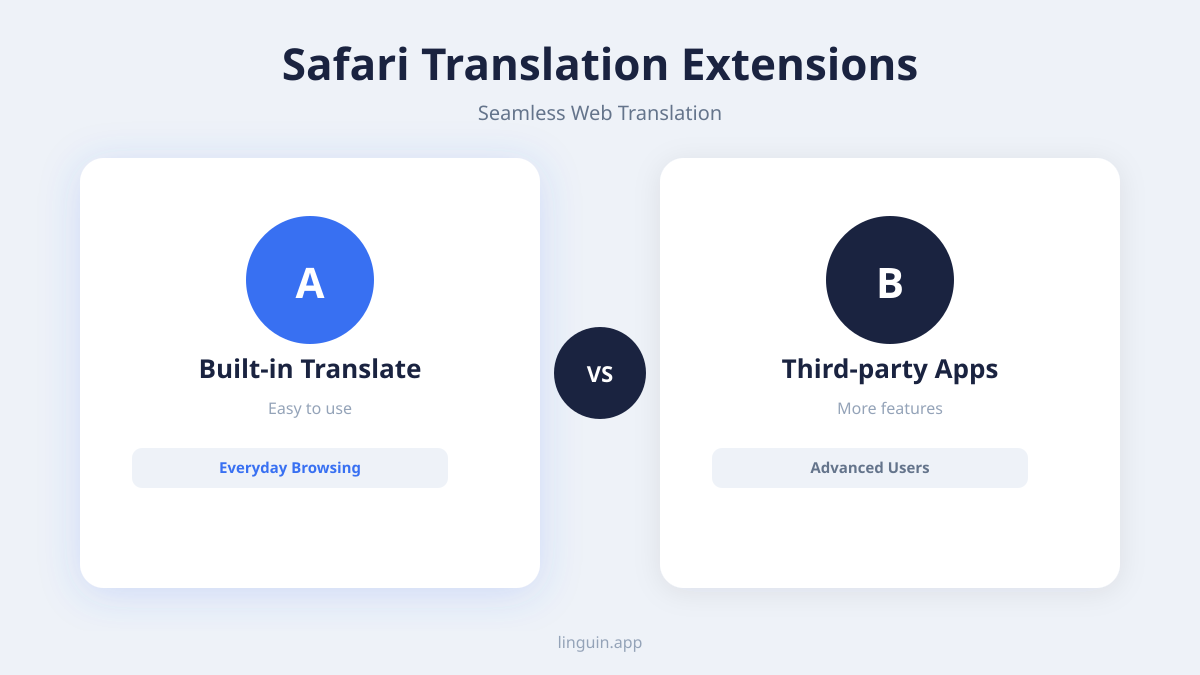
Troubleshooting and Tips for the Best Experience
While the Linguin Safari extension is designed for a smooth experience, like any software, you might occasionally encounter a minor hiccup or want to optimize its performance. Here are some common issues and tips to ensure you’re getting the most out of it.
Extension Not Appearing or Working:
- Check Installation: The first step is always to ensure Linguin is properly installed and enabled. Double-check the steps in the “Getting Started” section. On macOS, go to Safari > Preferences > Extensions. On iOS, go to Settings > Safari > Extensions. Make sure the toggle switch is on.
- Reload the Page: Sometimes, a simple page reload (Command + R on macOS, or the refresh button on iOS) can resolve temporary glitches.
- Restart Safari: Close Safari completely and reopen it. This can clear temporary memory issues.
- Restart Your Device: If the problem persists, a full device restart can often fix deeper system-level issues.
- Update Linguin and Safari: Ensure you are running the latest version of the Linguin app and that your macOS or iOS operating system, and Safari itself, are up to date. Developers frequently release updates to fix bugs and improve performance.
Inaccurate Translations:
- Context is Key: While our AI is advanced, very niche jargon or highly ambiguous phrasing can sometimes challenge even the best translation engines. If a particular sentence or phrase seems mistranslated, try highlighting it and translating just that portion separately.
- Check Source Language: Occasionally, the auto-detection of the source language might be incorrect, especially for pages with mixed languages. You can manually select the correct source language in the Linguin menu.
- Report Feedback: If you consistently encounter inaccuracies on specific types of content, we encourage you to use any feedback mechanisms within the app or on our website. Your input is invaluable in helping us improve our AI models.
Performance Considerations:
- Large Pages: Translating extremely large or complex webpages may take a moment longer. Be patient, especially on slower internet connections.
- Multiple Extensions: While generally not an issue, if you have a very large number of Safari extensions enabled, it could theoretically impact overall browser performance. If you suspect this, try temporarily disabling other extensions to see if it improves Linguin’s responsiveness.
Tips for an Enhanced Experience:
- Customize Your Toolbar (macOS): On macOS, you can customize your Safari toolbar to show the Linguin icon prominently. Right-click on the toolbar and select “Customize Toolbar…” to drag and drop the Linguin icon where you prefer it.
- Master Text Selection Translation: Get in the habit of highlighting short phrases for quick translations. It’s often faster than translating an entire page if you only need a specific word or sentence clarified.
- Explore Different Languages: Don’t hesitate to try translating into languages you’re less familiar with. It’s a fantastic way to discover new linguistic nuances and expand your understanding of how languages work.
- Integrate with the Linguin App: The standalone Linguin app on your Mac or iOS device offers more advanced features, such as document translation and dictionary lookups. Familiarize yourself with the full suite of Linguin tools for a comprehensive translation solution.
By understanding these troubleshooting steps and tips, you can ensure a consistently smooth and powerful translation experience with the Linguin Safari extension.
Beyond Translation: The Future of Web Accessibility with Linguin
The Linguin Safari extension represents a significant step forward in making the internet a truly borderless space. We believe that access to information should be universal, and language should never be an obstacle. Our commitment to leveraging advanced AI for accurate, context-aware translation is at the heart of this mission.
As technology evolves, so too will Linguin. We are constantly refining our AI models, exploring new ways to understand and convey meaning across languages. Our vision extends beyond simple text translation; we aim to empower users with tools that foster deeper understanding, connection, and learning. Whether you’re a student researching global affairs, a traveler planning your next adventure, a professional working with international clients, or simply a curious individual exploring the vastness of the web, Linguin is designed to be your trusted companion.
The Linguin Safari extension is more than just a feature; it’s an embodiment of our philosophy – that technology should break down barriers, not build them. We invite you to install the extension, experience the freedom of a truly accessible web, and discover the world without language limitations. Join us in unlocking the full potential of the internet, one translated page at a time.