English
  Español
  Français
  Deutsch
  Português
  Italiano
  Русский
  中文(简体)
  日本語
日本語  한국어
한국어  العربية
  हिन्दी
  Nederlands
  Türkçe
  Polski
The World at Your Fingertips: Why Web Translation Matters
In today’s interconnected world, the internet is our window to information, culture, and commerce. Yet, this vast digital landscape is often fragmented by language. Imagine stumbling upon a fascinating article or a captivating travel blog, only to be met with a wall of unfamiliar text. This is where the power of web translation becomes indispensable. While built-in browser translation features exist, they can sometimes be clunky or inaccurate. For macOS users who cherish the elegant simplicity and robust security of Safari, having a dedicated translation tool integrated directly into their browsing experience is a real convenience.
This is why we at Linguin built a Safari extension. It’s a macOS-only extension that ships as part of the Linguin app and lets you translate a full page or just the text you’ve selected, without leaving the tab you’re on. This guide walks through installing it, using it, and getting the most out of it.
If you only need a whole page translated, Safari can do that without any extension. Here’s how to translate pages in Safari with the built-in Translate button.
Getting Started: Installing the Linguin Safari Extension
The Linguin Safari extension isn’t a separate download from the App Store. It’s bundled inside the main Linguin app for macOS and turned on from within Safari’s own settings.
- Download and install the Linguin app for macOS from the Mac App Store or from linguin.app. The Safari extension is packaged inside this app; installing the app is what makes the extension available to Safari.
- Open Safari. Go to the Safari menu at the top of your screen and choose Settings (this was called “Preferences” on older versions of macOS).
- Click the Extensions tab.
- Find “Linguin” in the list and check the box next to it to turn it on. Safari may ask you to confirm that you want to allow the extension to run.
- Grant website permissions. Safari lets you choose whether an extension can run on all websites, only sites you approve each time, or specific sites you add manually. For Linguin to translate any page you visit, allow it to run on all websites, or add sites individually as you need them.
There is currently no equivalent Linguin extension for Safari on iOS or iPadOS. On iPhone and iPad, the standalone Linguin app is the way to translate text: copy the text you want translated and paste it into the app.
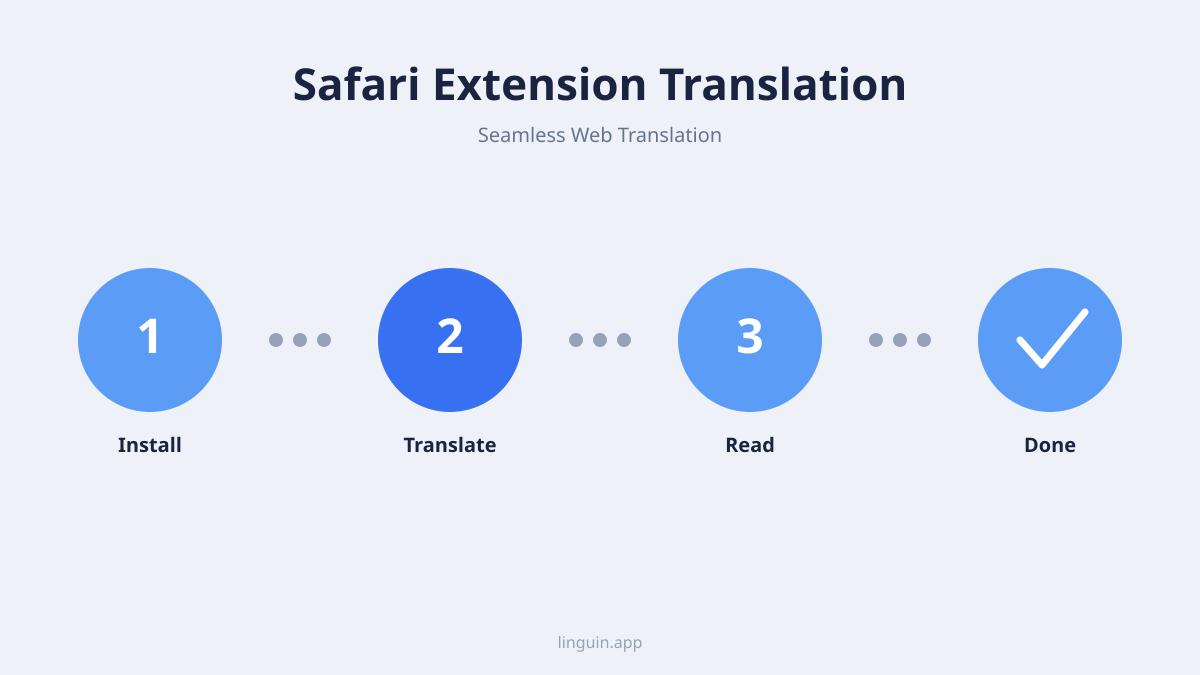
Effortless Translation: How to Use the Linguin Safari Extension
Once installed and enabled, the Linguin Safari extension adds a right-click menu and a toolbar icon to Safari. Here’s how to put it to work.
Translating a Full Page:
- Navigate to the page you want to translate.
- Right-click anywhere on the page and choose Linguin > Translate Page from the context menu, or click the Linguin icon in the Safari toolbar and select the same option.
- Pick your target language if prompted, and the extension will translate the visible text on the page. Note that translation only happens when you ask for it; there’s no automatic prompt that appears when you land on a foreign-language page.
Full-page translation works best on simple, mostly-text pages. Highly dynamic layouts (heavy JavaScript apps, infinite-scroll feeds) can be less reliable, since the extension translates the text that’s present in the page at the moment you trigger it.
Translating Selected Text:
This is the fastest way to translate a specific sentence or paragraph without touching the rest of the page.
- Highlight the text you want to translate on any webpage.
- Right-click the selection and choose Linguin > Translate: ”…” from the context menu.
- A small pop-up appears right next to your selection with the translation, so you can keep reading in context without navigating away.
Using the Sidebar:
For longer passages, or if you’d rather paste text in manually instead of selecting it on the page, click the Linguin toolbar icon to open its sidebar panel. It behaves like a compact version of the main Linguin app, letting you paste text, pick source and target languages, and read the translation in a dedicated panel next to your browsing.
We’ve designed these features to be intuitive, allowing you to focus on the content, not the process of translation.
What the Extension Actually Does (and Doesn’t)
To set expectations clearly:
- It translates on demand, not automatically. The extension does not detect that a page is in a foreign language and prompt you to translate it. You choose when to translate, via the right-click menu or toolbar icon.
- There’s no “always translate this site” or “never translate this site” list. Each translation is a one-off action you trigger; the extension doesn’t remember per-site preferences.
- Source language detection is automatic, target language is your choice. You don’t need to specify what language a page or selection is written in. You do choose what you want it translated into.
- It’s built for text, not documents or images. The extension works on the text that’s part of a webpage. It doesn’t open PDFs, scan images for text, or preserve complex page layouts, it translates the words themselves.
Troubleshooting and Tips for the Best Experience
Extension Not Appearing or Working:
- Check installation and permissions: Go to Safari > Settings > Extensions and confirm Linguin is checked on, and that it has permission to run on the site you’re testing.
- Reload the page: A simple page reload (Command + R) resolves most temporary glitches, especially right after enabling the extension for the first time.
- Restart Safari: Close Safari completely and reopen it if the extension still doesn’t respond.
- Update Linguin and Safari: Since the extension ships inside the Linguin app, make sure you’re running the latest version of the app, and that macOS and Safari are up to date.
Inaccurate Translations:
- Context is key: Very niche jargon or highly ambiguous phrasing can occasionally challenge any translation engine. If a sentence seems mistranslated, try selecting just that portion and translating it on its own for a cleaner result.
- Check source language: If a page mixes multiple languages, automatic detection can occasionally pick the wrong one for a given selection. Selecting a smaller, single-language chunk of text usually fixes this.
Performance Considerations:
- Large pages take longer: Translating an entire long article takes a bit more time than translating a sentence, since there’s simply more text to process. Be patient on slower connections.
Tips for an Enhanced Experience:
- Customize your toolbar: Right-click Safari’s toolbar and choose “Customize Toolbar…” to pin the Linguin icon somewhere convenient if it isn’t visible by default.
- Prefer selection translation for quick lookups: Highlighting a single sentence or phrase is often faster than translating an entire page when you only need one part clarified.
- Use the standalone Linguin app for everything else: The full macOS app (opened with Option+Space) is the place for longer translations, a custom glossary of terms you translate consistently, and general text translation beyond what you’re browsing in Safari.
By understanding these tips, you can get a consistently smooth translation experience out of the Linguin Safari extension.
The Bottom Line
The Linguin Safari extension is a focused tool: it translates the page you’re on or the text you’ve selected, right inside Safari on macOS, on demand. It doesn’t watch your browsing for foreign-language pages, doesn’t maintain per-site preferences, and isn’t available on iOS or iPadOS yet. Within that scope, it’s a fast way to read the web in your own language without breaking your flow to open a separate translator.
-vs-translator.png)