 English
  Español
  Français
  Deutsch
  Português
  Italiano
  Русский
  中文(简体)
  日本語
日本語  한국어
한국어  العربية
  हिन्दी
  Nederlands
  Türkçe
  Polski
Navigating the digital world often means encountering information in languages you don’t understand. From research papers and user manuals to contracts and creative works, PDFs are a ubiquitous format for sharing documents. When these documents aren’t in your native tongue, they can become impenetrable barriers. Fortunately, for Mac users, there are several effective ways to break down these linguistic walls and translate PDF files. This guide will walk you through the most efficient methods, from simple browser-based solutions to leveraging the power of dedicated translation apps like Linguin.
Understanding the Challenge of PDF Translation
PDFs, or Portable Document Format files, are designed to preserve the formatting and layout of a document across different operating systems and software. This means that when you open a PDF, you’re seeing a visual representation of the text and its arrangement, rather than just raw text that’s easy to manipulate. This excellent feature for presentation can, however, pose a challenge for translation. Simply copying and pasting text from a PDF into a traditional online translator might result in broken formatting, garbled characters, or a loss of context, especially if the PDF contains complex layouts, images with embedded text, or specific fonts.
Traditional translation methods often involve converting the PDF to a more editable format like a Word document, translating it, and then converting it back to PDF. This process can be time-consuming and prone to errors, especially when dealing with numerous or lengthy documents. Modern solutions, however, aim to streamline this process, offering more direct and accurate translation capabilities.
Method 1: Leveraging Your Mac’s Built-in Features (and a Little Help from the Web)
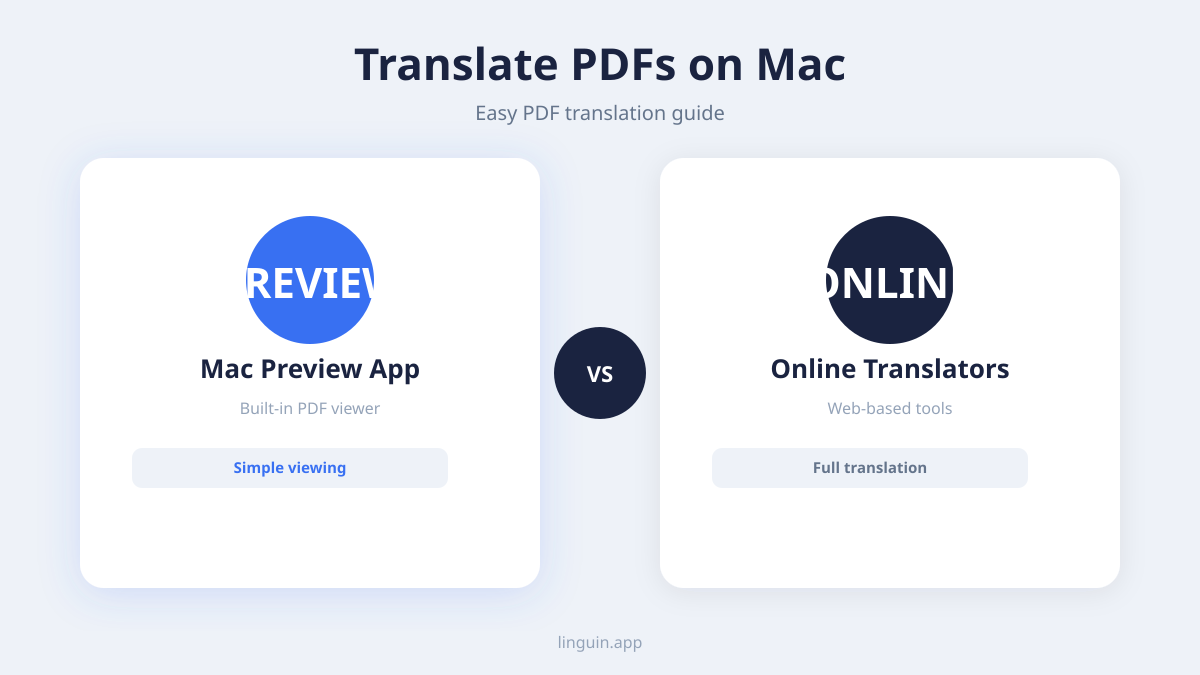
Your Mac is a powerful tool, and while it doesn’t have a direct “Translate PDF” button, you can combine its capabilities with web-based services for a surprisingly effective approach, especially for simpler PDFs.
Using Safari’s Built-in Translation
Safari, Apple’s web browser, offers a fantastic feature for translating entire web pages. While it doesn’t directly translate PDF files when opened locally in the browser, you can use it to translate PDFs that are hosted online.
Here’s how:
- Open the PDF in Safari: If the PDF is online, simply navigate to its URL in Safari. If it’s a local file, you can drag and drop it into an open Safari window, or go to
File > Open Recentif you’ve opened it before. Safari will display the PDF. - Look for the Translate Icon: If Safari detects a different language, a translation icon (often a square with two overlapping lines or letters) will appear in the address bar, usually on the right side.
- Click and Select Language: Click this icon. A dropdown menu will appear, offering to translate the page into your default language (usually English, if your Mac is set to English). You can also click on the language dropdown to select other available languages.
- Confirm Translation: Click “Translate,” and Safari will work its magic, attempting to translate the text within the PDF.
Limitations: This method works best for PDFs that are essentially web pages or have simple text. PDFs with complex formatting, scanned images of text, or embedded fonts might not translate accurately or at all. The translation is also applied to the current view; you can’t save a translated version of the PDF directly.
Copy-Pasting into Online Translators
For smaller sections of text or when dealing with PDFs that allow text selection, the traditional copy-paste method into an online translator remains a viable, albeit manual, option.
Here’s how:
- Open the PDF: Use Preview (your Mac’s default PDF viewer) or another PDF reader to open your document.
- Select Text: Use your cursor to highlight the text you want to translate.
- Copy: Press
Command + Cto copy the selected text. - Open a Translator: Navigate to a reputable online translation service like Google Translate, DeepL, or Bing Translator.
- Paste and Translate: Paste the copied text into the input box (press
Command + V). The translator will automatically detect the source language or allow you to select it, and then provide the translation in the target language.
Limitations: This is the most labor-intensive method. It’s impractical for long documents and can lead to formatting issues if the PDF has an intricate layout. Scanned PDFs, where the text is part of an image, cannot be translated this way unless optical character recognition (OCR) is applied first.
Method 2: Utilizing Dedicated Translation Apps for Mac
For a more robust and seamless PDF translation experience on your Mac, dedicated translation applications are the way to go. These apps are designed to handle document translation more effectively, often incorporating advanced features like OCR and preserving formatting.
Introducing Linguin: Your AI-Powered Translation Companion
Linguin is an AI-powered translation app designed to simplify cross-language communication. Available for macOS, iOS, and as browser extensions for Chrome and Safari, Linguin excels at handling various text formats, including the often-tricky PDF. Linguin’s strength lies in its advanced AI engine, which provides more nuanced and contextually accurate translations than standard online tools, while its user-friendly interface makes the process incredibly straightforward.
How to Translate PDFs with Linguin on Mac:
Linguin offers a streamlined experience for translating your PDF documents directly on your Mac.
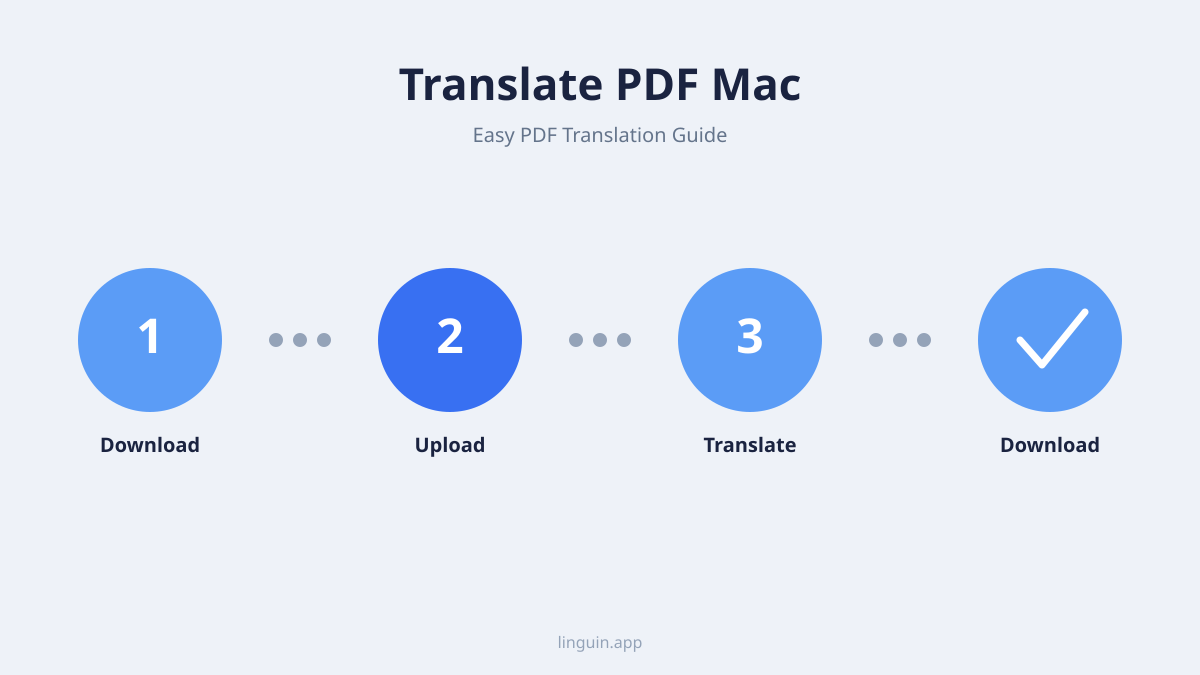
- Download and Install Linguin: If you haven’t already, download the Linguin app for macOS from the App Store or our website. Install it like any other Mac application.
- Launch Linguin: Open the Linguin application.
- Import Your PDF: You have a couple of easy ways to get your PDF into Linguin:
- Drag and Drop: Simply drag your PDF file from your Finder window directly into the Linguin application window.
- File Selection: Click the “Import File” or similar button within Linguin and navigate to your PDF’s location on your Mac.
- Select Languages: Once your PDF is loaded, Linguin will prompt you to select the source language (the language of the PDF) and the target language (the language you want to translate it into). Linguin’s AI is excellent at auto-detecting the source language, but you can always specify it manually.
- Initiate Translation: Click the “Translate” button. Linguin will then process your PDF. This may take a moment depending on the size and complexity of the document.
- Review and Export: After the translation is complete, Linguin will display the translated content. You can review the translation within the app. Crucially, Linguin strives to maintain the original formatting as much as possible. You can then export the translated document, usually as a new PDF or another editable format, preserving your content’s integrity.
Key Benefits of Using Linguin for PDF Translation:
- High Accuracy: Linguin leverages cutting-edge AI for superior translation quality, understanding context and nuance better than basic tools.
- Preserves Formatting: Linguin is designed to handle document structures, aiming to keep your layout, fonts, and images intact in the translated output.
- OCR Integration (Potentially): For scanned PDFs, advanced translation apps like Linguin may incorporate Optical Character Recognition (OCR) to convert image-based text into editable text before translation. This is a game-changer for unreadable scanned documents.
- Efficiency: Translating an entire PDF with a few clicks is significantly faster than manual copy-pasting or multi-step conversion processes.
- Multi-Platform Convenience: Since Linguin is available across macOS, iOS, and as browser extensions, you can ensure consistent translation support wherever you are.
Method 3: Online PDF Translation Tools
Beyond the built-in browser features and dedicated Mac apps, there are numerous online tools specifically designed for translating PDF documents. These tools often provide a quick and accessible way to get a translation without installing any software.
How Online Tools Work
These web-based services typically require you to upload your PDF file to their server. The service then processes the document, extracts the text, translates it using their AI engine, and allows you to download the translated version.
Popular Online PDF Translators:
- Google Translate (Document Upload Feature): While primarily known for text and web page translation, Google Translate also offers a document translation feature. You can upload a PDF, DOCX, PPTX, or XLSX file, and it will attempt to translate it.
- DeepL: Renowned for its high-quality translations, DeepL also supports document uploads, including PDFs.
- DocTranslator: This service specializes in translating documents and offers support for a wide range of file formats, including PDFs.
- Online Doc Translator: Similar to DocTranslator, this platform allows you to upload PDFs for translation with a straightforward interface.
Steps for Using Online PDF Translators:
- Visit the Website: Go to the website of your chosen online PDF translator.
- Upload Your PDF: Look for an “Upload Document,” “Choose File,” or similar button and select your PDF from your Mac.
- Select Languages: Specify the source and target languages.
- Initiate Translation: Click the “Translate” or “Start” button.
- Download the Translated PDF: Once the translation is complete, you’ll be provided with a link to download your translated PDF.
Considerations for Online Tools:
- Privacy and Security: Be mindful of uploading sensitive or confidential documents to third-party websites. Always check the service’s privacy policy.
- File Size Limits: Many free online tools have limits on the size or number of pages you can translate.
- Formatting Preservation: While many online tools strive to preserve formatting, results can vary. Complex PDFs might still lose some of their original layout.
- OCR Quality: If you’re translating a scanned PDF, the quality of the OCR integrated into these online tools can significantly impact the translation accuracy.
Tips for Maximizing Your PDF Translation Results
Regardless of the method you choose, a few best practices can help you achieve the best possible translation outcomes on your Mac.
Prepare Your PDF
- Check for Scans: If your PDF is a scan of a document, the text is essentially an image. Before translation, consider using an OCR tool to convert the image to actual text. Many dedicated apps and some online services have this capability built-in.
- Simplify if Possible: If you have the original source document (e.g., a Word file), translating that and then converting it to PDF can often yield better results than translating a pre-made PDF with complex formatting.
Choose the Right Tool for the Job
- For Quick Snippets: Use Safari’s built-in feature or copy-paste into an online translator.
- For Frequent Document Translation and Accuracy: Invest in a dedicated app like Linguin. Its AI-powered engine and focus on document integrity will save you time and frustration.
- For Occasional, Non-Sensitive Documents: Online PDF translators can be a convenient option.
Review and Edit
No machine translation is perfect. Always allocate time to review the translated document. Check for:
- Accuracy: Does the translated text convey the intended meaning of the original?
- Grammar and Spelling: Even advanced AI can make minor errors.
- Contextual Appropriateness: Are the terms and phrases used suitable for the document’s purpose and audience?
- Formatting: Ensure that the layout, headings, and any special characters are rendered correctly in the translated output.
Understand the Limitations
Be realistic about what translation technology can achieve. Highly technical jargon, creative writing with subtle nuances, or culturally specific idioms can still pose challenges for even the most advanced AI.
Conclusion: Bridging Language Gaps on Your Mac with Ease
Translating PDF documents on your Mac no longer needs to be a daunting task. From the convenient browser-based tools to the powerful, AI-driven capabilities of applications like Linguin, you have a range of options at your fingertips. For consistent accuracy, enhanced formatting preservation, and a truly streamlined workflow, integrating a dedicated translation app like Linguin into your Mac ecosystem is a wise investment. By understanding the different methods available and applying these best practices, you can confidently break down language barriers and unlock the information contained within any PDF document, no matter its origin. Happy translating!