English
  Español
  Français
  Deutsch
  Português
  Italiano
  Русский
  中文(简体)
  日本語
日本語  한국어
한국어  العربية
  हिन्दी
  Nederlands
  Türkçe
  Polski
The Linguin app for Mac provides seamless AI-powered translation directly on your desktop. It is a powerful tool designed for professionals, students, and anyone who needs accurate, context-aware translation without leaving their workflow. This guide will show you how to install, configure, and master the Linguin macOS application to translate text, documents, and conversations efficiently.
Key takeaways
- The Linguin Mac app translates text, documents, and live conversations across over 100 languages using advanced AI models.
- It integrates deeply with macOS via a menu bar icon, global keyboard shortcuts, and system-wide text capture for instant translation.
- You can translate entire documents like PDFs, Word files, and presentations while preserving their original formatting.
- The app supports offline translation for selected languages, ensuring privacy and availability without an internet connection.
- Custom glossaries and tone settings allow for precise translations tailored to business, technical, or casual contexts.
What is the Linguin Mac app?
The Linguin application for macOS is a native desktop program that brings the power of AI translation to your computer. Unlike web-based tools, it operates as a standalone app with system-level integration, offering a faster and more private translation experience. Its core function is to interpret and convert text from one language to another, but it does so with a nuanced understanding of context that generic translators often miss. This means idioms, technical jargon, and conversational phrases are handled with greater accuracy.
The app is built around a central menu bar icon. This provides constant, low-profile access to translation features without cluttering your screen. From this menu, you can open the main translation window, access your translation history, adjust settings, or quickly translate copied text. The design philosophy is minimal intrusion, maximum utility. It works alongside any other application you have open, be it a web browser, email client, or document editor.
You might use it in a scenario where you are researching a topic in a foreign language. Instead of copying and pasting paragraphs into a browser tab, you could use Linguin’s text capture shortcut to translate the selected text instantly in a small overlay window. Or, imagine you receive a contract in Spanish. You can drag the PDF file directly onto the Linguin app window and receive a fully translated English version in minutes, with the layout intact. These workflows demonstrate how the app turns translation from a disruptive task into a smooth, integrated part of your work on a Mac.
Installing and setting up the app
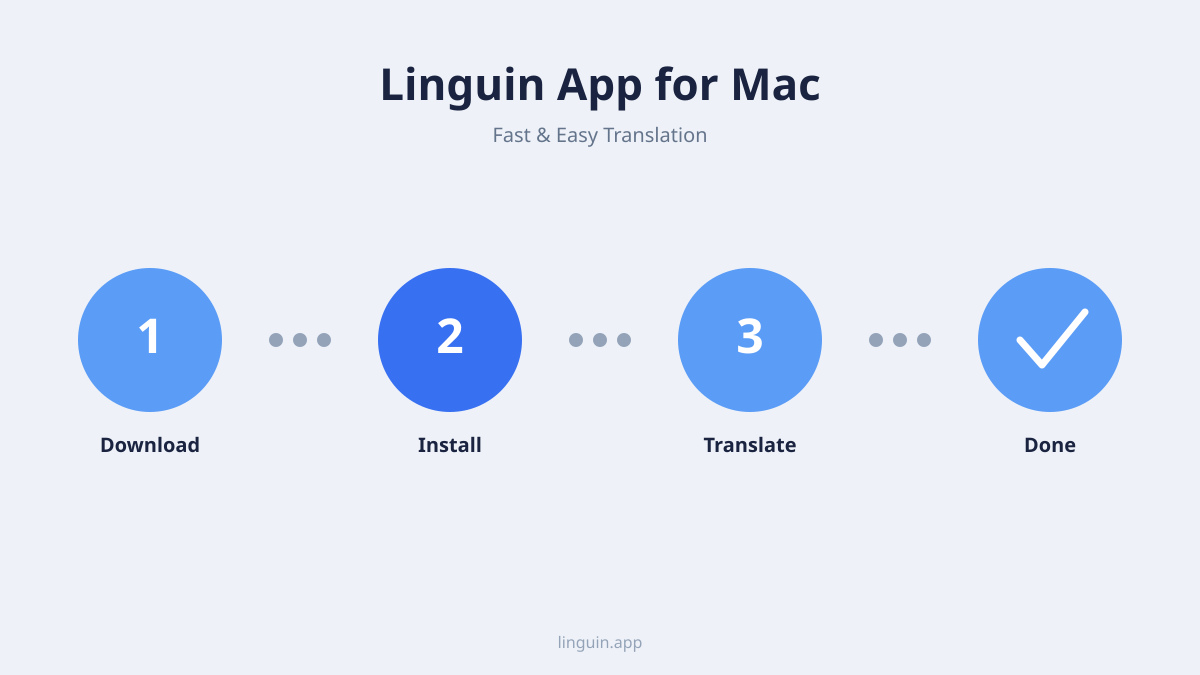
Getting started with Linguin on your Mac is straightforward. First, visit the official Linguin website or the Mac App Store to download the application. The installation process follows the standard macOS procedure. Once you drag the app to your Applications folder and launch it, you will be prompted to log in with your Linguin account or create a new one. This account syncs your preferences, glossaries, and history across all your devices, including iPhone and browser extensions.
The initial setup involves a few key steps to optimize the app for your needs.
- Language pair selection: Choose your default source and target languages. You can set English as your primary language and select another, like Japanese or German, as your common translation target. The app remembers these, but you can change them for any single translation.
- AI model preference: Linguin uses different AI models optimized for various tasks. You may select a model balanced for general accuracy, or one fine-tuned for formal business documents or creative content. You can learn more about the trade-offs in our guide on AI translation accuracy.
- Permission grants: For the best experience, you will want to grant the app accessibility permissions. This allows the global keyboard shortcut and text selection features to work system-wide. The app will guide you through the simple macOS System Settings process to enable this.
After setup, take a moment to explore the settings panel. Here you can configure the appearance of translation pop-ups, manage your subscription, and set up custom keyboard shortcuts. A recommended step is to set a shortcut like Cmd+Shift+T for instant translation. This becomes your fastest tool: select any text in any app, press your shortcut, and a translation appears immediately. Compared to other options, this deep system integration is what makes Linguin a top contender among the best translator apps for Mac.
Core translation features and how to use them
The power of the Linguin Mac app lies in its versatile feature set, designed to handle different translation scenarios you encounter daily. These features move beyond simple word substitution to offer practical solutions for real-world tasks.
Instant text translation
This is the most frequently used feature. You have three primary ways to trigger it.
- The menu bar: Click the Linguin icon and paste your text into the input field.
- The global shortcut: Select text anywhere and use your configured keyboard shortcut.
- Drag and drop: Drag a snippet of text from a document or webpage onto the Linguin dock icon or main window.
The translation appears in a clean, readable interface. You can click to copy the result, listen to a text-to-speech pronunciation, or toggle between different AI model outputs to see which phrasing you prefer. For instance, if you are translating a French product description for a website, you might compare the “standard” and “creative” model outputs to see which is more engaging in English.
Document translation
For larger tasks, the document translation feature is indispensable. Linguin supports a wide range of formats.
- Text Files:
.txt,.rtf - Office Documents:
.docx,.pptx,.xlsx - Portable Formats:
.pdf,.pages
The process is simple. Open the main Linguin window, click “Document,” and upload your file. The AI processes the entire document, translating the text while striving to preserve the original formatting, such as fonts, headings, and image placement. This is crucial for professional use. You would not want a translated report to lose its section headers or a translated invoice to have its table structure broken. This capability makes it a strong best document translation service for individual and business use.
Conversation mode
This feature turns your Mac into a real-time bilingual communication tool. Enable Conversation Mode, and the app will create a two-pane interface. As you or a colleague speak, you can type the utterances into respective sides for near-instant translation. It is ideal for virtual meetings, language practice, or helping a customer service representative communicate with a non-native speaker. The AI is particularly adept at handling the informal, flowing nature of dialogue, which often trips up older translation technologies.
Advanced features for power users
Beyond the core functions, Linguin for Mac includes advanced tools that provide greater control and precision, essential for specialized or sensitive work.
Custom glossaries and style guides
Accuracy is not just about correct words, it is about consistent terminology. The custom glossary feature allows you to define specific translations for terms unique to your business, industry, or project. For example, you can set that “widget” in your company context should always be translated as “Gerät” in German, not the more common “Vorrichtung.” Once created, glossaries are applied automatically to all your translations, ensuring brand and technical consistency across all documents and communications.
Similarly, you can adjust the tone and style of translations. The app offers presets like “Formal,” “Casual,” or “Technical.” You can instruct the AI to adopt a more persuasive marketing voice or a concise legal tone. This level of control moves the translation from functionally correct to strategically appropriate, a key factor for business app localization and professional communication.
Offline translation capabilities
Privacy and reliability are major concerns. For selected high-demand language pairs, Linguin allows you to download language packs for offline use. When enabled, your translations are processed entirely on your Mac, with no data sent to external servers. This is vital for translating confidential legal drafts, proprietary research, or any sensitive information. It also guarantees translation access during flights, in areas with poor connectivity, or when you simply want to reduce your digital footprint. You can explore the benefits in our article on the best offline translator app.
Integration with other workflows
The app does not exist in a vacuum. You can export your translation history as a CSV file for review or accounting purposes. Translated documents can be saved directly to your preferred cloud storage folders. Furthermore, because Linguin is part of a larger ecosystem, your glossaries and frequently used phrases sync automatically with the Linguin Chrome extension and iOS app, creating a unified translation experience across all your devices.
Optimizing your workflow with tips and tricks
To become truly proficient with the Linguin Mac app, integrating it into your daily habits is key. Here are practical strategies to save time and improve results.
First, master the keyboard shortcuts. Beyond the global translate shortcut, learn the keystrokes to quickly switch language pairs (Cmd+L), copy the latest translation (Cmd+C), or open the history panel (Cmd+H). Muscle memory for these actions eliminates the need to reach for your mouse, shaving seconds off a task you may perform dozens of times a day.
Second, use the translation history as a resource, not just a log. Every translation you make is saved locally. This history is searchable. If you know you translated a specific phrase like “force majeure” last week but cannot recall the perfect equivalent, search your history instead of translating it again. This ensures consistency across your projects over time. You can also pin frequent translations for even faster access.
Third, for large or complex documents, break the task down. While Linguin handles entire documents well, extremely long or dense files (like full technical manuals) can benefit from a chapter-by-chapter approach. Translate one section, review the output for any glossary additions needed, then proceed. This iterative process often yields a higher-quality final product than a single bulk translation.
Finally, do not forget the power of comparison. If a translation feels slightly off, use the “Compare Models” feature. Seeing two or three AI interpretations side-by-side can quickly clarify the best option and deepen your understanding of nuanced meanings. This practice is at the heart of understanding AI vs. human translation strengths.
Frequently asked questions
Is the Linguin Mac app free to use?
Linguin offers a free tier with generous limits for casual users, which includes access to core translation features for a number of characters per month. For unlimited use, advanced features like document translation, offline mode, and custom glossaries, a subscription plan is required. You can start with the free version to test its integration with your macOS workflow.
How does Linguin’s AI translation differ from Google Translate?
While both services translate text, Linguin uses newer, context-aware AI models similar to those behind advanced large language models. This allows it to better grasp the intent, tone, and idiomatic expressions within a sentence or paragraph, rather than translating words in isolation. The result is often more natural and readable output, especially for complex or nuanced text. For a detailed analysis, see our comparison of DeepL vs. Google Translate.
Can I translate a website on my Mac with the Linguin app?
The Linguin Mac app is best for translating selected text or documents outside your browser. For full webpage translation, the dedicated Linguin Chrome extension is the optimal tool. It can translate entire pages in one click while maintaining the site’s layout. The app and extension share the same account, so your glossaries and preferences work seamlessly across both.
What languages support offline translation in the app?
Offline translation packs are available for a core set of major languages, typically including English, Spanish, French, German, Chinese, Japanese, and others. The available pairs are listed within the app’s “Offline Translation” settings menu, where you can manage downloads. The selection is periodically updated based on usage and demand.
Does the app store or read my personal data?
Linguin is designed with privacy in mind. For translations performed online, text data is processed securely to provide the service but is not used to train public AI models. You can delete your history at any time. When you use offline translation mode, no data leaves your computer at all, providing the highest level of privacy for sensitive content.
Getting started with Linguin
The Linguin app for Mac transforms translation from a disruptive, copy-paste chore into a native, streamlined part of your desktop experience. Its strength lies in the combination of powerful AI models, deep macOS integration through the menu bar and shortcuts, and practical features for both text snippets and full documents. By utilizing tools like custom glossaries and offline modes, you can tailor the output to meet professional standards for accuracy and style.
Your next step is to experience the workflow firsthand. Download the Linguin app, install it, and set up your preferred global keyboard shortcut. Then, try it with your next real task, whether it is an email in another language, a foreign-language webpage, or a document you need to understand. This practical test will show you how seamlessly AI-powered translation can fit into your day. As you explore, remember that your settings and glossaries will sync if you choose to use Linguin on your other devices, creating a cohesive translation toolkit across your entire digital workspace.