English
  Español
  Français
  Deutsch
  Português
  Italiano
  Русский
  中文(简体)
  日本語
日本語  한국어
한국어  العربية
  हिन्दी
  Nederlands
  Türkçe
  Polski
The Linguin Chrome extension brings powerful, AI-driven translation directly into your browser, turning any webpage into a multilingual resource. Whether you are researching international markets, communicating with global teams, or simply browsing foreign-language content, this tool removes the language barrier instantly. This guide provides a complete overview of its features, setup, and practical applications to help you work and browse without limits.
Key takeaways
- Translate selected text, full webpages, or text you type or paste into the sidebar translator instantly with a single click.
- Access over 100 languages using advanced AI models that understand context and nuance.
- Maintain your workflow without switching tabs, with translations appearing in elegant, non-intrusive popups.
- Translations travel over an encrypted connection, and if you sign in, your translation history and custom dictionary are tied to your account, not sold or used for ads.
What is the Linguin Chrome extension?
The Linguin Chrome extension is a lightweight browser add-on that integrates the capabilities of the Linguin AI translation platform directly into Chrome. It allows you to translate text on any website you visit without leaving the page or copying and pasting into a separate app. The core idea is seamless integration. You select text, click the Linguin icon, and a translation appears right next to the original text. This immediate, in-context access is what sets it apart from opening a new tab for a translation website.
The extension is built for a wide range of users. Professionals working with international clients or researching foreign markets will find it invaluable for quickly understanding reports, news articles, and competitor websites. Students and academics can use it to access research papers and resources published in other languages. Even casual travelers planning a trip can translate hotel descriptions, restaurant menus, or local guides with ease. The tool is designed to be useful for anyone who encounters non-native language content during their daily digital routine.
At its heart, the extension leverages the same sophisticated AI translation models that power the Linguin desktop and mobile apps. These models go beyond simple word-for-word substitution. They analyze the surrounding sentences and the overall page context to produce translations that sound natural and are grammatically correct. This results in more accurate and readable translations compared to older, rule-based systems. You can learn more about the technology behind this in our article on AI translation accuracy.
Core features and how to use them
The power of the Linguin Chrome extension lies in its versatile set of features, all accessible from a simple interface. Understanding each function will help you apply the tool effectively to different scenarios.
Text translation is the most fundamental feature. When you encounter a word, phrase, or paragraph in a foreign language, simply highlight it with your cursor. A small Linguin icon will appear near your selection. Clicking it opens a popup showing the translation into your default target language. This happens without refreshing the page or disrupting your reading flow. You can also right-click on the selected text and choose “Translate with Linguin” from the context menu.
Full-page translation is ideal for when you need to understand an entire article or product page. Click the Linguin icon in your browser’s toolbar and select the “Translate page” option. The extension will process the main content of the webpage and render a translated version in a clean, easy-to-read format. This is perfect for deeply engaging with long-form content without the manual effort of translating section by section.
Sidebar translator gives you a dedicated panel for typing or pasting text to translate, right inside the browser, without needing to be on a page with foreign-language text at all. It’s useful for translating a message before you send it, or for a quick lookup between tabs.
Customization and settings give you control over your experience. You can set your default target language and, on the paid plan, choose from four AI-powered styles (Formal, Casual, Creative, Technical) in addition to the free Standard style. Source language is auto-detected by default, which is handy for pages that mix multiple languages.
Installation and setup in three steps
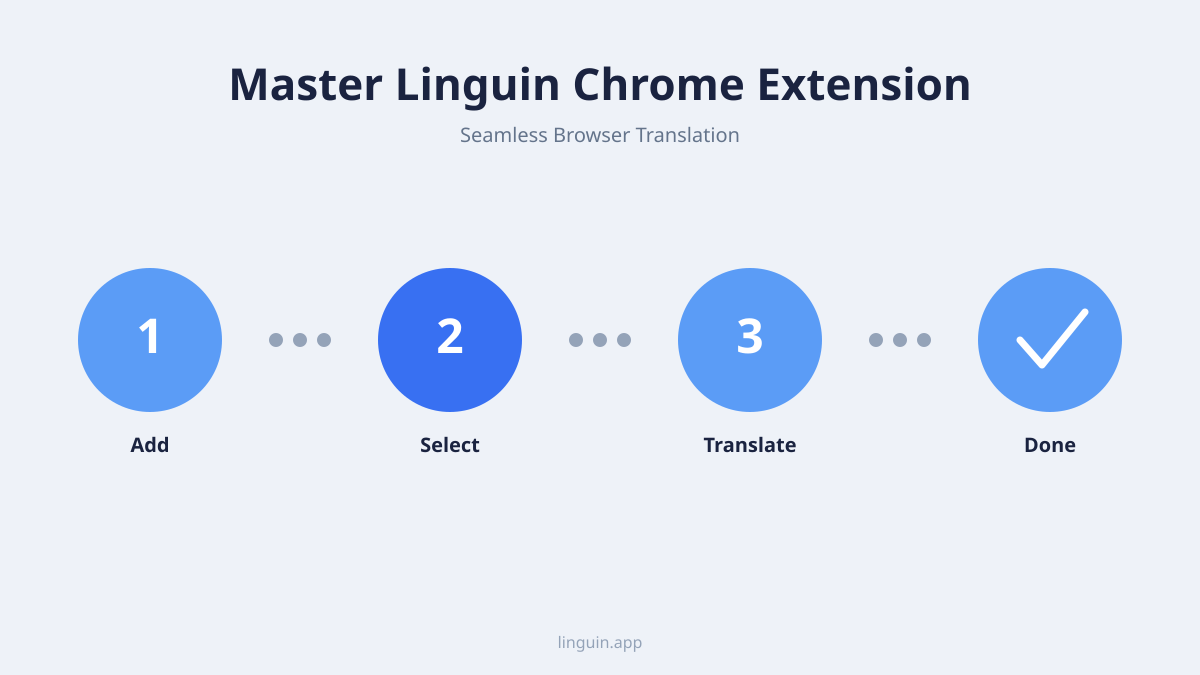
Getting the Linguin Chrome extension up and running is a quick and straightforward process. Follow these steps to install and configure it for your needs.
First, visit the Chrome Web Store. You can search for “Linguin Translate” or navigate directly via a link from the main Linguin website. On the store page, click the “Add to Chrome” button. A confirmation dialog will appear, detailing the permissions the extension requires. These typically include the ability to read and change data on websites you visit (necessary for translating selected text) and access to browser tabs. Review this and click “Add extension.” The installation will complete within seconds, and the Linguin icon will appear in your browser’s toolbar, usually next to the address bar.
Second, configure your preferences. Click the newly added Linguin icon in your toolbar. A small popup menu will open. Here, you can click on “Settings” or a gear icon. The settings page allows you to choose your default languages. Set your “Original language” often to “Auto-detect” for maximum convenience, and select your preferred “Translation language,” such as English, Spanish, or Japanese. You can also explore other options here, like the popup appearance and notification sounds. Taking a minute to set these defaults will personalize the tool and speed up your future translations.
Third, perform a test translation to ensure everything works. Navigate to a website in a language different from your default target language. For example, visit a news site like BBC Mundo (Spanish) or Deutsche Welle (German). Highlight a headline or a short paragraph. You should see the Linguin icon appear. Click it, and the translation should pop up instantly. If you do not see the icon, try right-clicking the selected text and looking for the “Translate with Linguin” option. This quick test confirms the extension is active and ready for use.
Practical use cases and scenarios
The true value of any tool is revealed in its practical application. The Linguin Chrome extension excels in specific, everyday situations that professionals and casual users alike encounter.
International business and market research is a primary use case. Imagine you are analyzing a competitor’s website based in South Korea. The entire site is in Korean. With the full-page translation feature, you can quickly understand their product offerings, pricing strategies, and promotional language. Alternatively, if you are sourcing products from a manufacturer in China and reading product specifications on Alibaba, you can translate key technical details on the spot, ensuring you fully understand what you are purchasing. This immediate access to information accelerates decision-making and reduces dependency on third-party translators.
Academic research and learning is another powerful scenario. A university student writing a thesis might need to cite a groundbreaking study published in French. Instead of struggling through a language barrier or outsourcing the translation, they can use the extension to translate the relevant sections directly within the PDF viewer or webpage. This allows for accurate understanding and precise quoting. Similarly, a professional looking to acquire a new certification might need to take an online course offered only in Portuguese. The extension can translate the lecture transcripts and course materials, making the content accessible.
Travel planning and cultural exploration benefits greatly from on-the-fly translation. When booking accommodations, you might find the perfect boutique hotel with reviews only in Italian. Translating these reviews can provide genuine insights that generic, translated summaries might miss. Or, while exploring a recipe blog from Thailand to cook an authentic dish, you can translate the ingredients and instructions without leaving the page. This direct translation empowers you to engage with authentic sources and content from around the world.
Customer support and community management for global products often involves monitoring social media and forums. A community manager might need to track brand mentions in various languages. Selecting and translating individual posts or replies with the extension’s context menu, or using the sidebar to check a phrase before responding, helps a manager follow a foreign-language thread and respond appropriately.
How it compares to other translation extensions
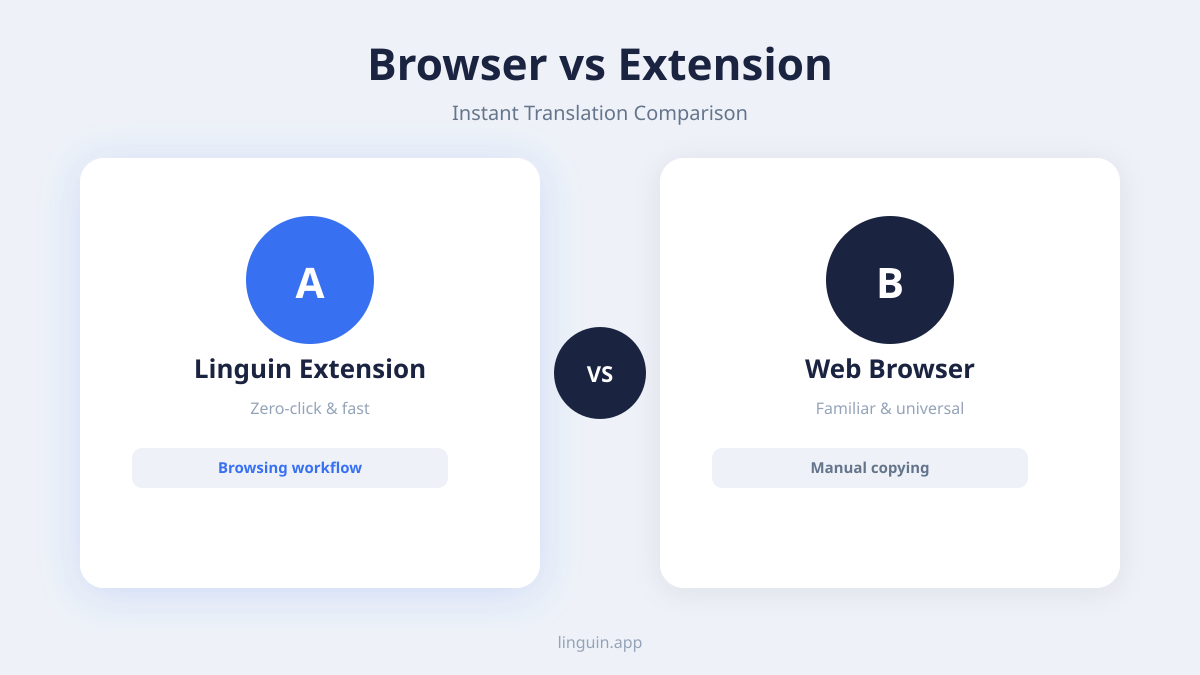
The browser extension market has several translation tools, but they differ significantly in approach and capability. Understanding these differences helps highlight the advantages of the Linguin Chrome extension.
Many popular extensions, including some from major providers, rely on older statistical machine translation engines. These tools often translate text in a more literal, phrase-by-phrase manner. This can lead to awkward phrasing, grammatical errors, and a loss of the original tone, especially with idiomatic expressions or complex sentences. The result is often a translation that is understandable but clearly artificial. Linguin’s use of advanced neural AI models focuses on the context of the entire sentence or paragraph, leading to outputs that are more natural and fluent. For a deeper comparison of these methodologies, read our analysis of AI vs. human translation.
A key differentiator is the user experience. Some extensions replace the text on the webpage directly, which can break the site’s layout or functionality. Others open a separate sidebar or new tab, taking you out of your browsing context. The Linguin extension uses a non-destructive popup model. The original webpage remains unchanged, and the translation appears in a clean overlay. This preserves the site’s design and your place on the page. It is a less intrusive and more respectful way to access translations.
Privacy practices are another critical area of comparison. Some free translation services monetize by analyzing user data. Linguin is built with a strong commitment to privacy: translations travel over an encrypted connection, are not sold to third parties, and are not used for advertising. If you’re signed in, your translations are saved to your account’s history as a feature you can turn to your advantage, not a hidden practice. You can explore our thoughts on secure translation in our guide to the best translation Chrome extension.
Finally, the range of features often sets it apart. While basic extensions might only offer text translation, Linguin also includes a full-page mode and a sidebar translator for typing or pasting text. This multi-modal approach means one tool can handle a wider variety of translation tasks you encounter online, from static articles to a quick message you’re about to send.
Tips, tricks, and best practices
To become a power user of the Linguin Chrome extension, a few tips and best practices can enhance your efficiency and translation accuracy.
Use the right feature for the task. For quick, glancing understanding of a word or sentence, the text selection popup is perfect. For reading a full article, use the page translation feature to avoid constant highlighting. For drafting a chat reply or comment before you post it, use the sidebar translator. Matching the tool to the content type saves time and effort.
Leverage language customization. If you are bilingual or working consistently between two specific languages, set them as your fixed source and target in the settings. This eliminates the need for the AI to auto-detect the language every time, which can occasionally misinterpret short phrases. For instance, if your work consistently involves translating from Japanese to English, locking in those languages will provide more consistent results.
Verify critical translations. For high-stakes content like legal disclaimers, medical information, or important contract terms, use the extension as a first pass for understanding, but consider the output a draft. The context-aware translation is highly accurate, but for absolute precision in critical matters, a human review is always recommended. The extension gives you the gist and accelerates the process, but final verification is wise.
Use the context menu instead of the mouse-only workflow. Right-clicking selected text and choosing “Translate” from the Linguin menu is faster than hunting for the toolbar icon every time, especially when reading dense documents or reports online.
Keep the extension updated. Linguin continuously improves its AI models and extension functionality. Ensure you have automatic updates enabled in Chrome, or periodically check for updates in the Extensions menu (chrome://extensions). This guarantees you always have access to the latest language support, feature improvements, and security patches.
Frequently asked questions
Is the Linguin Chrome extension free to use?
The extension offers a generous free tier that allows for a substantial number of translations per month, which is sufficient for most casual or intermittent users. For high-volume translation needs, such as those required by professionals or teams, Linguin provides premium subscription plans. These plans unlock higher usage limits, access to the most advanced AI models, and priority processing speeds.
Does it work on all websites?
The extension is designed to work on the vast majority of websites. It functions on standard text content across news sites, blogs, social media platforms, and web apps. There can be occasional compatibility issues with highly complex web applications that use custom frameworks or heavily encrypted text. In such rare cases, the text selection popup might not appear, but the full-page translation feature can often still process the core content.
How does Linguin handle my privacy and data?
Privacy is a core principle for Linguin. When you use the Chrome extension, the text you select for translation is sent securely, over an encrypted connection, to be processed (the free Standard style goes to Google Translate; the four paid styles go to a hosted AI model). If you’re signed in, the translation is saved to your account’s history so you can find it again later, that’s a feature you can use, not a hidden data-collection practice. We do not sell your translation data or use it for advertising. You can review our detailed privacy policy for more information.
Can I translate languages like Arabic or Chinese that use non-Latin scripts?
Absolutely. The extension supports full right-to-left rendering for languages like Arabic and Hebrew, and it correctly handles complex character sets for languages such as Chinese, Japanese, and Korean. The translation popups and page translation views will display these languages accurately, maintaining their proper script direction and typography.
What if the translation doesn’t seem accurate?
AI translation, while advanced, can sometimes produce errors with highly ambiguous, poetic, or technical jargon-heavy text. If a translation seems off, first try translating a larger block of text to give the AI more context. You can also use the feature to translate the text into another language you know as a cross-check. For ongoing issues, Linguin’s models are continually updated and improved based on vast datasets, so accuracy for most general and professional content is consistently high.
Getting started with Linguin
The Linguin Chrome extension transforms your browser into a powerful portal for global information. By providing instant, context-aware translations directly on the webpages you visit, it eliminates the friction of switching between tabs and apps. The combination of text selection, full-page, and sidebar translation modes ensures you are equipped for almost any multilingual scenario online, from research and work to learning and leisure.
The most important next step is to experience it firsthand. The installation takes less than a minute from the Chrome Web Store. Once added, try it on a website in a language you have always wanted to explore. See how quickly you can grasp the content that was previously out of reach. Linguin is built to make the digital world smaller and more accessible, and the Chrome extension is one of the most direct ways to bring that capability into your daily routine.
-vs-translator.png)