
 English
  Español
  Français
  Deutsch
  Português
  Italiano
  Русский
  中文(简体)
  日本語
日本語  한국어
한국어  العربية
  हिन्दी
  Nederlands
  Türkçe
  Polski
Навигация в мире слов: проблема многоязычного контента на Mac
В современном взаимосвязанном цифровом ландшафте столкновение с текстом на непонятном языке уже не редкость. Независимо от того, являетесь ли вы студентом, изучающим международные дисциплины, профессионалом, сотрудничающим с глобальными клиентами, путешественником, планирующим следующее приключение, или просто любознательным человеком, просматривающим веб-страницы, способность быстро и точно переводить информацию имеет первостепенное значение. Ваш Mac, мощный инструмент для продуктивности и доступа к информации, часто ставит перед вами эти многоязычные задачи. От академических статей и новостных материалов до постов в социальных сетях и даже интерфейсов приложений, необходимость переводить выделенный текст на Mac возникает постоянно.
Исторически этот процесс включал в себя громоздкие шаги: копирование текста, открытие веб-браузера, переход на сайт переводчика, вставку текста и последующее расшифровывание результата. Это было не только затратно по времени, но и нарушало рабочий процесс, отвлекая от основной задачи. Хотя встроенные функции macOS предлагают некоторые возможности перевода, им часто не хватает скорости, широты поддержки языков и бесшовной интеграции, которую желают многие пользователи. Именно здесь на помощь приходят специализированные инструменты, такие как Linguin, созданные для того, чтобы сделать перевод выделенного текста на Mac легким и интегрированным опытом.
Знакомьтесь, Linguin: ваш бесшовный помощник для перевода на Mac
Linguin, это приложение для перевода на базе искусственного интеллекта, тщательно созданное для экосистемы Apple, с надежной поддержкой macOS, iOS и расширениями для браузеров Chrome и Safari. Наша миссия, устранять языковые барьеры, позволяя вам понимать и общаться на любом языке с невероятной легкостью. Для пользователей Mac Linguin предлагает революционный подход к переводу выделенного текста, превращая некогда утомительную рутину в момент мгновенного понимания.
Представьте, что вы читаете статью в интернете, сталкиваетесь с незнакомой фразой, и после быстрого копирования, одного нажатия сочетания клавиш и вставки видите перевод почти мгновенно, без открытия новой вкладки браузера и потери своего места. Такова сила Linguin. Он создан, чтобы быть вашим основным решением для перевода одного слова, предложения или целого абзаца. Стоит сразу пояснить, как он на самом деле работает, потому что это быстрый рабочий процесс копирования-вставки, а не система, которая автоматически считывает выделенный текст везде, где находится курсор.
Преимущество Linguin: как переводить выделенный текст на Mac
Linguin предлагает несколько интуитивно понятных способов перевода выделенного текста на Mac, в зависимости от того, где этот текст находится. Каждый метод разработан для скорости и эффективности, сводя к минимуму помехи и максимизируя ваше понимание.
1. Глобальное сочетание клавиш: одно нажатие к приложению, где угодно
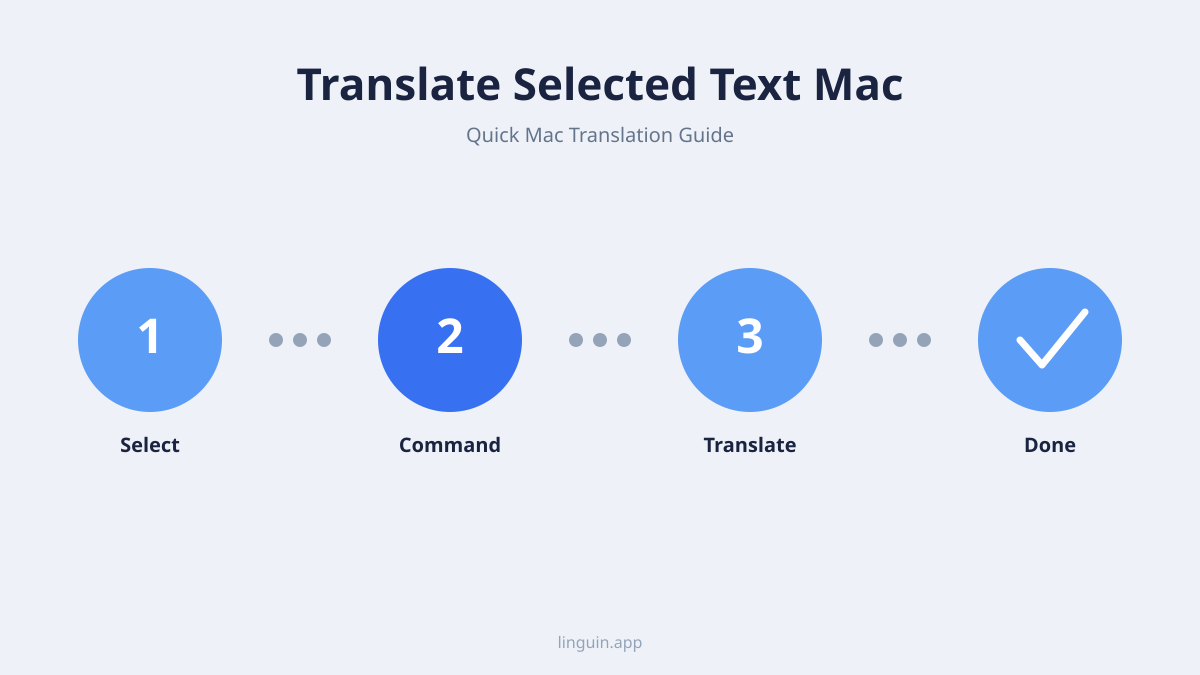
Краеугольным камнем использования Linguin на Mac является его единственное глобальное сочетание клавиш Option + Space. Оно фиксированное, не настраиваемое, но это означает, что это всегда одна и та же рефлекторная реакция, независимо от того, в каком приложении вы находитесь. Linguin не считывает выделенный вами текст напрямую из другого приложения, вместо этого сочетание клавиш выводит окно Linguin на передний план, чтобы вы могли вставить уже скопированный текст.
Как использовать:
- Выделите и скопируйте текст: Выделите текст, который хотите перевести, в любом приложении, затем скопируйте его (
Cmd + C). - Нажмите
Option + Space: Это мгновенно открывает (или закрывает) окно Linguin, независимо от того, в каком приложении вы только что были. - Вставьте и переведите: Вставьте текст (
Cmd + V), выберите целевой язык и стиль перевода и прочитайте результат. Скопируйте перевод одним кликом, чтобы использовать его в другом месте.
Этот метод эффективен для перевода фрагментов текста, встречающихся при многозадачной работе или работе с плотным контентом, даже несмотря на то, что это последовательность копирование-сочетание-вставка, а не один клик.
2. Расширения для браузера: перевод по правому клику на веб-страницах
Если текст, который вы хотите перевести, находится на веб-странице, расширения Linguin для браузера пропускают шаг копирования-вставки. Расширение для Chrome и расширение для Safari на macOS (входит в комплект с приложением, включается в настройках Расширений Safari) добавляют опцию правого клика для перевода выделенного вами текста прямо на странице.
Как использовать:
- Выделите текст на любой веб-странице.
- Нажмите правой кнопкой мыши на выделение.
- Выберите опцию перевода Linguin в появившемся контекстном меню.
- Просмотрите перевод во всплывающем окне рядом с вашим выделением.
Эта интеграция по правому клику работает только внутри браузера, с текстом, который является частью веб-страницы. Она не распространяется на другие приложения macOS, документы или системные диалоги, для них используется описанный выше рабочий процесс копирования-вставки с помощью Option + Space.
3. Окно приложения: для длинных отрывков
Помимо быстрых фрагментов, само окно приложения Linguin, это место, где происходят более длинные переводы. Независимо от того, открыли ли вы его с помощью Option + Space или щелкнув по его значку в строке меню, оно дает вам четкий вид как исходного, так и переведенного текста.
Как использовать:
- Откройте Linguin: Нажмите
Option + Space, щелкните по его значку в строке меню или запустите из папки «Программы». - Вставьте ваш текст: Вставьте его в поле ввода (там также есть кнопка «Вставить», если вы не хотите сначала щелкать в поле).
- Переводите длинные отрывки: Окно приложения хорошо подходит для вставки целых абзацев для перевода, предоставляя более чистый интерфейс для работы с длинными текстами, чем всплывающее окно браузера.
Этот режим полезен для студентов, переводящих исследовательские отрывки, профессионалов, работающих с международной перепиской, или любого, кому нужно просматривать переведенный контент более структурированным образом.
За рамками базового перевода: умные функции Linguin для пользователей Mac
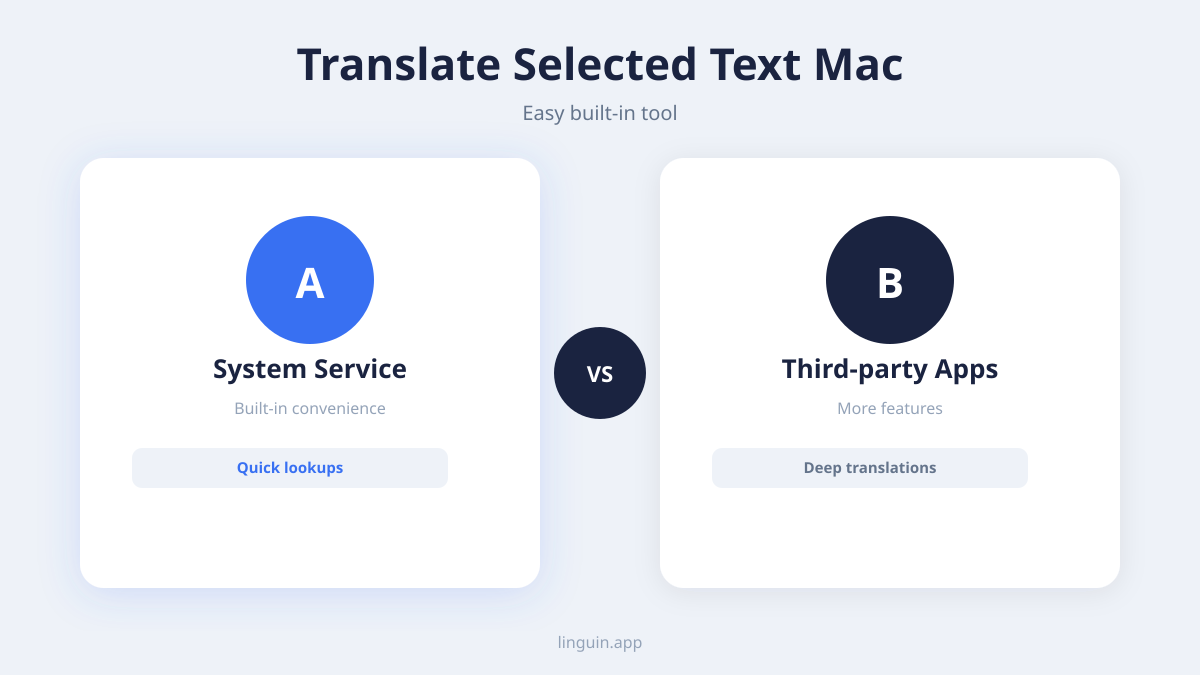
Linguin, это не просто преобразование слов, это предоставление интеллектуального и комплексного опыта перевода. Мы внедрили несколько функций, специально разработанных для улучшения взаимодействия пользователей Mac с переведенным текстом и получения от него пользы.
Обширная поддержка языков и интеллектуальное определение
Linguin поддерживает широкий спектр языков, значительно превосходя возможности многих встроенных инструментов. Linguin также интеллектуально определяет исходный язык вставленного текста по умолчанию, избавляя вас от лишнего шага: вы вставляете текст, а Linguin определяет, на каком он языке, прежде чем перевести его на предпочитаемый вами язык вывода.
Несколько целевых языков и стилей перевода
Ваши потребности в переводе могут меняться от задачи к задаче. Linguin позволяет установить целевой язык и выбрать один из пяти стилей перевода: Стандартный, Неформальный, Формальный, Технический или Креативный, так что сообщение клиенту будет читаться иначе, чем неформальный чат с другом. Переключение между ними занимает пару кликов в интерфейсе Linguin.
Интеграция с расширениями для Safari и Chrome
Для пользователей, которые проводят значительное время в интернете, расширения Linguin для Chrome и, на macOS, для Safari неоценимы. Эти расширения позволяют переводить выделенный текст прямо в окне вашего браузера через контекстное меню правого клика. Вы можете переводить содержимое веб-страниц, ленты социальных сетей и онлайн-статьи, никогда не покидая вкладку браузера. У вошедших в систему пользователей настройки и история переводов синхронизируются между расширениями и приложениями для macOS/iOS.
Точность и контекстуальная осведомленность
Переводы Linguin выполняются с помощью моделей искусственного интеллекта, которые выходят за рамки буквального, дословного преобразования, стремясь отразить задуманный смысл и тон исходного текста, особенно когда вы выбираете соответствующий стиль перевода. Хотя машинный перевод не идеален, этот контекстуальный подход направлен на предоставление естественно звучащих результатов, а пользовательский словарь позволяет зафиксировать предпочитаемый вами перевод для конкретных имен или терминов, которые встречаются часто.
Максимизация вашей продуктивности с Linguin на Mac
Возможность мгновенно и без усилий переводить выделенный текст на Mac может оказать глубокое влияние на вашу продуктивность и способность взаимодействовать с миром.
Для студентов и академиков
При исследовании для статей, чтении академических журналов международных учреждений или работе с многоязычными учебными материалами Linguin может изменить правила игры. Быстрый перевод ключевых отрывков, определений или цитат экономит часы ручной работы и позволяет глубже понять более широкий спектр источников.
Для бизнес-профессионалов
Глобальное сотрудничество стало нормой. Независимо от того, имеете ли вы дело с электронными письмами от международных партнеров, отзывами клиентов на иностранном языке или зарубежными маркетинговыми исследованиями, быстрый рабочий процесс копирования-вставки-перевода Linguin помогает избежать недопонимания и ускоряет скорость вашей реакции, способствуя укреплению международных деловых отношений.
Для путешественников и граждан мира
Планируете поездку? Пытаетесь понять местные обычаи через онлайн-ресурсы? Или просто поддерживаете связь с друзьями и семьей за границей? Linguin делает навигацию по контенту на иностранном языке на вашем Mac бесшовной. От бронирования жилья до понимания местных новостей, язык больше не является барьером для познания мира и общения с ним.
Для повседневного любопытства
Интернет, это огромный океан информации. Linguin расширяет возможности вашего естественного любопытства, позволяя без колебаний исследовать контент на любом языке. Легко понимайте интересный пост в блоге, мем на иностранном языке или интригующее обновление в социальных сетях.
Начало работы с Linguin на вашем Mac
Начать путь к легкому переводу просто.
- Скачайте Linguin: Посетите Mac App Store и найдите “Linguin”. Скачайте и установите приложение.
- Предоставьте разрешения, если нужны голосовые функции: При первом запуске Linguin может запросить доступ к микрофону, если вы планируете использовать голосовой ввод. Это не требуется для базового использования с вставкой и переводом.
- Настройте параметры: Откройте настройки Linguin, чтобы установить предпочитаемый целевой язык и стиль перевода по умолчанию.
- Установите расширения для браузера: Для перевода в вебе посетите Chrome Web Store, чтобы установить расширение для Chrome, а на macOS включите встроенное расширение для Safari в Safari > Настройки > Расширения.
После выполнения этих шагов вы будете готовы испытать удобство перевода выделенного текста на вашем Mac.
Будущее перевода уже здесь
В мире, который все больше определяется глобальными связями, способность понимать и общаться на разных языках, это не просто удобство, а необходимость. Linguin стремится предоставить доступный, полезный перевод для пользователей Apple. Сосредоточившись на быстром, низкофрикционном рабочем процессе для перевода выделенного текста на Mac в сочетании с надежной поддержкой языков, он призван помочь вам разрушить барьеры и более полно взаимодействовать с миром. Попробуйте Linguin сегодня и узнайте, насколько просто можно понимать все и везде.


-vs-translator.png)