English
  Español
  Français
  Deutsch
  Português
  Italiano
  Русский
  中文(简体)
  日本語
日本語  한국어
한국어  العربية
  हिन्दी
  Nederlands
  Türkçe
  Polski
Navigating a World of Words: The Challenge of Multilingual Content on Mac
In today’s interconnected digital landscape, encountering text in a language you don’t understand is no longer a rare occurrence. Whether you’re a student researching international studies, a professional collaborating with global clients, a traveler planning your next adventure, or simply a curious individual browsing the web, the ability to quickly and accurately translate information is paramount. Your Mac, a powerful tool for productivity and information access, often presents you with these multilingual challenges. From academic papers and news articles to social media posts and even application interfaces, the need to translate selected text on your Mac arises constantly.
Historically, the process involved cumbersome steps: copying text, opening a web browser, navigating to a translation website, pasting the text, and then deciphering the output. This was not only time-consuming but also disruptive to your workflow, pulling you away from your primary task. While built-in macOS features offer some translation capabilities, they often lack the speed, breadth of language support, and seamless integration that many users desire. This is where specialized tools like Linguin step in, designed to make translating selected text on your Mac an effortless and integrated experience.
Introducing Linguin: Your Seamless Translation Companion for Mac
Linguin is an AI-powered translation app meticulously crafted for the Apple ecosystem, with robust support for macOS, iOS, and browser extensions for Chrome and Safari. Our mission is to dissolve language barriers, enabling you to understand and communicate in any language with unparalleled ease. For Mac users, Linguin offers a revolutionary approach to translating selected text, transforming a once tedious chore into a moment of instant understanding.
Imagine reading an article online, encountering an unfamiliar phrase, and with a quick copy, a single keyboard shortcut, and a paste, seeing the translation appear almost instantly, without opening a browser tab or losing your place. This is the power of Linguin. It’s engineered to be your go-to solution for a single word, a sentence, or an entire paragraph. It’s worth being upfront about how it actually works, because it’s a fast copy-paste workflow rather than a system that reads selected text automatically wherever your cursor happens to be.
The Linguin Advantage: How to Translate Selected Text on Your Mac
Linguin offers a couple of intuitive ways to translate selected text on your Mac, depending on where that text lives. Each method is designed for speed and efficiency, minimizing disruption and maximizing your understanding.
1. The Global Shortcut: One Keystroke to the App, Anywhere
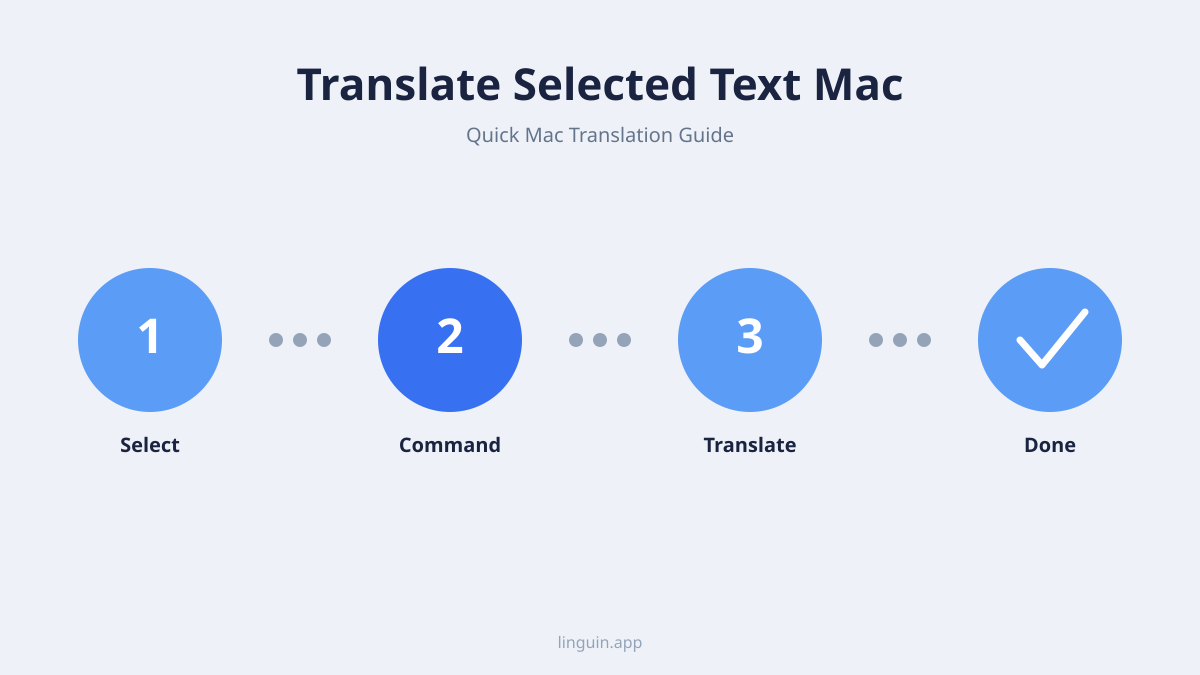
The cornerstone of using Linguin on the Mac is its single global keyboard shortcut, Option + Space. It’s fixed, not customizable, but that means it’s always the same reflex no matter what app you’re in. Linguin doesn’t read the text you’ve selected directly out of another app; instead, the shortcut brings the Linguin window to the front so you can paste in text you’ve already copied.
How to use it:
- Select and copy the text: Highlight the text you want to translate in any app, then copy it (
Cmd + C). - Press
Option + Space: This opens (or closes) the Linguin window instantly, no matter what app you were just in. - Paste and translate: Paste the text (
Cmd + V), pick your target language and translation style, and read the result. Copy the translation with one click to use it elsewhere.
This method is efficient for translating snippets of text encountered while multitasking or working through dense content, even though it’s a copy-shortcut-paste sequence rather than a single click.
2. Browser Extensions: Right-Click Translation on Webpages
If the text you want to translate is on a webpage, Linguin’s browser extensions skip the copy-paste step. The Chrome extension, and the Safari extension on macOS (bundled with the app, turned on in Safari’s Extensions settings), add a right-click option for translating text you’ve selected directly in the page.
How to use it:
- Select text on any webpage.
- Right-click the selection.
- Choose Linguin’s translate option from the context menu that appears.
- View the translation in a small popup right next to your selection.
This right-click integration only works inside the browser, on text that’s part of a webpage. It doesn’t extend to other macOS apps, documents, or system dialogs; for those, the Option + Space copy-paste workflow above is the way to translate.
3. The App Window: For Longer Passages
Beyond quick snippets, the Linguin app window itself is where longer translations happen. Whether you opened it with Option + Space or by clicking its menu bar icon, it gives you a clear view of both the original and translated text.
How to use it:
- Open Linguin: Press
Option + Space, click its menu bar icon, or launch it from your Applications folder. - Paste your text: Paste it into the input field (there’s a Paste button too, if you’d rather not click into the field first).
- Translate longer passages: The app window works well for pasting entire paragraphs for translation, giving you a cleaner interface for managing longer pieces of text than a browser popup.
This mode is useful for students translating research passages, professionals working with international correspondence, or anyone who needs to review translated content in a more structured way.
Beyond Basic Translation: Linguin’s Smart Features for Mac Users
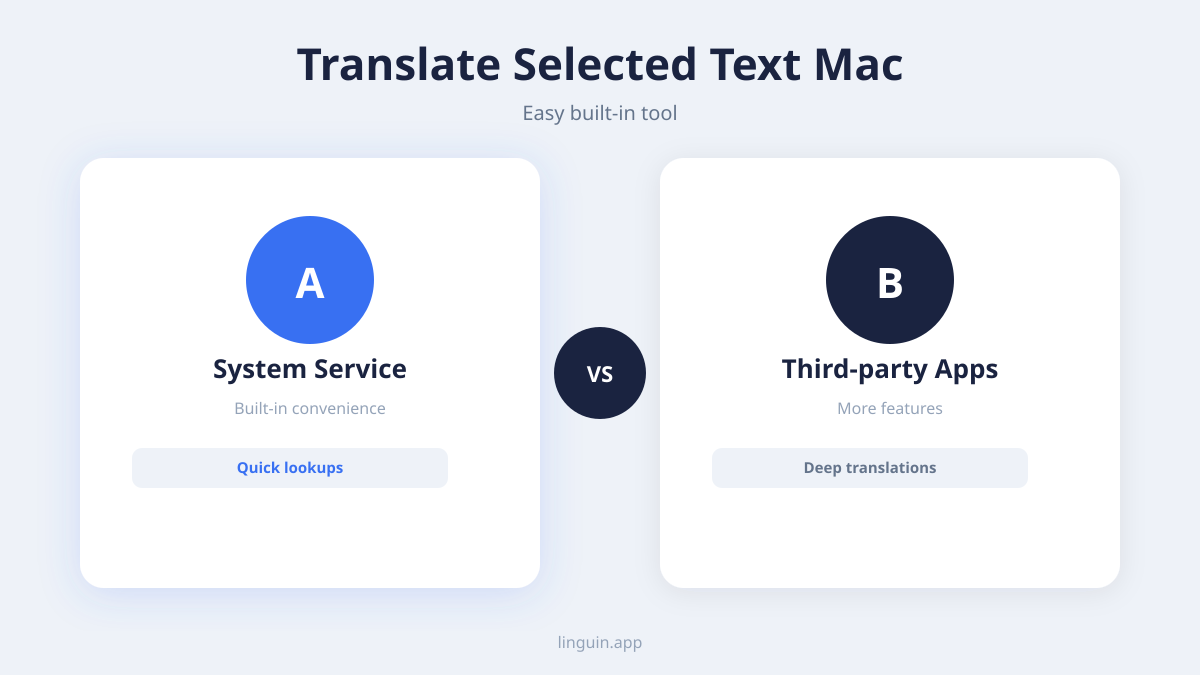
Linguin isn’t just about converting words; it’s about providing an intelligent and comprehensive translation experience. We’ve incorporated several features specifically designed to enhance how Mac users interact with and benefit from translated text.
Vast Language Support and Intelligent Detection
Linguin supports a wide array of languages, far exceeding the capabilities of many built-in tools. Linguin also intelligently detects the source language of the text you paste in by default, saving you an extra step: you paste text, and Linguin figures out what language it’s in before translating it into your preferred output language.
Multiple Target Languages and Translation Styles
Your translation needs might vary from one task to the next. Linguin lets you set a target language and pick from five translation styles, Standard, Casual, Formal, Technical, or Creative, so a message to a client reads differently than a casual chat with a friend. Switching between them takes a couple of clicks within the Linguin interface.
Integration with Safari and Chrome Extensions
For users who spend significant time browsing the web, Linguin’s Chrome extension and, on macOS, its Safari extension are invaluable. These extensions allow you to translate selected text directly within your browser window via the right-click menu. You can translate web page content, social media feeds, and online articles without ever leaving your browser tab. Signed-in users get their preferences and translation history synced between the extensions and the macOS/iOS apps.
Accuracy and Contextual Awareness
Linguin’s translations run through AI models that go beyond literal, word-for-word conversion, aiming to reflect the intended meaning and tone of the original text, especially when you pick the matching translation style. While no machine translation is perfect, this contextual approach aims to provide natural-sounding results, and the custom dictionary lets you lock in your preferred translation for specific names or terms that come up repeatedly.
Maximizing Your Productivity with Linguin on Mac
The ability to translate selected text on your Mac instantly and effortlessly can have a profound impact on your productivity and your ability to engage with the world.
For Students and Academics
When researching for papers, reading academic journals from international institutions, or engaging with multilingual course materials, Linguin can be a game-changer. Quickly translating key passages, definitions, or citations saves hours of manual work and allows for deeper comprehension of a wider range of sources.
For Business Professionals
Global collaboration is the norm. Whether you’re dealing with emails from international partners, client feedback in a foreign language, or market research from overseas, Linguin’s quick copy-paste-translate workflow helps avoid misunderstandings and speeds up how fast you can respond, fostering stronger international business relationships.
For Travelers and Global Citizens
Planning a trip? Trying to understand local customs through online resources? Or simply staying connected with friends and family abroad? Linguin makes navigating foreign language content on your Mac seamless. From booking accommodations to understanding local news, language is no longer a barrier to experiencing and connecting with the world.
For Everyday Curiosity
The internet is a vast ocean of information. Linguin empowers your natural curiosity, allowing you to explore content in any language without hesitation. Understand that interesting blog post, that foreign language meme, or that intriguing social media update with ease.
Getting Started with Linguin on Your Mac
Embarking on a journey of effortless translation is simple.
- Download Linguin: Visit the Mac App Store and search for “Linguin.” Download and install the application.
- Grant permissions if you want voice features: On first launch, Linguin may ask for microphone access if you plan to use voice dictation. This isn’t required for basic paste-and-translate use.
- Configure settings: Open Linguin’s preferences to set your preferred target language and default translation style.
- Install browser extensions: For web translation, visit the Chrome Web Store to install the Chrome extension, and on macOS, turn on the bundled Safari extension in Safari > Settings > Extensions.
Once these steps are completed, you’ll be ready to experience the convenience of translating selected text on your Mac.
The Future of Translation is Here
In a world increasingly defined by global connections, the ability to understand and communicate across languages is not just a convenience, it’s a necessity. Linguin aims to provide accessible, useful translation for Apple users. By focusing on a fast, low-friction workflow for translating selected text on the Mac, coupled with solid language support, it aims to help you break down barriers and engage with the world more fully. Try Linguin today and discover how simple it can be to understand everything, everywhere.


-vs-translator.png)