English
  Español
  Français
  Deutsch
  Português
  Italiano
  Русский
  中文(简体)
  日本語
日本語  한국어
한국어  العربية
  हिन्दी
  Nederlands
  Türkçe
  Polski
A Mac menu bar translator is an application that lives in your macOS menu bar, offering instant AI-powered translation of text from anywhere on your computer. This tool transforms how you interact with foreign languages, making translation a seamless part of your workflow instead of a disruptive task. It’s designed for professionals dealing with international clients, students researching global sources, travelers planning trips, or anyone who frequently encounters text in another language. This guide will explain how a menu bar translator works, its key benefits, and how to choose and use one effectively.
Key takeaways
- A Mac menu bar translator provides system-wide, instant access to translation without switching apps, boosting productivity.
- AI-powered models deliver more natural, context-aware translations compared to older phrase-based tools.
- The best translators support a wide range of languages, offer text-to-speech, and keep a history of your past translations.
- Since translation happens through an online engine rather than a local, on-device model, checking a provider’s privacy policy matters more than assuming your text stays on your Mac.
What is a Mac menu bar translator?
A Mac menu bar translator is a lightweight application that installs a small icon in the top-right corner of your macOS screen. This icon gives you persistent, immediate access to a translation interface, no browser tab to dig up, no separate app to hunt for in the dock. The workflow is simple: copy text from whatever you’re reading, open the translator with a click or a keyboard shortcut, and paste it in for a translation.
The core value lies in its accessibility. Imagine you are reading a technical report in a PDF viewer and encounter a complex paragraph in German. Instead of interrupting your flow by opening a browser tab, you copy the paragraph, press the menu bar shortcut, paste it in, and read the English translation in the app’s window. The process takes seconds and doesn’t require you to dig through browser tabs to find a translation site. This eliminates a lot of the friction of traditional translation methods, which can break concentration and slow down work significantly.
These translators typically use AI language models to understand the full context of sentences, not just individual words. This results in output that reads naturally in the target language, preserving meaning, tone, and even idiomatic expressions. For a deeper dive into how these models work, read our guide on AI translation accuracy.
Key benefits of using a menu bar translator
The advantages of this tool format are specific and substantial, directly impacting daily computer use.
Unmatched speed and convenience. The most immediate benefit is the drastic reduction in steps needed to get a translation. The workflow is streamlined: copy, open, paste, translate, no full browser tab to open and no separate app to hunt for. This is invaluable in fast-paced environments like customer support, where you need to quickly understand a foreign-language email, or right after a call when you need to make sense of a message someone sent in chat. It turns translation from a multi-step task into a near-reflex.
Enhanced productivity and focus. Context switching is a known productivity killer. Every time you alt-tab to a browser or open a separate app, you lose mental momentum. A menu bar translator keeps that switch to a minimum: copy a word from a spreadsheet, a line from an email, or a caption from a website, paste it into the translator’s small window, and get your answer without digging up a full browser tab. This maintains your workflow state and concentration, allowing for deeper, more efficient work.
Privacy worth understanding. Menu bar translators, including Linguin, generally send your text to a remote translation engine for processing rather than running the model on your Mac, so there’s no offline mode to fall back on. If you are translating sensitive business documents, confidential emails, or private messages, it’s worth reading the provider’s privacy policy to understand how your text and translation history are handled and retained. Explore more about secure translation in our article on the best AI translator for Mac.
Core features to look for
When evaluating a Mac menu bar translator, several features separate basic tools from powerful professional aids.
Language support and AI quality. The number of supported languages is important, but the quality of translation within those languages is paramount. Look for a tool that uses advanced neural machine translation (NMT) or large language model (LLM) based translation. These systems understand context, which is essential for translating documents with specific jargon or casual conversations with slang. Support for 100+ languages, including major world languages and key business languages, is a good benchmark. For a comparison of leading AI translation engines, see our analysis of DeepL vs Google Translate.
Input and output flexibility. The best translators handle more than just typed text.
- Paste translation: Getting copied text from your clipboard into the translator window quickly, whether via a Paste button or
Cmd+V. - Typed input: Manually typing text directly into the translator window.
- Text-to-speech (TTS): Hearing the pronunciation of the translated text, which is vital for language learning and verifying accuracy. Linguin’s macOS and iOS apps support this, along with microphone dictation for the source text, though it’s a turn-based dictate-then-translate-then-listen flow rather than live two-way interpretation.
- Multiple translation styles: The ability to pick a tone, Standard, Casual, Formal, Technical, Creative, so the output matches what you’re translating.
Integration and utility features. These features determine how well the tool fits into your ecosystem.
- A shortcut, even a fixed one: Linguin’s macOS app opens and closes with a single global shortcut,
Option + Space. It isn’t customizable, but it’s fast enough to become a reflex. - Translation history: A log of your past translations, kept for signed-in users so you can revisit earlier work.
- A custom dictionary: Fixed term replacements for names, brands, or jargon you want translated consistently every time rather than reinterpreted.
- App integration: Some translators, Linguin included, also ship browser extensions for translating text on webpages. Our guide on the best translation Chrome extension covers complementary tools for web browsing.
How to use a menu bar translator: step-by-step guide
Getting started with a tool like Linguin is straightforward. Here is a typical setup and usage process.
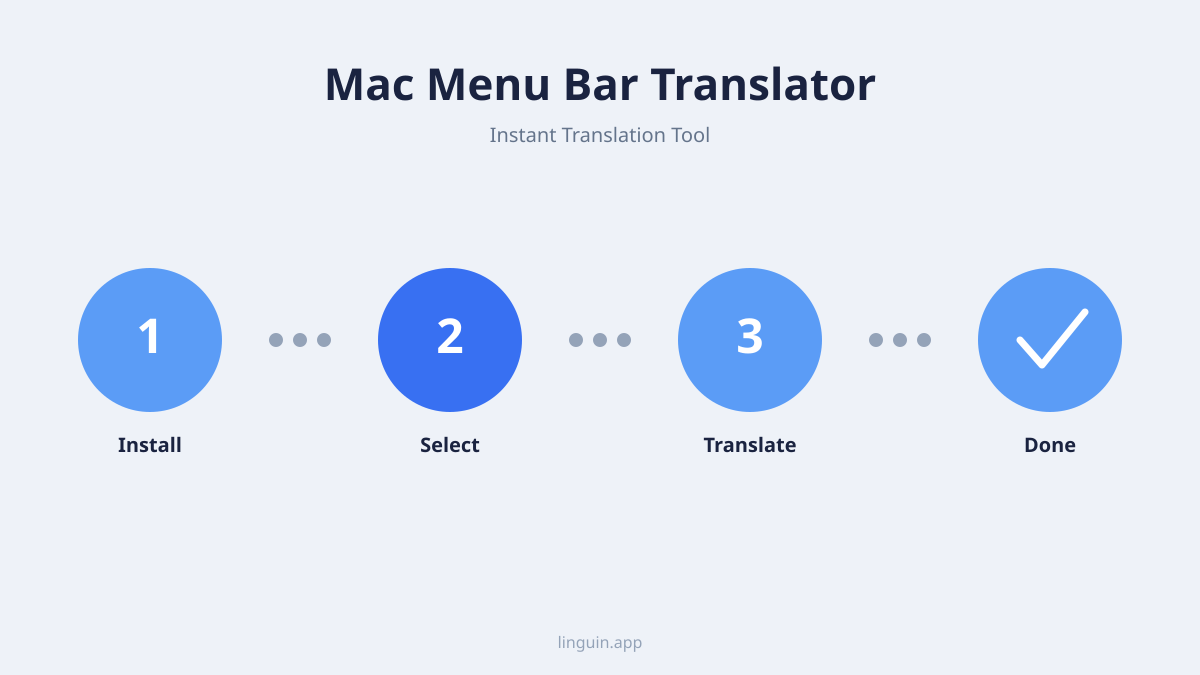
1. Installation and setup. First, download the translator from the official website or the Mac App Store. After opening the downloaded file, drag the application icon to your Applications folder. Upon first launch, the app may request microphone access if you want to use voice dictation. The app’s icon will then appear in your menu bar, and you can also open it from anywhere with Option + Space (Linguin’s one fixed global shortcut).
2. Configuring your preferences. Open the translator from the menu bar icon or Option + Space. Here, you will set your preferred target language (source language is auto-detected). You can also pick a default translation style: Standard, Casual, Formal, Technical, or Creative.
3. Daily usage scenarios.
- Scenario 1: Research and writing. You’re a student writing a paper and find a perfect source, but it’s in French. You select and copy the relevant quote in your browser, press
Option + Space, paste the text into Linguin, and the English translation appears. You can then copy the translation directly into your notes or document. - Scenario 2: International business communication. You receive a project brief from a partner in Japan via email. You select and copy the body of the Japanese text, and click the Linguin icon in your menu bar (or press
Option + Space) to bring up the app and paste it in. The translation appears, allowing you to grasp the requirements immediately. You can then type your English reply, translate it to Japanese in the same window, and copy it over before sending.
4. Advanced tips. Use the translation history to look back at earlier work instead of retranslating. Add recurring names or jargon to your custom dictionary so they translate consistently every time. For translating longer documents, consider using a dedicated best document translation service, which may offer better formatting preservation.
How AI improves menu bar translation
The shift from statistical to AI-driven translation models is what makes modern menu bar tools truly effective.
Contextual understanding. Older translation systems worked on a phrase-by-phrase basis, often leading to stilted and inaccurate results. Modern AI translation models analyze entire sentences and paragraphs to understand the subject, the relationships between words, and the intended meaning. For instance, the English word “bank” could be a financial institution or the side of a river. An AI model uses the surrounding words (“deposit money” vs. “swim to the”) to choose the correct translation in the target language. This contextual awareness is critical for professional and technical content.
Handling nuance and idiom. Language is full of idioms, cultural references, and colloquialisms that don’t translate literally. A phrase like “break a leg” would confuse a simple word-for-word translator. AI models, trained on vast datasets of real-world language usage, are much better at recognizing these expressions and providing the equivalent sentiment or meaning in the target language. This results in translations that sound natural and are culturally appropriate, which is essential for effective communication. Learn more about this capability in our article on AI vs human translation.
Continuous learning and adaptation. While individual menu bar apps may not learn from your personal use for privacy reasons, the underlying AI models they connect to are continually refined by their developers. These models are updated with new data, improving their accuracy across different domains, from legal and medical to casual social media language. This means the translation quality you get improves over time without any action on your part.
Comparing menu bar translators to other methods
It’s useful to understand where a menu bar tool fits among other translation options.
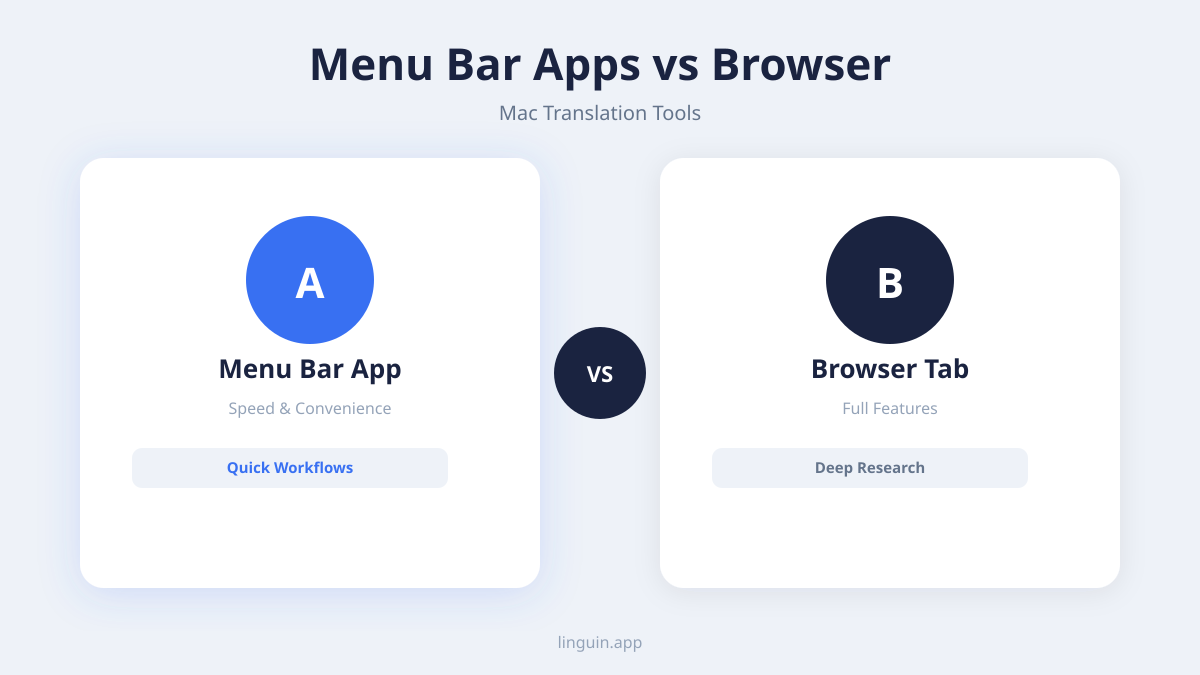
Vs. Web browser translators. Browser extensions like Google Translate are useful for translating entire web pages. However, they are confined to the browser. A menu bar translator works system-wide, translating text in native macOS apps, PDF readers, code editors, and professional software where browser extensions have no reach. It is a more universal solution.
Vs. Standalone desktop apps. Full desktop translation applications often have more features for document translation and management. However, they are heavier and require you to open and manage another application window. The menu bar translator is a minimalist, always-available companion that excels at quick, on-the-fly translations without the overhead of a full app.
Vs. Mobile translation apps. Mobile apps are great on the go but are not integrated into the macOS desktop workflow. Using a phone to translate text from your computer screen is an awkward, two-device process. A native Mac menu bar translator is built for the desktop experience, with keyboard shortcuts and window management that feel natural on macOS. For mobile needs, a companion iOS app from the same provider, like Linguin, ensures consistency. Read about the best translation app for iPhone for a mobile perspective.
The ideal use case. The menu bar translator is not meant to replace high-volume document translation suites or specialized localization software. Its strength is in instant, contextual translation during the flow of computer work. It is the tool you use dozens of times a day for small tasks, while you would use other methods for translating a full manual or a website.
Choosing the right Mac menu bar translator
With several options available, consider these factors to select the tool that best fits your needs.
Accuracy and language coverage. Test the translator with the types of text you commonly work with. Try technical terms, colloquial phrases, and full sentences. Check if it supports all the language pairs you need, not just the most common ones. A tool might excel at European languages but struggle with Asian languages that have different grammatical structures. Our comprehensive best translation apps compared review can help you evaluate different options.
Privacy policy and data handling. This is a non-negotiable area for many users. Read the provider’s privacy policy carefully. Does the app translate locally on your device, or does it send data to the cloud? If it uses the cloud, is the data anonymized, encrypted, or stored? For maximum privacy, choose a translator that performs offline translation or clearly states that no text data is stored or used for model training. Our review of the best offline translator app highlights tools that prioritize this.
Cost and value. Many translators use a freemium model. A free tier might have limits on characters per translation or which translation styles are available. Paid tiers typically offer a higher character limit and access to additional styles or premium AI models. Consider your daily volume: if you translate frequently, a subscription is likely worth the investment for the time saved and the improved quality. Evaluate whether the tool is included in lists of the best Mac productivity apps to gauge its overall utility.
User experience and design. The tool should feel like a natural part of macOS. It should have a clean, intuitive interface, responsive performance, and not cause system lag. Look for thoughtful design touches: a translucent translation window, the ability to pin translations on screen, and easy-to-access settings. A clunky or intrusive tool will defeat the purpose of a seamless workflow.
Frequently asked questions
How does a menu bar translator protect my privacy?
Most menu bar translators, Linguin included, require an internet connection because the text you translate is sent to a translation engine to be processed; there’s no local, on-device model doing the work. Look for a provider with a clear privacy policy stating how your text is handled, whether it’s retained, and whether a signed-in account’s translation history is stored and how you can clear it.
Can I use it to translate entire documents or websites?
Not directly with Linguin: there’s no file picker or drag-and-drop document import. You can paste text you’ve copied out of a document into the translator, or use a browser extension to translate a webpage’s text. For dedicated document translation with formatting preserved, a specialized best PDF translator service is a better fit.
Is an AI menu bar translator better than free online tools?
For integrated desktop workflow, yes. AI models generally provide more nuanced and accurate translations than older free online engines. More importantly, the menu bar integration saves significant time and preserves your focus by eliminating the need to switch to a browser, copy, paste, and copy back. The convenience and system-wide access provide a better overall experience for desktop users.
What languages are typically supported?
Leading AI-powered menu bar translators support a wide range, often over 100 languages. This includes all major global languages (English, Spanish, Chinese, Arabic, French, Hindi), many European languages, and key business and regional languages. Always check the specific provider’s list to ensure it includes the less common languages you might need.
Getting started with Linguin
A Mac menu bar translator eliminates the friction of dealing with foreign language text, turning a complex task into a simple click or keystroke. The key benefits are clear: instant access from anywhere on your system, AI-driven translations that understand context, and a design that prioritizes your privacy and productivity. By keeping the tool in your menu bar, you empower yourself to communicate and comprehend across language barriers without ever breaking your workflow.
The next step is to experience this seamless integration for yourself. Download a tool like Linguin and integrate it into your daily routine for a week. Start by using it to translate short emails, web articles, or messages you encounter. Get used to the keyboard shortcut that brings it forward, and notice how quickly it becomes an indispensable part of how you use your Mac. You may find that what was once a barrier becomes a simple, manageable part of your connected world.


-vs-translator.png)