
 English
  Español
  Français
  Deutsch
  Português
  Italiano
  Русский
  中文(简体)
  日本語
日本語  한국어
한국어  العربية
  हिन्दी
  Nederlands
  Türkçe
  Polski
Navigating the modern digital landscape often means encountering content in a multitude of languages. Whether you’re a student researching international studies, a professional collaborating with global teams, or simply an avid reader of foreign websites, the ability to quickly translate text is invaluable. For macOS users, Linguin ships with a single, fixed shortcut that gets the app in front of you in an instant, and a handful of workflow habits that make the rest of the process nearly as fast. This guide walks through how the shortcut actually works, and how to build a translation routine around it.
Why a macOS Translation Shortcut is a Game-Changer
Imagine you’re reading an insightful article on a French news site, or a colleague sends you an email written in Mandarin. Traditionally, you might copy the text, open a separate translation website or app, paste it in, and then wait for the translation. Linguin removes one of the biggest pieces of friction in that flow: getting the app open. Instead of hunting for it in the Dock or Spotlight, one keyboard combination brings the translator window to the front from anywhere on your Mac.
Linguin lives in the menu bar rather than the Dock, and its window stays ready in the background so it opens instantly rather than launching cold each time. Combined with a fast copy-and-paste habit, this is what makes translating on a Mac with Linguin feel quick, even though the shortcut itself only toggles the window rather than reading text automatically.
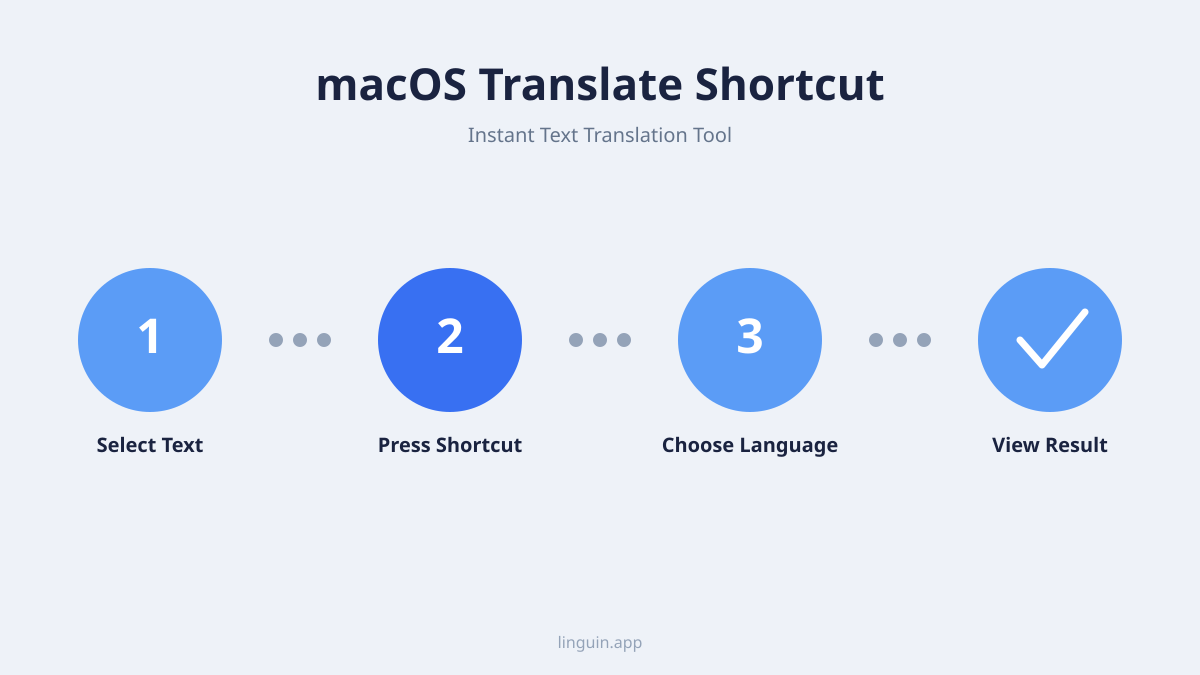
The Built-In Shortcut: Option + Space
Linguin’s macOS app registers one global keyboard shortcut, and it is fixed rather than configurable:
Option (⌥) + Space
Press it from anywhere on your Mac, in any app, and the Linguin window toggles open. Press it again and the window hides. That’s the entire behavior: it is a show/hide toggle for the app window, not a “translate whatever is selected” command. Linguin does not read highlighted text from other applications automatically, so after the window opens you still paste the text you want translated yourself.
A few things to know about how it works:
- It’s global. The shortcut works no matter which app is currently focused, Safari, Mail, Slack, Notes, or anything else, because Linguin listens for the key combination system-wide while it’s running.
- It’s not customizable. Unlike some system shortcuts, Option+Space is hard-coded in the app. There is currently no settings screen to reassign it to a different combination.
- It only opens the window. Nothing is copied, detected, or translated automatically when you press it. You still need to get your source text into Linguin yourself, most commonly by pasting it.
- Linguin lives in the menu bar. You can also click the Linguin icon in the menu bar at any time to open or close the same window, which is a handy fallback if you ever forget the shortcut or it’s captured by another app.
If Option+Space doesn’t appear to do anything, check whether another app on your Mac (some window managers and utilities use the same combination) is intercepting the key press before Linguin sees it.
Building a Fast Copy-Paste Translation Routine
Since the shortcut opens the window rather than translating automatically, the fastest real-world workflow combines the shortcut with a quick copy-paste habit:
- Select and copy the text you want translated wherever you’re reading it (⌘C), whether that’s a webpage, an email, a document, or a chat window.
- Press Option+Space to bring Linguin to the front.
- Paste the text into the source field. Linguin includes a dedicated Paste button in the input area that pulls directly from your clipboard, so you don’t need to click into the text field first.
- Let Linguin auto-detect the source language, or pick it manually if you already know it. The source language selector defaults to Auto, and Linguin will identify the language as you type or paste.
- Copy the translation back out using the Copy button next to the translated text, and paste it wherever you need it.
Because Linguin’s window stays open in the background rather than closing after each translation, repeating this loop for several passages in a row is quick: Option+Space to bring it forward, paste, read, Option+Space to send it back, and continue with your original task.
Other Habits Worth Building
A few smaller conveniences make the shortcut-driven workflow feel smoother over time:
- Use the Swap button when you’re going back and forth between two languages (for example, drafting a reply in your own language after reading a message in another one), instead of resetting the language pickers by hand each time.
- Keep frequently used language pairs in mind. Linguin remembers your recently used source and target languages between sessions, so switching back to a pair you used before is usually one click rather than a fresh search.
- Use a custom glossary for recurring terms. If you regularly translate text with the same names, product terms, or jargon, Linguin’s custom dictionary feature lets you define fixed replacements so those terms come out consistently instead of being re-interpreted every time.
- Keep Linguin running. Since it lives in the menu bar with no Dock icon, it’s easy to forget it’s open. Leaving it running in the background is what makes Option+Space feel instant. If it’s not running, the shortcut won’t have anything to toggle.
Troubleshooting Common Issues
- Option+Space does nothing: Confirm Linguin is actually running (check the menu bar icon). If it’s not launched, the global shortcut has nothing to respond to.
- The shortcut seems to conflict with something else: Some third-party window managers, input switchers, or Spotlight-alternative launchers bind the same key combination. Check those apps’ settings and either disable their binding or accept that only one app can own Option+Space at a time.
- Permissions prompts: macOS may ask for accessibility or input-monitoring permissions the first time you use the app, since detecting a global key press requires system-level event monitoring. Grant these in System Settings > Privacy & Security if prompted, or the shortcut won’t register key presses at all.
- Text isn’t appearing after you paste: Make sure you copied the text before switching to Linguin. The shortcut only opens the window, it does not read your last-copied text automatically, so an empty clipboard means an empty source field.
Conclusion: A Small Shortcut, A Real Time-Saver
Linguin’s Option+Space shortcut isn’t a scripted automation that reads and translates text on its own, but it removes the single most repetitive step in translating on a Mac: finding and opening the app. Paired with a quick copy-paste habit, auto language detection, and a custom glossary for recurring terms, it’s enough to make translation feel like a natural part of your workflow rather than a separate errand. Keep Linguin running in the background, and Option+Space is always one press away.


-vs-translator.png)