English
  Español
  Français
  Deutsch
  Português
  Italiano
  Русский
  中文(简体)
  日本語
日本語  한국어
한국어  العربية
  हिन्दी
  Nederlands
  Türkçe
  Polski
Translating text from your clipboard on a Mac provides a direct, fast way to understand content from any app. This technique is for anyone who encounters foreign language text in documents, emails, or on websites and needs immediate, accurate understanding without cumbersome copy-paste workflows. Whether you’re a researcher, a professional working with international clients, or a student studying materials in another language, translating your clipboard content can bridge language gaps instantly. This guide will walk you through the most effective methods, tools, and tips to master this essential productivity skill.
Key takeaways
- Translating clipboard content bypasses the need to manually retype text, saving significant time.
- AI-powered translation apps provide more context-aware results for technical or idiomatic content than traditional online tools.
- Using a dedicated Mac translation app with a keyboard shortcut is the fastest method for frequent translation tasks.
Why translating clipboard text is a Mac essential
The ability to translate text directly from your clipboard is more than a convenience, it’s a fundamental productivity enhancer for the modern Mac user. The clipboard acts as a universal intermediary, holding text you’ve copied from any source: a PDF, an email thread, a complex software interface, or a snippet of code comments. Translating this content in place eliminates the friction of switching applications, opening browser tabs, or toggling between windows.
Consider the integrated nature of workflows on macOS. You might be analyzing a financial report in a spreadsheet, reviewing comments on a collaborative design file in Figma, or reading documentation in a developer console. In each case, the text you need to translate is trapped within a specific application environment. The traditional method would require you to manually select, copy, open a browser, navigate to a translation website, paste, wait, then copy the result back. This disrupts your flow and consumes valuable cognitive energy.
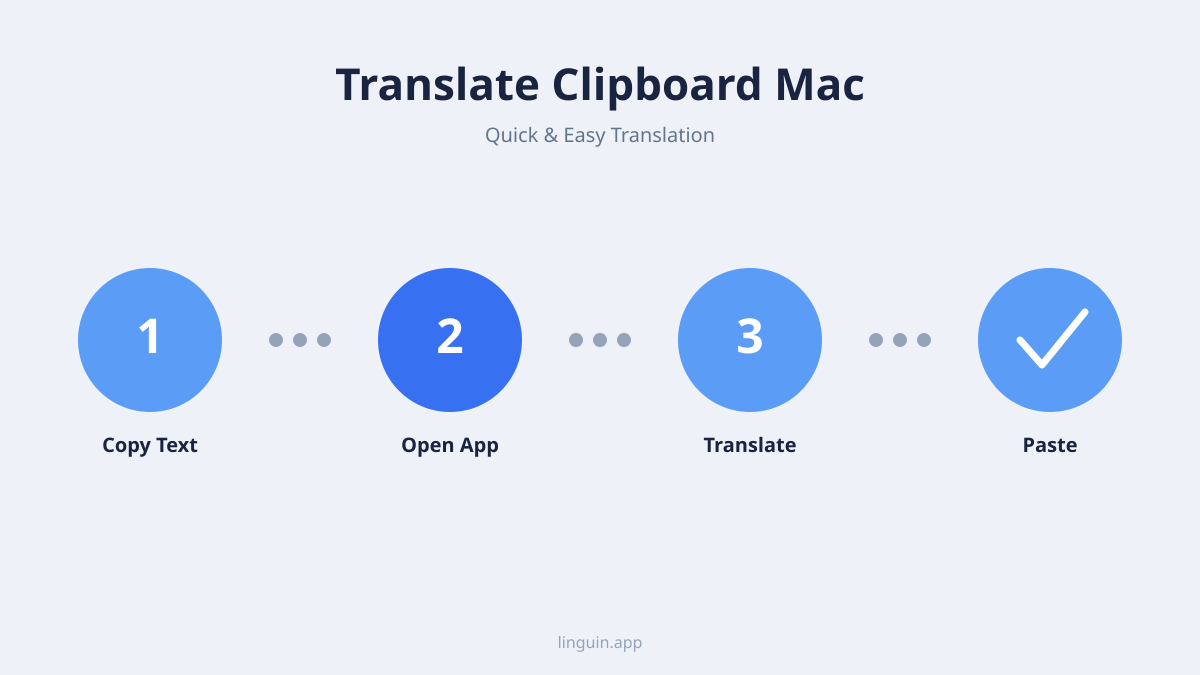
A dedicated clipboard translation workflow streamlines this into a short sequence: copy, open the translator, paste, read. With Linguin, that means copying the text, pressing Option+Space to bring up the app window from wherever you are, pasting it in, and reading the translation, then copying the result back out when you’re ready to use it. This efficiency is particularly valuable in professional contexts where accuracy and speed are critical. For instance, a project manager receiving urgent feedback in French on a shared document can grasp the message in seconds without breaking their review rhythm.
The utility extends beyond comprehension to creation. You can draft a message in your native language, use a quick clipboard translation to convert it, and then paste the polished result into an email or chat window. This encourages clearer communication with global colleagues and clients, reducing misunderstandings and fostering better collaboration. By integrating translation into the clipboard, you effectively make multilingual capability a native feature of your operating system.
Native methods vs dedicated translation apps
While macOS offers some built-in capabilities for handling language, they are often not optimized for the specific task of translating clipboard contents. Understanding the limitations of native methods helps highlight why specialized tools provide a superior experience.
The most common native method is using the Look Up feature. By selecting text and tapping a keyboard shortcut (typically Cmd+Ctrl+D), you can get a dictionary definition or a Wikipedia snippet. For some language pairs, it may offer a basic translation from Apple’s integrated dictionaries. However, this translation is often literal, lacks context, and supports only a limited set of languages. The result is a small popover that can’t be easily copied or used further, making it suitable for a quick word check but inadequate for translating a sentence or paragraph from your clipboard.
Another native option is right-clicking selected text in Safari for a quick “Translate” suggestion, which works well for short snippets on web pages but doesn’t help with text copied from Mail, Slack, PDFs, or other native apps.
Dedicated translation apps built for macOS, like Linguin, live in your menu bar and are reachable from anywhere with a single keyboard shortcut, Option+Space, which opens the app window. You copy text, press the shortcut, paste the text into the window, and the translation appears in a moment. Behind the scenes, the free Standard style is powered by Google Translate, and the four paid styles (formal, casual, creative, technical) route through a hosted AI model that pays attention to tone and context. Say you’re messaging a colleague in Japan and copy the phrase “We need to table this discussion.” A literal translation could cause confusion, but a context-aware AI style would correctly interpret “table” as “postpone” in this business context, not as a piece of furniture.
These apps offer advantages that native methods cannot match:
- Support for 100+ languages, covering nearly every scenario.
- A choice of translation styles (standard, formal, casual, creative, technical) for paid users.
- The ability to edit translations before using them.
- A history log of past translations for reference (paid plan).
- One-click copying of the translated result out of the app.
For anyone who needs reliable, accurate clipboard translation on a Mac, a dedicated app is the clear solution. It transforms a multi-step, context-switching chore into a fast, focused part of your digital workflow. You can learn more about the core technology powering these tools in our guide to AI language translation tools.
Step-by-step guide to translating your clipboard
Implementing an efficient clipboard translation system on your Mac involves choosing the right tool and configuring it to match your habits. Here is a practical guide to set up a workflow that feels natural and saves you time.
First, download and install your translation app. With Linguin, sign in once and the app then lives quietly in your menu bar, ready whenever you need it. Next, open the app’s settings to set your default target language, so you don’t have to reselect it every session, and, if you’re on the paid plan, pick a default translation style.
There is one keyboard shortcut to learn, and you don’t get to change it: Option+Space opens and closes the Linguin window from anywhere on macOS, whether you’re in Mail, a browser, or a code editor. It’s not a “trigger the translation” hotkey, it’s simply a fast way to bring the app to the front.
Now test the workflow. Find a piece of foreign language text, for example a news website in Spanish. Select and copy a paragraph (Cmd+C). Press Option+Space to open Linguin, paste the copied text into the input field (Cmd+V), and choose your target language. The translation appears within a few seconds. From here, you can copy the result with a click and paste (Cmd+V) it into any document, note, or message.
For advanced usage, explore other features available to premium subscribers:
- Translation History: Look back at anything you’ve translated recently.
- Translation Styles: Switch between standard, formal, casual, creative, and technical tone for different tasks.
- Voice Output: Hear the translation read aloud.
- Custom Dictionary: Save your own preferred replacements for specific words or terms.
The goal is to make the process quick and low-friction: copy, Option+Space, paste, read, copy out. With a little practice this takes just a few seconds and removes language as a barrier to information. For a deep dive into the apps that enable this, explore our comparison of the best translator apps for Mac.
Top tools for clipboard translation on macOS
The market offers several excellent tools for translating clipboard content on a Mac, each with its own strengths. Your choice depends on your specific needs: translation quality, speed, cost, and integration depth.
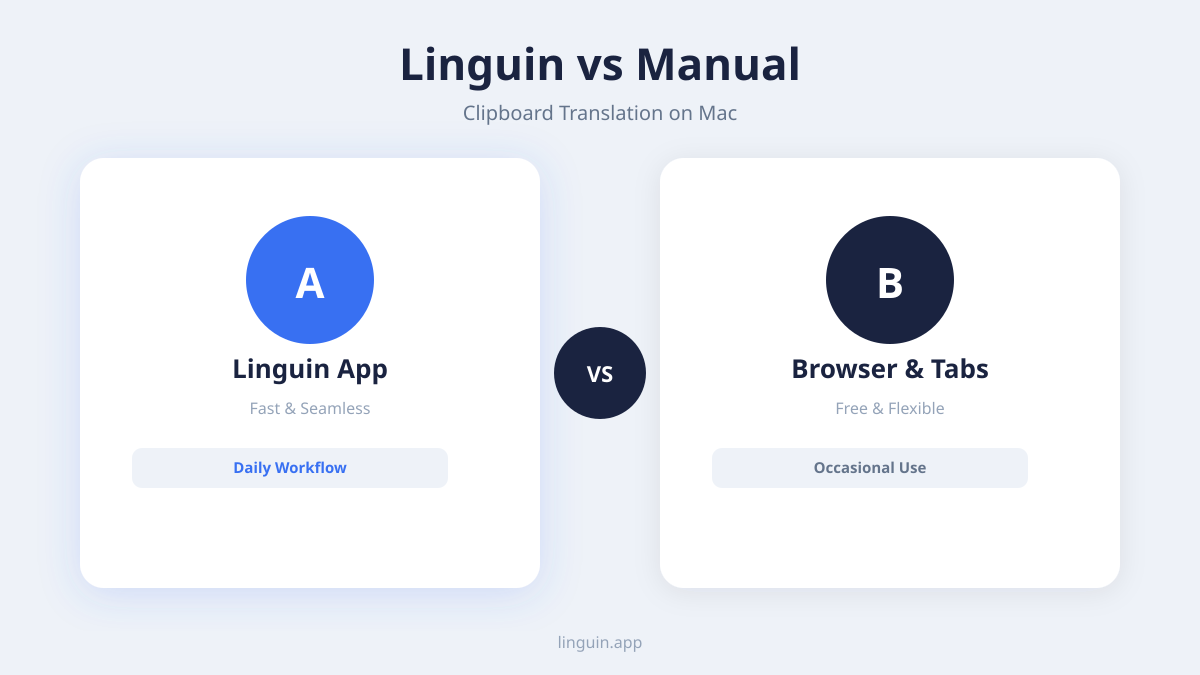
Standalone Translation Apps: These are dedicated applications installed on your Mac. They are the most powerful option for serious users. A top-tier app like Linguin gives you one shortcut, Option+Space, to open the app window from anywhere and paste text in, plus a menu bar icon for one-click access. It uses Google Translate for the free Standard style and a hosted AI model for paid styles that produce natural-sounding, tone-aware translations across 100+ languages. The primary advantage is control and consistency: a clean interface, translation history, custom dictionary, and voice output on the paid plan. There’s no offline mode, so an internet connection is required. These apps are designed as everyday tools, making them ideal for business users, academics, and anyone who relies on accurate translation daily.
Browser Extension Translators: Extensions for Chrome and, on Mac, Safari can also translate text right on a web page. After installing the extension, right-click on selected text and choose “Translate with Linguin” from the context menu. The benefit is deep integration with web content, you never leave the page. If you do most of your work inside a browser, this can be a lightweight solution. However, the functionality is confined to that browser: it can’t translate text you copy from a native Mac app like Mail, Messages, or Preview unless you first paste it into a browser tab, and the Safari extension has no voice or offline features. For a focused look at this category, see our review of the best translation Chrome extensions.
Online Translation Portals: Websites like DeepL, Google Translate, and others are the most universally known tools. You can manually copy text, open the website, paste, and view the result. Some even offer a “Translate on the go” feature via a bookmarklet. While universally accessible and often free, this method is the least efficient for a clipboard translation workflow. It requires constant tab switching and manual copying. The translation quality can be high, but the process breaks your workflow. It’s a viable option for very occasional use but not for a streamlined Mac productivity system.
When choosing a tool, consider these factors:
- Speed: How quickly does the translation appear after you trigger it?
- Accuracy: Does it use modern AI models for context-aware results?
- Languages: Does it support all the language pairs you need?
- Integration: Does it work system-wide or only in specific apps?
- Cost: Is it a one-time purchase, subscription, or free with limits?
For most Mac users who value a seamless workflow, a dedicated system-wide application provides the best balance of power, speed, and convenience, turning your Mac into a truly multilingual device.
Practical use cases and advanced workflows
Translating your clipboard is not just about understanding foreign text, it unlocks advanced workflows that boost productivity across various domains. Seeing how it applies in real scenarios clarifies its transformative potential.
Academic and Research Work: A researcher analyzing papers from international journals can instantly translate key passages. Instead of struggling through dense academic prose in a second language, they copy a complex methodological paragraph, translate it, and paste the clear English version into their notes. This allows for faster literature reviews and more accurate comprehension of source material. Similarly, a student studying primary sources in another language can translate quotes directly into their essay draft, ensuring they correctly interpret the material before citing it.
Business and Professional Communication: Imagine a customer support agent receiving a detailed technical problem description in German. They copy the user’s email text, translate it in seconds, understand the issue, and can then draft a precise reply. They write the reply in English, use the app to translate it back to German, and paste the polished response. This cycle maintains clarity and respect without requiring fluency in the customer’s language. For professionals in finance, law, or consulting, this means being able to review contracts, reports, or market analyses from any region instantly.
Creative and Localization Tasks: A developer working on an app can copy UI strings from the codebase and translate them to check for internationalization issues. A content creator can translate viewer comments on a video from multiple languages to engage with a global audience. A novelist researching for a book set in Paris could copy historical French documents and translate snippets for authentic detail. In each case, the translation is a tool for creation and connection, not just passive consumption.
To make these workflows less repetitive, lean on the features already built into Linguin rather than external automation tools: save recurring terms and preferred replacements in the custom dictionary, keep a default target language and style set so you don’t reconfigure them each time, and use translation history to revisit a passage you translated earlier without redoing the work.
Combined, these habits make translate clipboard Mac a fast, repeatable part of a multilingual workspace, even without any third-party automation layer.
Improving accuracy and handling complex text
The quality of your clipboard translation directly impacts the usefulness of the result. While AI models are impressive, you can take steps to ensure you get the best possible output, especially with tricky source material.
First, provide context when possible. AI translation models are trained on vast amounts of text, and their performance improves with context. If you are translating a standalone sentence that is ambiguous, the model might guess wrong. For example, the word “bank” could mean a financial institution or the side of a river. If you can copy a slightly larger passage that includes clarifying information, the AI is more likely to choose the correct meaning. Some translation apps allow you to view and edit the text before translating, letting you add a clarifying note in brackets, like “[financial] bank.”
Second, be aware of text formatting. When you copy text from a PDF, website, or formatted document, invisible formatting characters can sometimes be included. These can confuse the translation engine, resulting in garbled output. Many dedicated translation apps have a “Paste as plain text” option or automatically strip formatting when reading the clipboard. If you encounter odd results, try first pasting the copied text into a plain text editor like TextEdit (in plain text mode) to clean it, then copy from there and translate.
Third, understand the limitations of idiomatic and cultural expressions. Proverbs, jokes, and marketing slogans often do not translate literally. A good AI translator will attempt to find an equivalent expression in the target language. For instance, the French idiom “Poser un lapin” (literally “to put a rabbit”) means “to stand someone up.” A modern AI model should output the correct idiomatic meaning. However, for highly creative or niche slang, you may need to do a second pass or manually adjust the result. This is where the ability to edit the translation within the app becomes invaluable.
For specialized domains like legal, medical, or technical writing, consider the following:
- Some translation services offer domain-specific models (e.g., for law or IT). Check if your chosen tool provides this.
- For critical documents, use the translation as a rough draft or for comprehension, but have a human expert review the final version.
- Break down very long or complex documents into smaller, logical chunks for translation to maintain coherence.
Ultimately, treat the AI translator as a highly skilled assistant. The output is a starting point. By learning its strengths, like handling context as discussed in our article on AI translation accuracy, and knowing how to guide it with clearer source text, you collaborate with the technology to achieve results that are both fast and reliable.
Frequently asked questions
How do I translate copied text on a Mac?
Copy the text, then press Option+Space to open Linguin from anywhere on macOS. Paste the copied text (Cmd+V) into the input field and pick your target language. The translation appears in the app window, ready to copy out and paste wherever you need it.
Is it safe to translate sensitive text from my clipboard?
Avoid pasting highly confidential material (passwords, account numbers, medical record details) into any online translation tool, including Linguin. Everyday business and personal text is reasonably safe to translate through a reputable app with encrypted connections to its translation providers, but there’s no offline or on-device mode, so text does leave your Mac to be translated.
Can I translate text from an image or PDF?
Not directly. Linguin translates text you type or paste, it doesn’t read images, scans, or PDF files. If the text you need only exists as an image, use macOS’s own Live Text feature (in Preview or Quick Look) to select and copy it first, then paste that text into Linguin.
Why isn’t the Option+Space shortcut working?
Make sure Linguin is running (check for its icon in the menu bar) and that no other app is intercepting the same Option+Space combination. The shortcut only opens or closes the app window, it can’t currently be reassigned to a different key combination.
Getting started with Linguin
Translating your clipboard on a Mac transforms how you interact with information, breaking down language barriers directly within your workflow. The key is to move beyond manual methods and browser tabs to a system-wide solution that is fast, accurate, and reliable. By choosing a dedicated tool, learning its single Option+Space shortcut, and understanding how to handle complex text, you can make multilingual comprehension a fast, repeatable part of your digital life.
Sometimes the text you need translated is trapped inside an image rather than sitting in the clipboard, and our guide on how to translate images with text covers grabbing and translating that text across devices.
The next step is to experience the difference a streamlined workflow makes. Download a translation app designed for macOS, like Linguin, sign in, and set your preferred target language. Then, try it the next time you encounter a foreign phrase in an email, on a website, or in a document: copy the text, press Option+Space, paste, and read. That short, repeatable sequence is the true power of mastering translate clipboard Mac techniques.


-vs-translator.png)